Add PDF Into Sheet
In CELF, PDF files can be Uploaded or otherwise inserted into a sheet.
Attention
- CELF Runtime Environment (Curl) version 8.0.15 or later
- Microsoft Edge WebView2 Runtime is installed
Upload PDF File
- Open the 'Application management' tab in "Manage" screen, and then click the application record to upload a PDF file.
Tip
The uploaded files can be referenced within the application.
- Click 'Upload' button in the sheet list screen, and then open 'Manage Upload file' view.
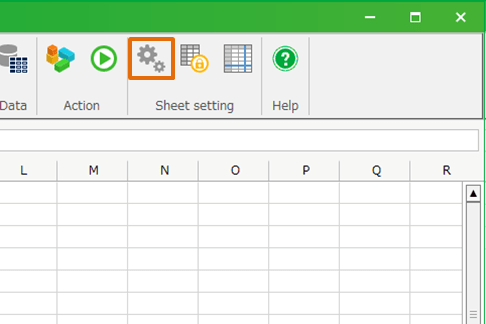
- Click '+File Upload' button in 'Manage Upload file' view.
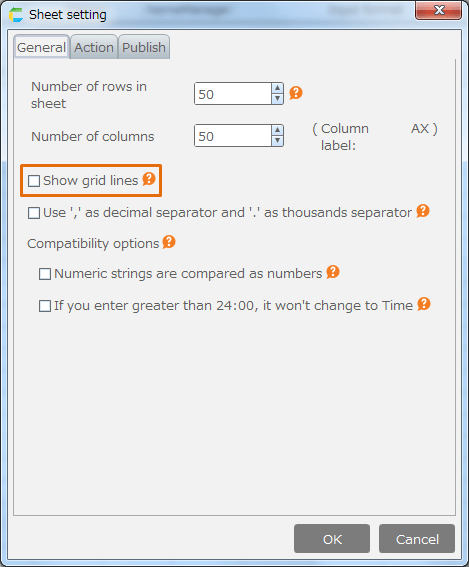
- Select the PDF file to upload.
Attention
- Only PDF files are supported.
- Maximum file size to be uploaded is 20MB.
Add PDF Into Sheet
- Open the sheet to add a PDF.
- Select the cell where you want to insert the PDF, and then click 'File' button in 'Input format' in ribbon menu.
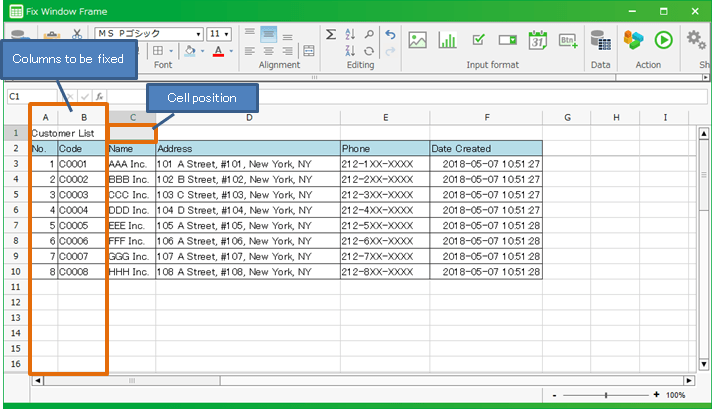
- Set the PDF file to insert in the 'PDF' tab of the 'File selection' dialog.
[1] 'Display an uploaded PDF'
The list of PDF files uploaded to this application is displayed. Select the PDF file to display.[2] 'Specify the PDF path or URL'
Enter a file path or URL directly. For local files, you can also select a PDF file using the browse button.[3] 'Display Method'
Select the PDF display method from the following options.
Option Description Display at actual size Displays the PDF at actual size (100%). (Default) Fit 1 page to cell Displays one page of the PDF fitted within the cell. Fit 1 page to cell width Displays one page of the PDF with its width adjusted to the cell width. Fit 1 page to cell height Displays one page of the PDF with its height adjusted to the cell height. [4] 'OK' button
Insert the PDF into the cell.
- Click 'OK' button.
Tip
- Place the mouse pointer over the cell displaying a PDF and use Ctrl + mouse wheel to zoom in and out.
- Click the 'Redisplay' button in the upper right of the cell displaying a PDF to return the PDF display to its initial state.
Tip
- The result of inserting a PDF with the 'Display Method' option specified is as follows.
- Other Methods for Displaying PDFs
As another way to display a PDF other than the PDF function, you can also use the action 'Open a specified URL or file'.With this method, you can open a PDF in an external browser by specifying the URL or path of the PDF file.
Restrictions on Cells Displaying PDF
The following restrictions apply to cells displaying a PDF.
Key Operations
When you click a cell displaying a PDF, arrow key operations switch from cell navigation to scrolling within the PDF.To use the arrow keys for cell navigation again, click a cell outside the PDF.Right-click Menu
The right-click menu cannot be used in a cell displaying a PDF.
Display While Editing Formulas in Other Cells
When another cell is set to edit mode for entering a formula, the PDF is temporarily hidden.
Excel Export
When a CELF sheet that displays a PDF is exported to an Excel file, the CELF-specific PDF function cannot be recognized by Excel, and #NAME? will appear in the cell.
Print / Print Preview
In Print and Print Preview, the first page of the PDF is displayed as an image fitted to the cell (display method: 'Fit 1 page to cell').
Thumbnail When Publishing Application
When the thumbnail is set to 'Use the screenshot of start sheet' in Application Publication Settings, the PDF is not displayed in the thumbnail; instead, the file name is displayed.
PDF Display Position Shift
When scrolling or zooming in/out on the sheet, the PDF may be displayed outside the sheet boundaries.In such cases, clicking the cell displaying the PDF or scrolling the sheet will correctly update the display.
Other Notes
Notes on Performance
With the PDF function, the larger the file size and the more PDFs displayed simultaneously, the greater the processing time and memory consumption when opening the sheet.In particular, increased memory consumption can put pressure on the PC’s memory and may cause memory errors.When using large PDF files or displaying many PDFs simultaneously, please take the impact on performance fully into consideration before doing so.