Upload files
In CELF, you can upload and attach files. Regarding attachemnts, you can add as image or download from action like Add Image into sheet, or Upload, download and delete file from action.
Upload files
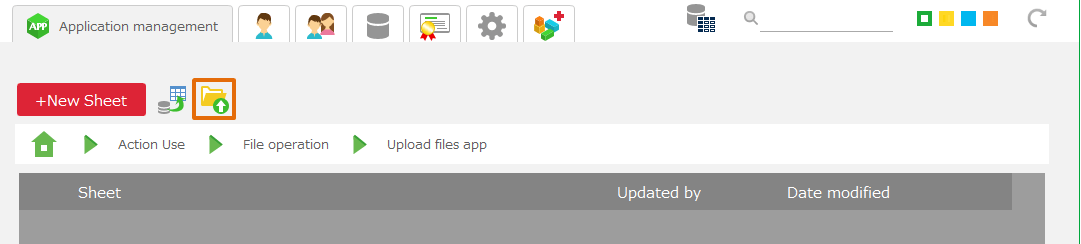
- Open 'Sheet list' in 'Application management' in "Manage" screen.
- Click 'Upload' button in 'Sheet list' screen, then open 'Upload file management' view.
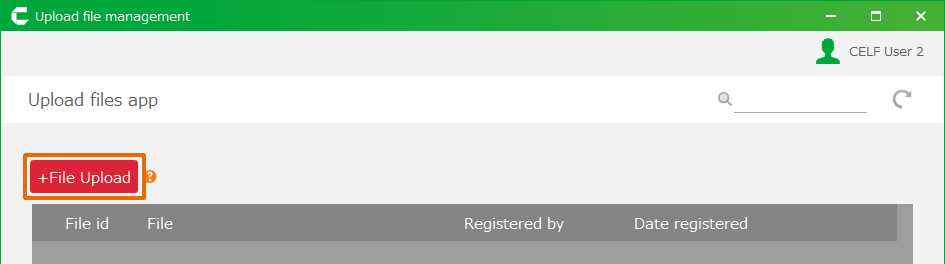
- Click '+File Upload' button in 'Upload file management' view.
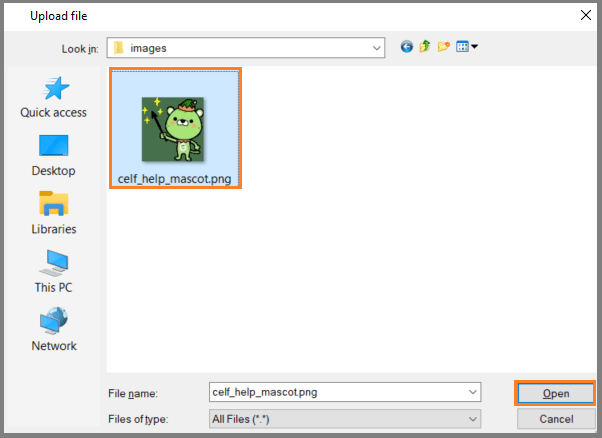
- Choose a file to upload.
Tip
- After completing to upload, Management ID is assigned and displayed in the list.
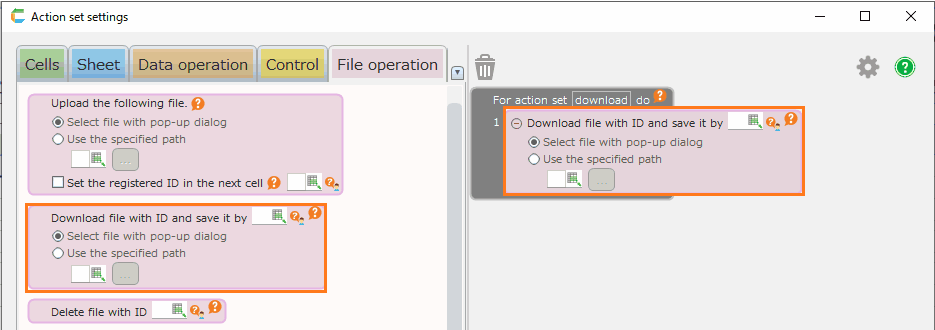
- This ID is used for downloading or deleting file from action.
Note
- Uploaded file can be used only in the application. The file is not allowed to be used from other applications.
- The maximum file size to be able to upload is 20mb.
- If file with the same name is uploaded, it is not overridden but registered as another file.
Delete file
To delete the uploaded file, click the 'Trash' button at the far right of the file list in the 'Upload file management' view.
Update (Override) file
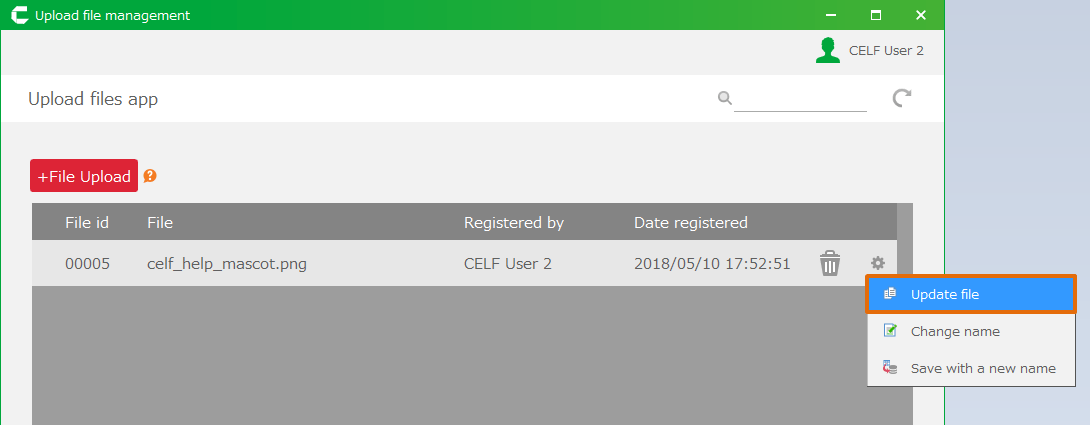
- If uploaded file is updated (overridden), click 'Gear' button on the right side in the file list of 'Upload file management' view.
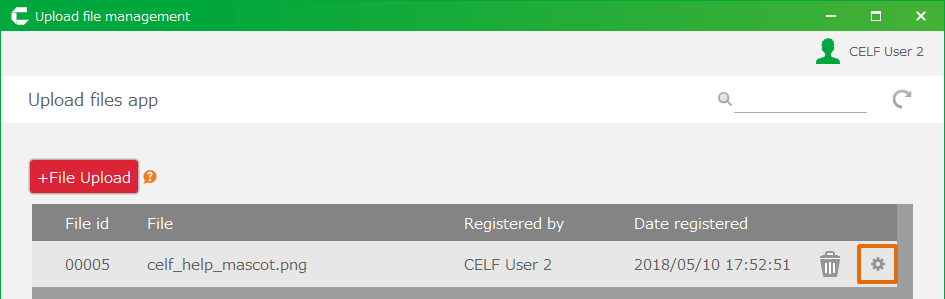
- From menu, choose 'Update file' and then upload new file.
Change name
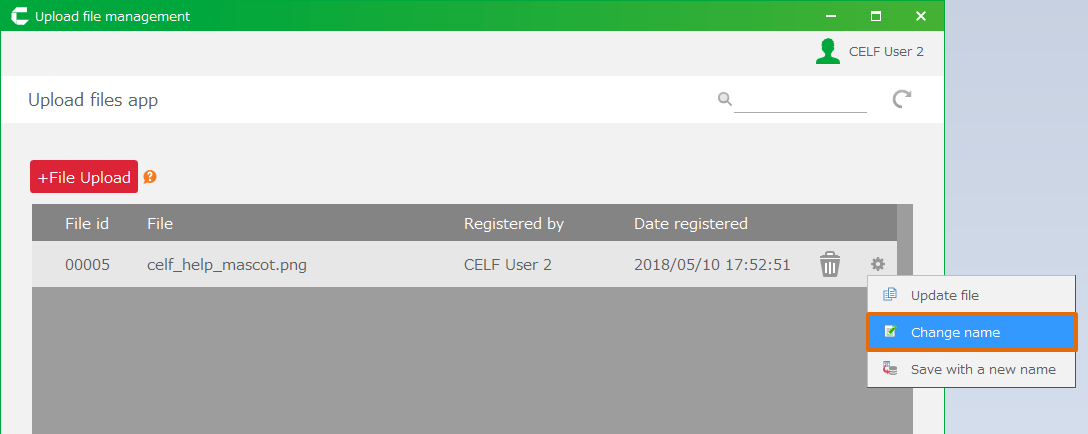
- If you need to change file name which you uploaded, click 'Gear' button on the right side in the file list of 'Upload file management' view.
- From menu, choose 'Change name' and input new file name.
Download file
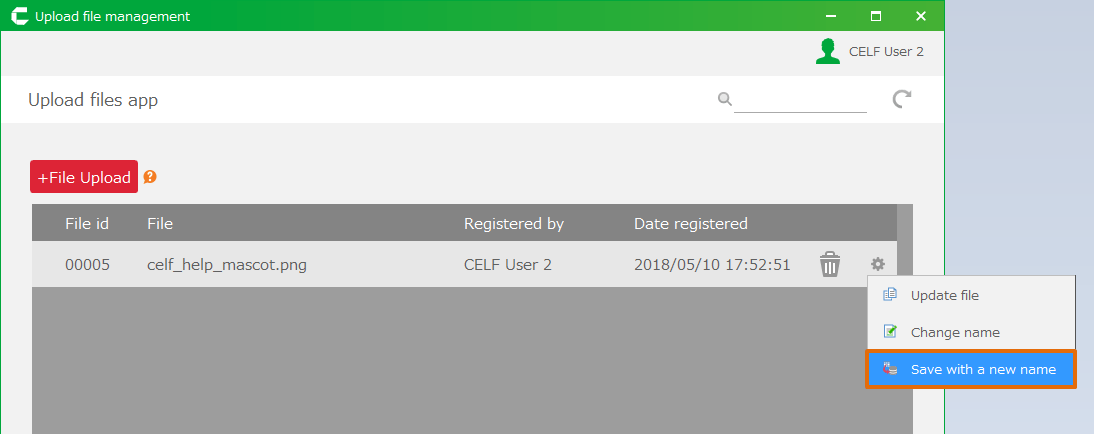
- If you need to download uploaded file, click 'Gear' button on the right side in the file list of 'Upload file management' view.
- From menu, choose 'Save with a new name' and download the file.
Tip
You can download by double clicking file record in file list as well.
Important
To upload files, users require the following permissions.
- Application author
And also, Application author needs permission to the application as following.
Function Necessary permission Upload Edit Upload file Edit Change name Edit Delete Edit Download Read

Related keywords
image