Upload, download and delete file from action
You can upload, download and delete file from action by using File operation action.
Upload file from action
- Open 'Action set setting' dialog.
- Drag 'Upload file' action in 'File operation' tab, and then set into edit area.
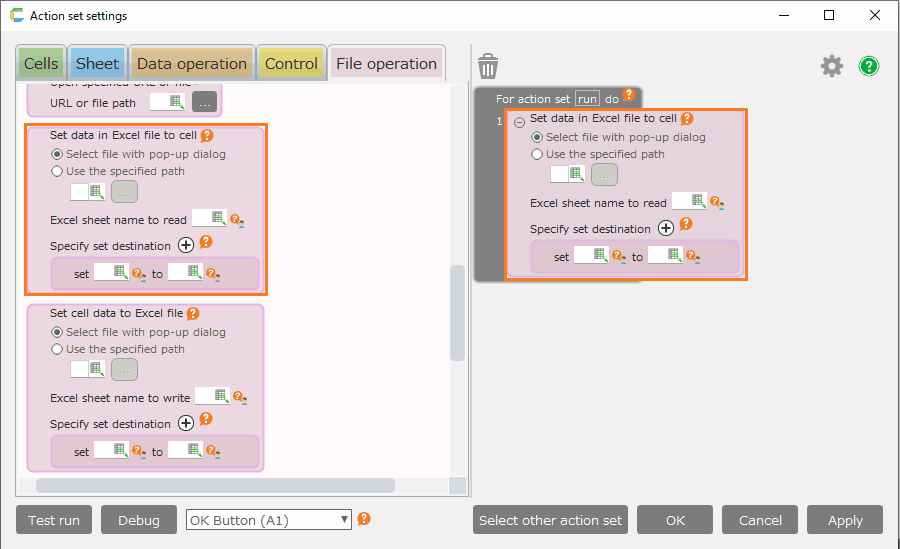
- Select the way to set uploading file.
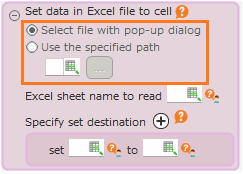
- If you select file by popup at action set execution, select 'Select file with pop-up dialog'.
- If you select file with full path, select 'Use the specified path'.
- If you check 'Set the registered ID in the next cell', auto-assigned ID is set in the cell of uploaded file.
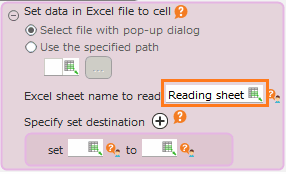
- Click 'OK' button.
Attention
For 'Use specified path', you must specify the full path of the folder name + file name.
Note
The maximum file size to be able to upload is 20mb.
Download file from action
- Open 'Action set setting' dialog.
- Drag 'Download file' action in 'File operation' tab, and then set into edit area.
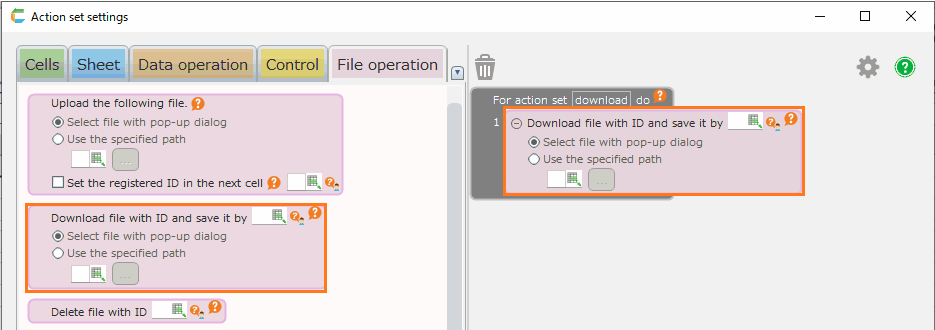
- Set the 'ID' for file ID to download.
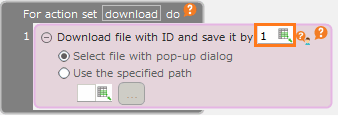
- Choose the setting to download file.
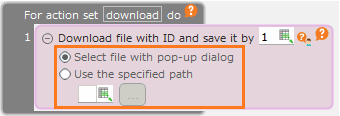
- If you select file by popup at action set execution, select 'Select file with pop-up dialog'.
- If you select file with full path, select 'Use the specified path'.
- Click 'OK' button.
Attention
- For 'Use specified path', you must specify the full path of the folder name + file name.
- If there is already file to be set in full path, the file is overridden.
Delete file from action
- Open 'Action set setting' dialog.
- Drag 'Delete file' action in 'File operation' tab, and then set into edit area.
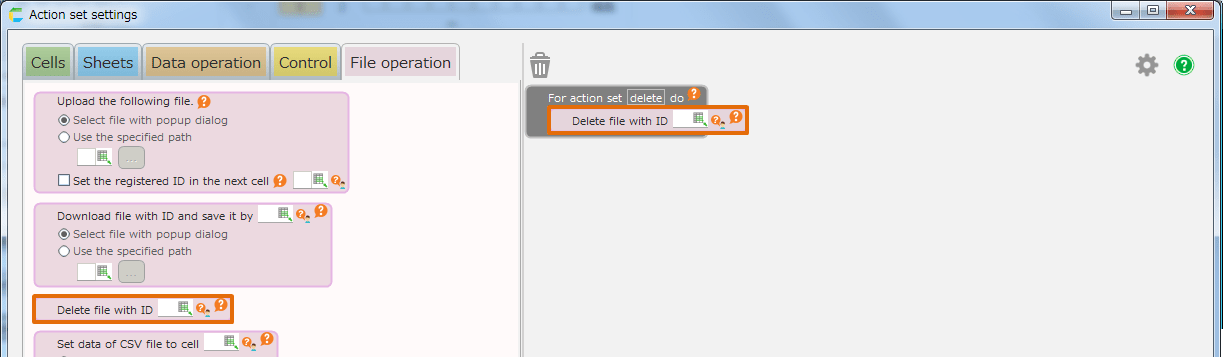
- Set the 'ID' for file ID to delete.
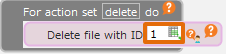
- Click 'OK' button.
Related keywords
image