Open File dialog
Open the File dialog and set the cell to the path of the file you selected on dialog.
Open File dialog
- Open 'Action set setting' dialog.
- Drag ‘Open File dialog’ action in ‘File operation’ tab, and then set into edit area.
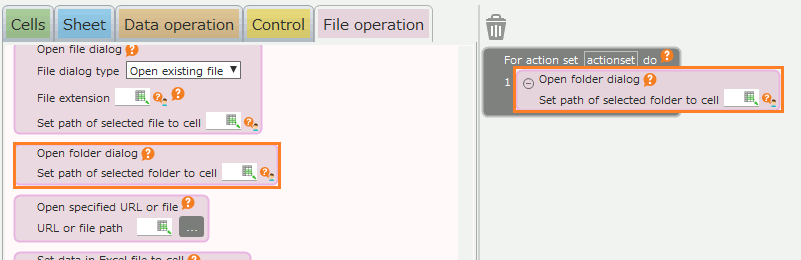
- Specify the type of file you want to select in the dialog in ‘File dialog type‘.
- Open existing file: Select a file that already exists.
- Create new file: Select the file to be newly created.

- Specify file extension you want to select in the dialog in ‘File extension‘.
Tip
- If there are multiple target extensions, specify them separated by commas. (Example: xlsx,xls)
- If left blank, all files with all extensions will be able to selected.
- Specify the cell to set the path of the selected file in the dialog.
- Click 'OK' button.
Tip
If you click the 'Cancel' button in the file dialog when executing an action, the file path will not be set.