Contact Us
Before contacting us
We provide a list of Frequently asked questions and their answers. Please check this before making an inquiry.
For any questions or specific usage inquiries about CELF, feel free to use the CELF Community(Japanese). You can ask anonymously and typically receive answers from other CELF users or CELF partner companies within a few hours. You can also browse various past questions and answers.
Contact support center
If you are using Japan CELF Cloud service, see Help Desk Support(Japanese) for support center business days and hours and how to contact us. If you are not using Japan CELF Cloud, please contact your CELF distributor for details.
For inquiries regarding system failures
When sending the query, please includes the followings
- Error detail
- Exported file from the application which has the system error
- The situation at the occurrence and the procedure to recreate
The way to get the error detail
The case 'System Error' dialog appeared, get the detail information as follows
- Click 'Details' button in 'System Error' dialog.
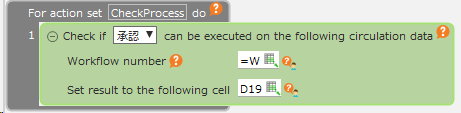
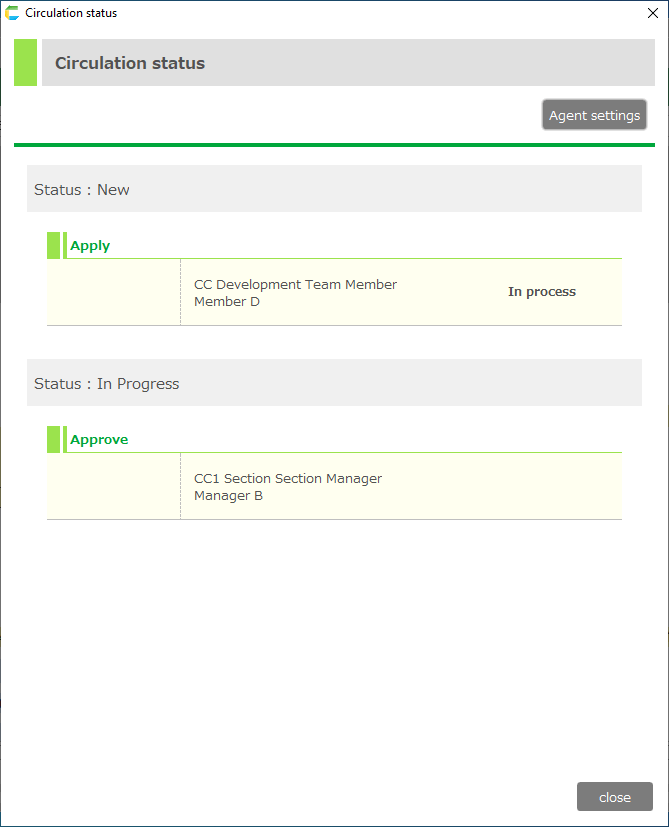
- Copy the contents of 'Error Detail', paste into the text editor application and save it.
Tip
You can select all by the pressing 'Ctrl+A' shortcut key on the keyboard.
The case 'Unexpected applet exception' dialog was displayed, get the detail information as follows.
- Click 'Details' button in 'Unexpected applet exception' dialog.
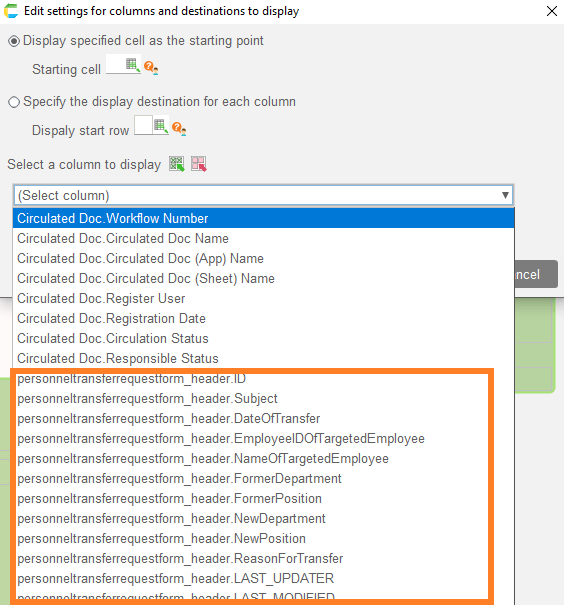
- Click 'Copy Report to Clipboard' button in 'Error Report Contents' dialog, paste into the text editor application and save it
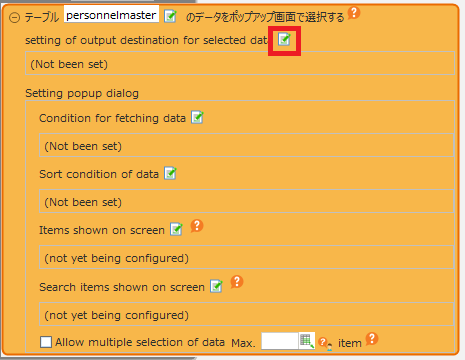
The way to export the data from the application which has the system error
The case the system error appeared in the created application, or the case you need to give the poorly-reproducible application to the support team, export the application as follows.
- Open 'Application Management' tab in the console screen.
- Select the appropriate application record, right click, and then select 'Export' menu.'
- Select the output location for the export file (.capp).
Important
Attach with the saved information file or exported file at the inquiry, then the support can be proceeded smoothly,

Related keywords
QA, sales, business, support, assistance