Publish the application
Make application settings for publication
- Open 'Application management' tab in "Manage" screen.
- Right click on the application record to publish, then choose 'Publication setting' menu.

- Set the application publication setting in 'Application settings for publication' dialog.
'Application settings for publication' dialog is organised by following 3 tabs and you can set each of them.
- 'General' tab
- 'other' tab
- 'Table switching'
Tip
In a distributable app created by importing a 'Distributable CELF application file (.dcapp)', the 'Table switching' tab is hidden and cannot be configured.
'Basic Setting'
[1] 'Application Icon' button
Click 'Application Icon' button, then choose the application icon to publish.
[2] 'Publish as a Sub app' check button
Check this button to publish as the sub application.
See also
Regarding tne sub application, refer Use other application sheet as generic parts.
[3] Start sheet
Click the field next to 'Starting Sheet' or 'Select sheet' button on the right side, then select the sheet to display initially when the application was opened.
[4] Thumbnail
You can select a thumbnail for this app to be displayed on the published applications screen. You can choose from the following three types of thumbnails.
Start sheet screenshot
Set a screenshot of the start sheet as the thumbnail.
Sample images
You can select and set a thumbnail from predefined sample images.
Use my image file
You can set your own uploaded file as the thumbnail. The aspect ratio is fixed at 4:3, and the uploaded image will be scaled to fit that size.
Important
For the user uploaded image, the file must meet the following requirements.
- The file extension must be gif, jpeg, or png.
- The file size must be within 1MB (* Large file size could affect performance of your app.)
[5] Publication Scope
Choose 'Publish to all' or 'Select target group(s) to publish to' or 'Publish to only the application auther (Owner)'.If you want to regulate the publication to the limited group, choose 'Select target group(s) to publish to'.When you publish to only the application auther (Owner), the published application is displayed only to the auther (the user displayed to the owner of the application list screen) and the user with the system administrator authority.Note
Users who were allowed only private publication can only select ‘Publish to only the application auther (Owner)’.
other
[1] Comment
Set the comment to the publised application. The setting is not mandatory.[2] App Link URL
You can start the application from the browser with this URL.The URL scheme can be selected from curl and http.curl schme : URL using the curl scheme. Activate CELF directly.http scheme : It is a URL using the http scheme. Launch CELF via the startup web page.See also
Regarding the application link to startup, refer Launch App Using URL.
Table Switch Setting
'Table Switch Setting' tab is the setting to switch the enable table at the test or publication automatically. This setting is not mandatory.In a distributable app created by importing a 'Distributable CELF application file (.dcapp)' , the 'Table switching' tab is hidden.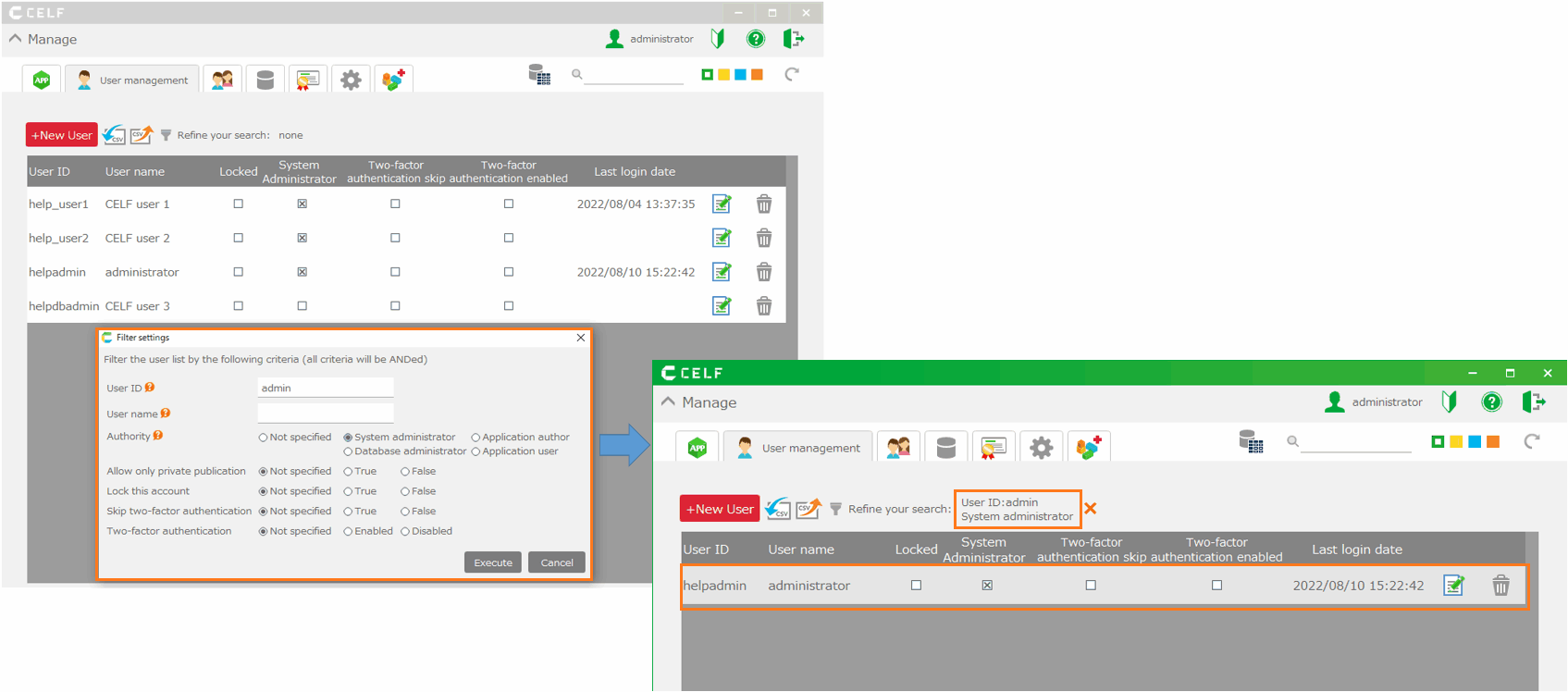
See also
Regarding the table switch, refer Switch tables
Publish the application
- Click 'Publish' button on the application record to publish.
Important
To publish applications, users require the following permissions.
- Application author
And also, you need the permission to the applpication as follows.
- Administrtor
Regarding the permission for the application edit, check Set the permission for the application edit.

Related keywords
release, publication, unrelease