Launch Application Using URL
From web site link, you can start application which is published in CELF.
Get Application URL
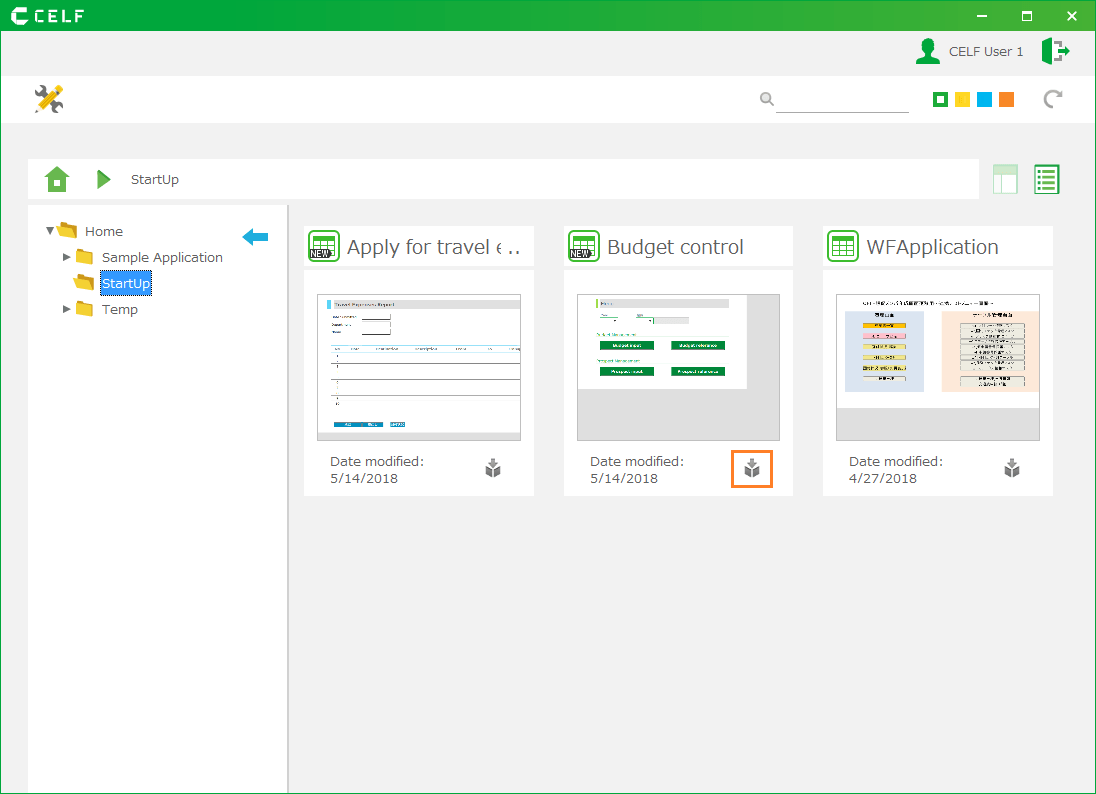
- Open 'Application management' tab in "Manage" screen.
- From application list, select application to get URL, and then select 'Publication setting' menu from right click menu.
- Open 'other' tab in 'Publication setting' dialog.
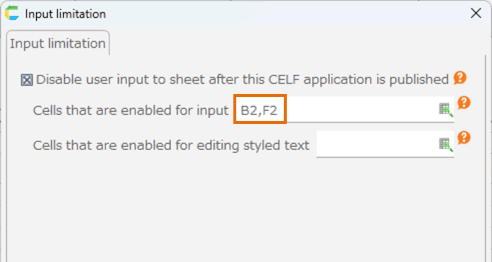
- Click 'Copy to clipboard' button and then copy displayed application link.
Tip
Set Parameter
CELF can set below parameter into application URL.
Srating Target
This is parameter to set starting target.
Parameter Contents app_id Starting application ID (higher priority than app_name) app_name Starting application name
Authentication information
These are the authentication parameters. If all information is set, it is possible to login.
Parameter Contents password Password (It is mandatory to set company and user at the same time)
Please do not use with the http scheme. (See attention below for details)commpany Company ID (if starting application is already logged in another enviro0nment, error is handled.) user User ID (if starting application is already logged in another environment, error is handled.) Attention
Don’t specify the password parameter with the http scheme because it is sent over the network as plain text.(It is safe with the curl scheme because the parameters are not sent over the network.)
Other
Parameter Contents show_main_view whether application list screen is displayed as well as application starting (True or false is set. Default is false.) cell_xx Input value for address setting at starting (xx is to set cell address.) close Whether to automatically close the startup page when starting from the URL of the http scheme (Only when 0 is specified, the start page remains without closing, otherwise it closes automatically.)
Tip
Attention
Access To URL
Access to URL selected in Get Application URL.
Tip
- If you accessed to URL without CELF starting, login screen is displayed, and application starts after login. Application starts without login screen at the time of logged in or remained login session even if CELF is not starting.
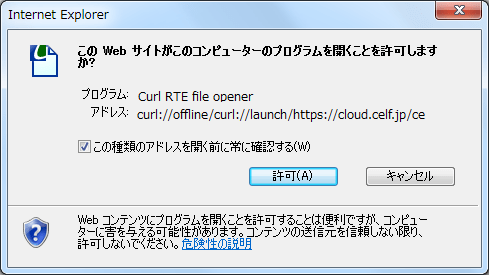
- When accessing with the URL of the http scheme, a dialog prompting to launch a program called Curl or Curl RTE file opner is displayed, so please permit execution. The content of the dialog depends on the type of browser.
Attention
Unpublished application can’t be launched.
It can not be started if CELF is not installed.
- If it contains symbols such as '@ (at sign)' or '# (sharp)', URL encoding is required, such as '% 40' or '% 23'.For example,
 in the case of,
 It becomes.If you search for keywords such as 'URL encoding' on the Internet, the conversion tool will hit. Please use them to encode.
 If the system administrator has set the two-factor authentication settings to 'Available' or 'Forced use', you will be asked to perform two-factor authentication or enable two-factor authentication (if you have not enabled it in the 'Forced use' setting) when accessing the URL. If you want to skip these processes, please exclude the two-factor authentication of the corresponding user. Please refer to Exclude two-factor authentication for exclusion of two-factor authentication.
- If you can not connect to the server (offline), CELF can not be launched with the URL of the http scheme.
- Depending on the browser, an empty page may remain after CELF is launched. In that case please close the empty page manually.
- Depending on the browser, the start confirmation dialog may be closed automatically. In such a case, you can prevent the dialog from closing automatically by specifying "close = 0" in the URL.
- When "close = 0" is supplied in the URL, the start confirmation dialog may not be displayed. In such a case, you can display the dialog by reloading the start page (pressing the F5 key)