Paging
Paging is a method of limiting the amount of data displayed on one screen and separating the data for each page.
You can expect improved performance by reducing the amount of data displayed at one time.
This section explains how to realize paging.
As an example, I will explain while creating an application that performs paging.
Create a table
First, create the following table.
m_city
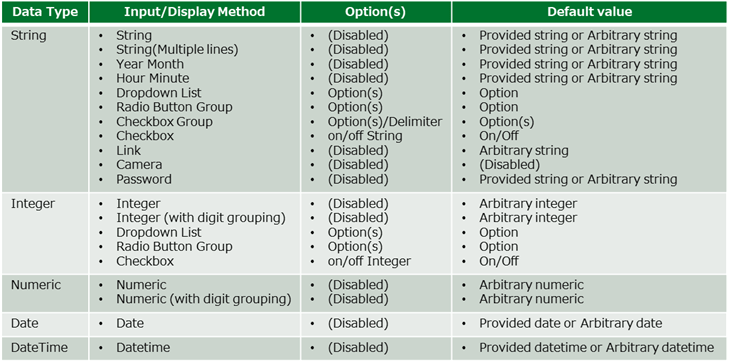
Column Data type city_code String city_name String prefectures String classification String population Integer changes Integer rate_of_changes Number(with decimal point)
Create a layout
Create a sheet with the following layout.
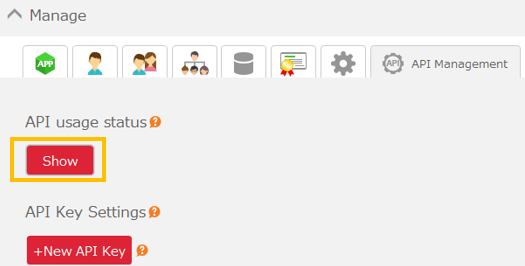
In this sheet, data that matches the search condition (prefecture, classification) when search button is pressed is searched from "m_city".
Matching data is displayed in ascending order of "city code", and 15 records are displayed per page.
Also, pressing the "<Prev" button displays the previous 15 records, and pressing the "Next>" button will display the next 15 records.
Set values for control
Set values and list contents to be used for search processing and paging processing as follows.

[1] Current page
It holds the page currently being displayed. Set 1 as the initial value.
[2] Rows per page
It holds the number of records to display per page. In this example, we set 15 to display 15 records per page.
[3] Start position to get
It is the value that becomes the start position to get in the data displayed on the current page.
This value is determined by "Current page" and "Start position to get". In this example, set the following expression.
=([Current page]-1)*[Start position to get]+1 (In this example, set "=(P2-1)*P3+1".)
[4] Prefectures
Set the contents of the prefecture list of search conditions.
[5] Classification
Sets the contents of the classification list of the search condition.
Create an action set
Create "search" action set
Create an action set to get only the data of "Current page" out of data matching the search condition.
Create as follows.
- Place an action to clear the last search result.
- Place "Get multiple records from table" action. Set each item as follows.
Table to be get - Specify "m_city".
Columns and display destination - Depending on the layout, specify the starting point cell and the column to display.
Search condition - Specify the selection value of the prefecture list (E5 cell) and the classification list (H5 cell) as condition.
Sort condition - Specify to be in ascending order of "city_code".
Start position of records to get - Specify the control value "Start position to get" (P4 cell).
Limit number of records to get - Since the number of records displayed on one page is the limit number to get, specify the control value "Rows per page" (P3 cell).
See also
For details on how to get multiple records, see Get Multiple Data From Table.
Create "next" action set
Create an action set to get records for the next page.
Create as follows.
- Count up "Current page".
- Call the "search" action set. In the "search" action set, you will get the records of "Current page". Therefore, by counting up the value, you get the records of the next page.
Create "prev" action set
Create an action set to get records for the previous page.
Create as follows.
- Countdown "Current page". If it is 1 or less, set it to 1.
- Call the "search" action set. In the "search" action set, you will get the records of "Current page". Therefore, by counting down the value, you get the records of the previous page.
Run the application
- When you search, only 15 records matching the conditions will be displayed.
- When you press the "Next>" button, the next 15 records will be displayed.
- When you press the "<Prev" button, the previous 15 records will be displayed.