Dynamically Add Buttons
Get Data
- Create action set to get data like this. Here is setting to be executed at sheet displaying.
Set 'Details' button along with data count.
Set 'Details' button along with data count got by created action in Get Data.
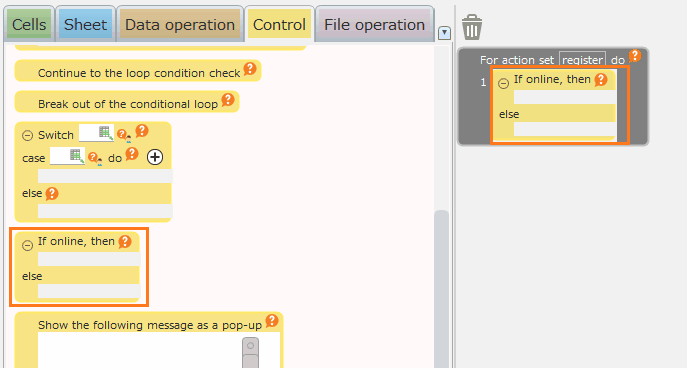
- Create a 'Details' button.
- Copy formula of the created 'details' button.

- Add the following action to action created by Get Data.
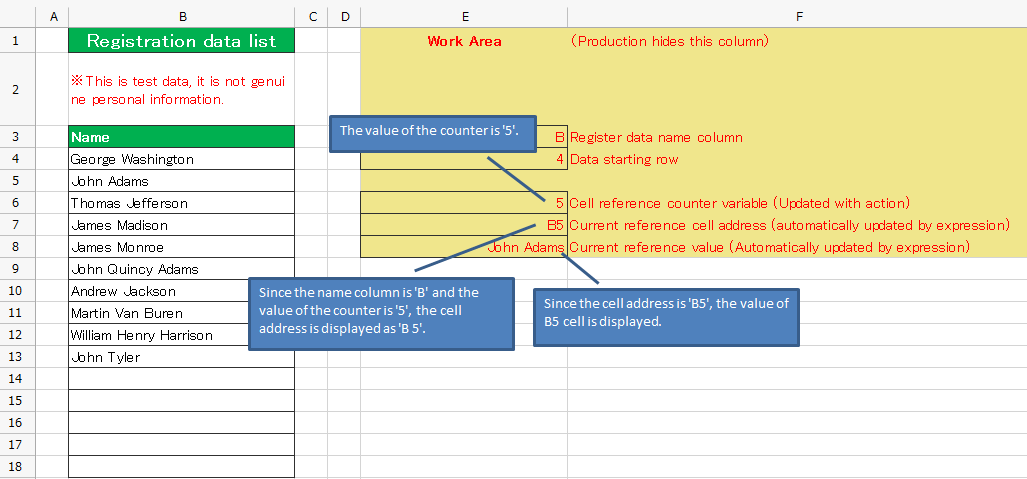
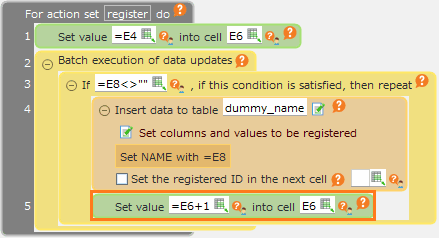
- Action to set 'Row to set button' into cell.
- Loop action to 'Set button along with data count into cell'.
As the condition of loop function, refer cell of row to set button, set 'Up to end value of cell set by data getting' condition by INDIRECT function.
Tip
There is a utility (UTIL.CELLV function) to get the cell value by specifying the row number and column number (number or column name) in CELF.You can also use the UTIL.CELLV function to reference a cell as follows.
- Add action to set button in loop action created in No.3.
- Action to set 'Button formula' into cell (formula of 'Details' button copied in No.2)
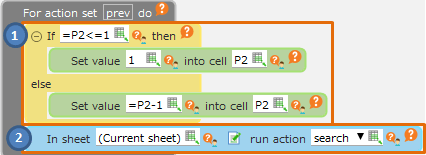
- Action to add 1 count into cell to set 'Row to set button'.
Hint
If you want to set a formula in an action, enclose the whole in "(double quotes) and specify it in the form " ="formula" ". To include "(double quote) in the character string, it is necessary to describe two "(double quotes) consecutively, such as "".
See also
How to dynamically set formulas like SUM, VLOOKUP, COUNTIF etc, refer Set formulas in action
- Run the test and Check button to be set along with data count.
Set action of 'Details' button.
- Get a record data of the selected ID(Column B) where the button was clicked, and set the data into the cells(Column I)
See also
Regarding the way to get clicked button row, refer Get Current Row Column.
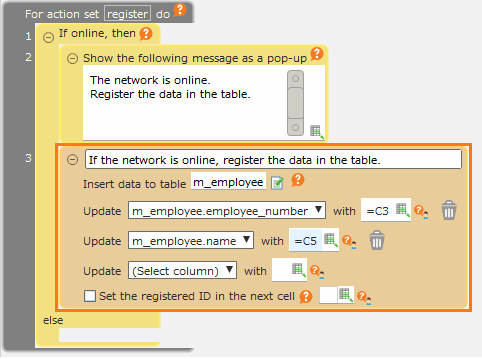
- Create the action to display the data in the pop-up message.

Hide Management Cells
Hide the columns for the manegement cells.
Tip
When run the sheet, the data and the buttons will be displayed, and the pop-up message with the detail data will be opened by clicking Detail button.
Related keywords
Control, list, check buttons, BUTTON, LIST, CHECK