Create Sheet from Excel File
You can create the sheet by importing the Excel file.
Create Layout From Excel File
- Open 'Application management' tab in "Manage" screen.
- Open the sheet list to create, click '+New Sheet' button then 'Create a sheet from Excel file'.
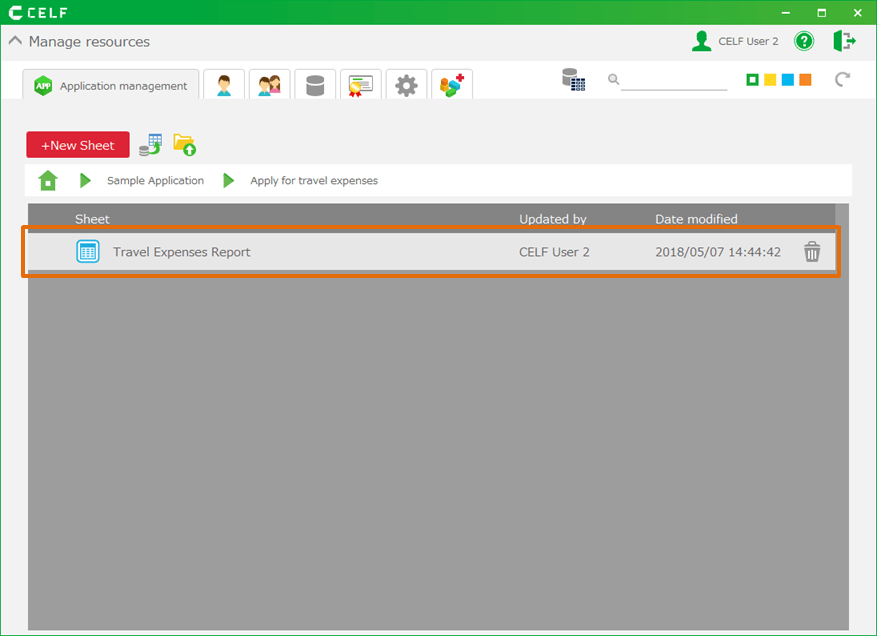
- Choose the Excel file (.xlsx or .xlsm).
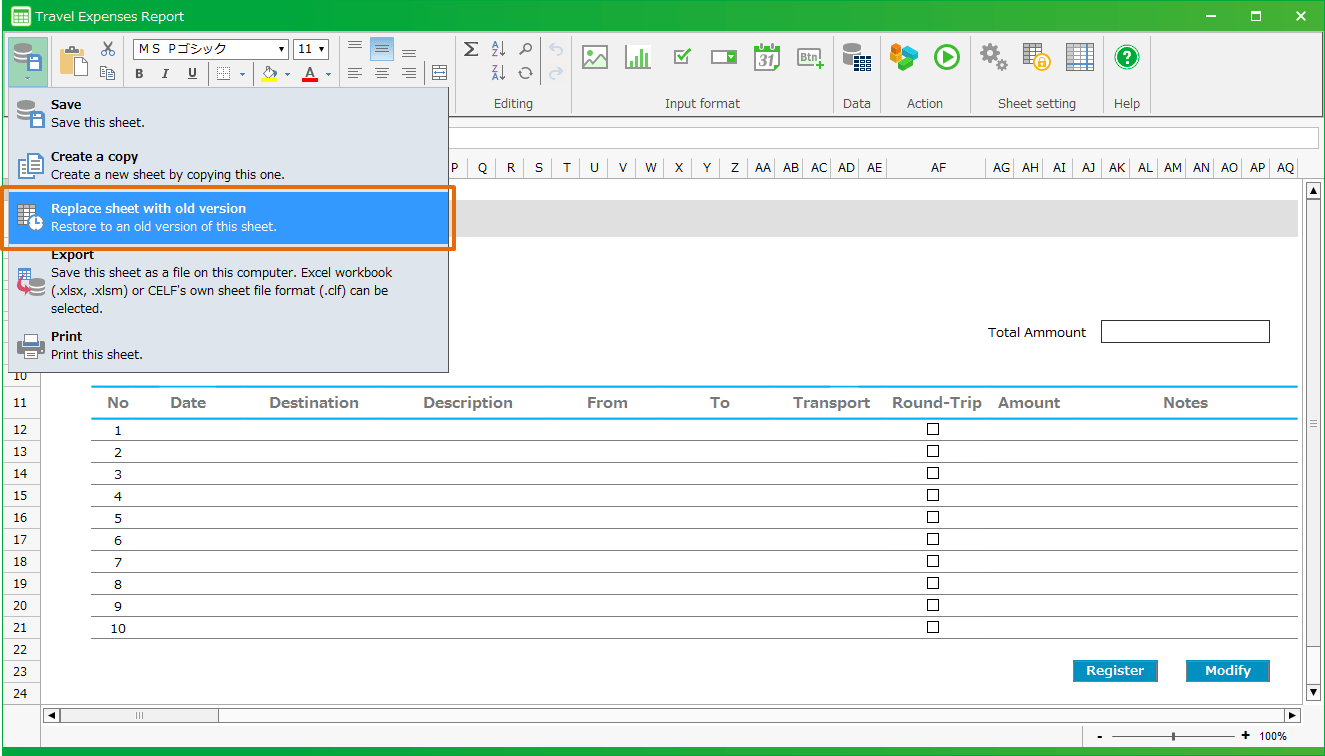
- Choose the sheet to import in 'Excel import' dialog, then click 'Run' button.
Tip
The following items can be imported from Excel files with extension of .xlsx or .xlsm.
- Input Values and Formulas In Cells
- Format settings (like display format, alignment, border, font, fill).
- Width and height of cells.
- Shown/hidden rows/columns.
- Display/non-display of borders.
- Frozen panes.
Other than items above are not imported.
Attention
- Some format may be displayed incorrectly depending on display format setting.
- Any line types not supported by CELF will be shown as solid lines.
- Character properties such as inclination, superscript, subscript, vertical writing, etc., are not supported by CELF.
- Lock status is shown in CELF 'Sheet setting - input restrictions'.
- It may take long time to import. In such case, reduce the file size or unprotect sheets if they are protected and try to import again.
- CELF can not import files with extension .xls. Open the target file with Excel (2007 or higher required), save it in xlsx format and import it.
Create App Content From Excel
Based on the contents of an Excel file, you can create the contents of an application that includes the following sheets.
- The Excel sheet layout becomes the data entry and editing screen of the application.
- A table will be created automatically to store the data of the application.
- Actions are automatically created to register, update, and delete data from the application.
Attention
There are restrictions on the Excel files that can be used.
Details can be found from Check the Excel file that is used to create the app.
- Open 'Application management' tab in "Manage" screen.
- Open the sheet list to create, click '+New Sheet' button then 'Create application content from Excel file'.
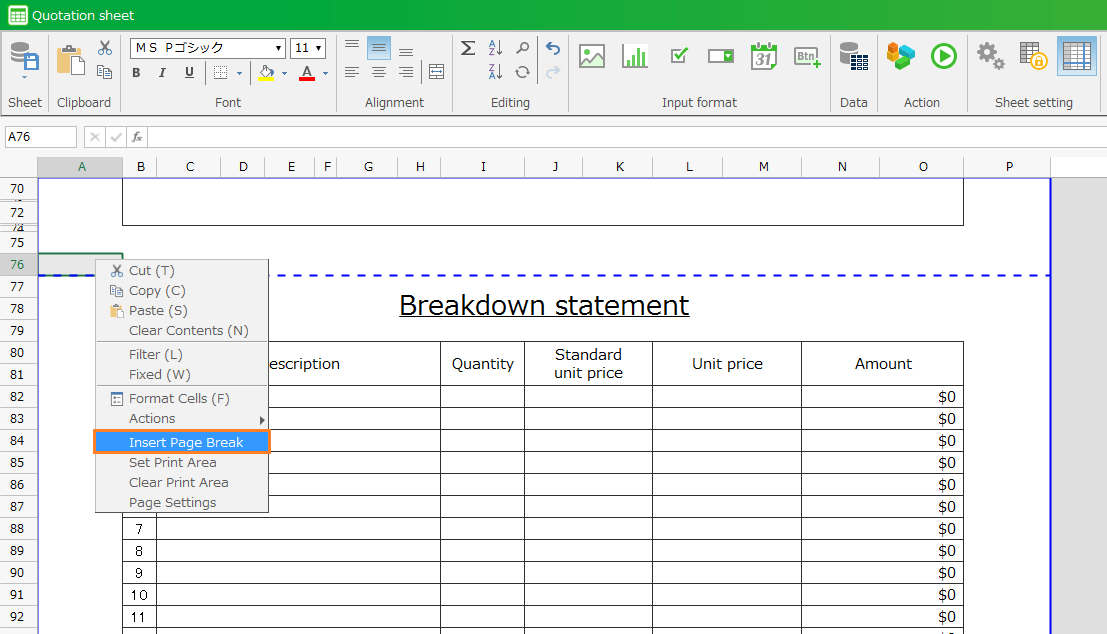
- In the 'Create application content from Excel file' dialog, select an Excel file from 'Select file' button and click on the sheet you want to use from the list of sheets displayed.
Attention
The only Excel file you can select is in xlsx format, and the file size is limited to 1MB.
Tip
When 'Prefix the table to be auto-generated with a string' is checked, the specified string will be prefixed to the created table name.
This makes it easier to distinguish which table is being created.
- Click the 'Execute' button. After clicking, a screen for setting up the data portion will appear.
For further screen operations, see Select Input Format screen.
Important
To import a sheet, users require the following permissions.
- Application author
And also, the following permission is needed to application.
- Edit
Regarding the application edit permission, refer Set Application Edit Permission.

Related keywords
Excel