Check the Excel file that is used to create the app
Excel settings that can be imported
- The settings that can be imported are Create a layout from existing Excel for notes on this.
Attention
Only Excel files with the extension ".xlsx" can be imported bythe "Create from Excel file" function. ".xls" and ".xlsm" cannot be imported. Please open the target file in Excel (2007 or higher required) and save it in .xlsx format before importing it.
Excel files that cannot be converted to an app
- Excel with an extension other than ".xlsx"
Excel files other than ".xlsx" cannot be uploaded. In the case of ".xls", ".xlsm", or ".csv", please open the target file in Excel (2007 or higher required), save it in .xlsx format, and then import it.
- Setting content using Excel functions such as macros and conditional formatting
Only layout information and table data information can be imported from Excel files.
Like Excel macros and conditional formatting, you cannot import information that has been set in Excel.
Tip
If you want the app to be a macro set up in Excel, you will need to create the action yourself.
For more information on creating actions, see Create Action.
- Excel with a file size of 1 MB or larger
The Excel file you can upload must be smaller than 1MB in size.
If the data is larger than 1MB, please split the data into a separate Excel book to make it smaller than 1MB before uploading.
Sheets that cannot be converted to apps
- Sheets other than worksheets
The only sheet that can be selected for sheet import is the worksheet.
Dialog sheets and graph sheets cannot be imported.
- The sheet name contains characters that cannot be used.
If the sheet name corresponds to any of the following, it cannot be imported.
- If the sheet name is only numeric (e.g., 1234)
- If a symbol other than "$" (dollars) or "_" (underscore) is used in the sheet name (e.g., #Sheet1)
- If you use half-width spaces in the sheet name (e.g., Sheet 1)
Tip
To import the file, please change the sheet name and upload the Excel file again.
- The sheet contains expressions that cannot be read.
If the sheet contains an expression that cannot be read, it will not be imported.
In order to import, modify the target cell according to the pop-up message when import fails.
- This is an example of an expression that cannot be read.
- If the sheet name used in the sheet reference contains characters that cannot be resolved (e.g., "." or "[") (e.g., 【Sheet】!A1)
- When special item specifiers (@, #) are used in structured references (e.g., Table [@A])
Tip
To import the file, please change the sheet name and upload the Excel file again.
- [List type] Sheets with two or more rows of statement data per record
- [List type] Sheets with data below the list (with a footer)
Pre-check Excel before uploading (common)
Attention
If you need to modify Excel after uploading, you will have to redo all the settings. Check in advance to ensure that the excel file does not require any modifications.
- Check to see if there are any hidden sheets.
When you upload Excel, you will see a list of sheet names, including hidden sheets.Check in advance whether you want to make the hidden sheet an application or not.
If you are making an application, make sure that the layout and data are correct.
Tip
Hidden sheets can be displayed by right-clicking on the sheet name and selecting "Unhide" from the menu that appears.
- Check if there are any hidden rows or columns.
Show the hidden rows and columns to check if any unexpected data is registered.
- [List type] Check the formatting of the second and subsequent lines.
The application is created by copying the formatting of the first line to the second and subsequent lines. If only the middle line has a different color or font, it will look different from the output app.
Pre-check Excel before uploading (Multiple sheet combination)
The Multiple sheet combination format requires the preparation of an Excel file containing three elements.Please make sure that the Excel file you have prepared contains each of these elements.1. "Sheet for layout" that becomes the application screen2. "Sheet for data" that converts data from the application screen into a table format that can be stored in a database3. "Reference setup by VLOOKUP" connecting sheets 1 and 2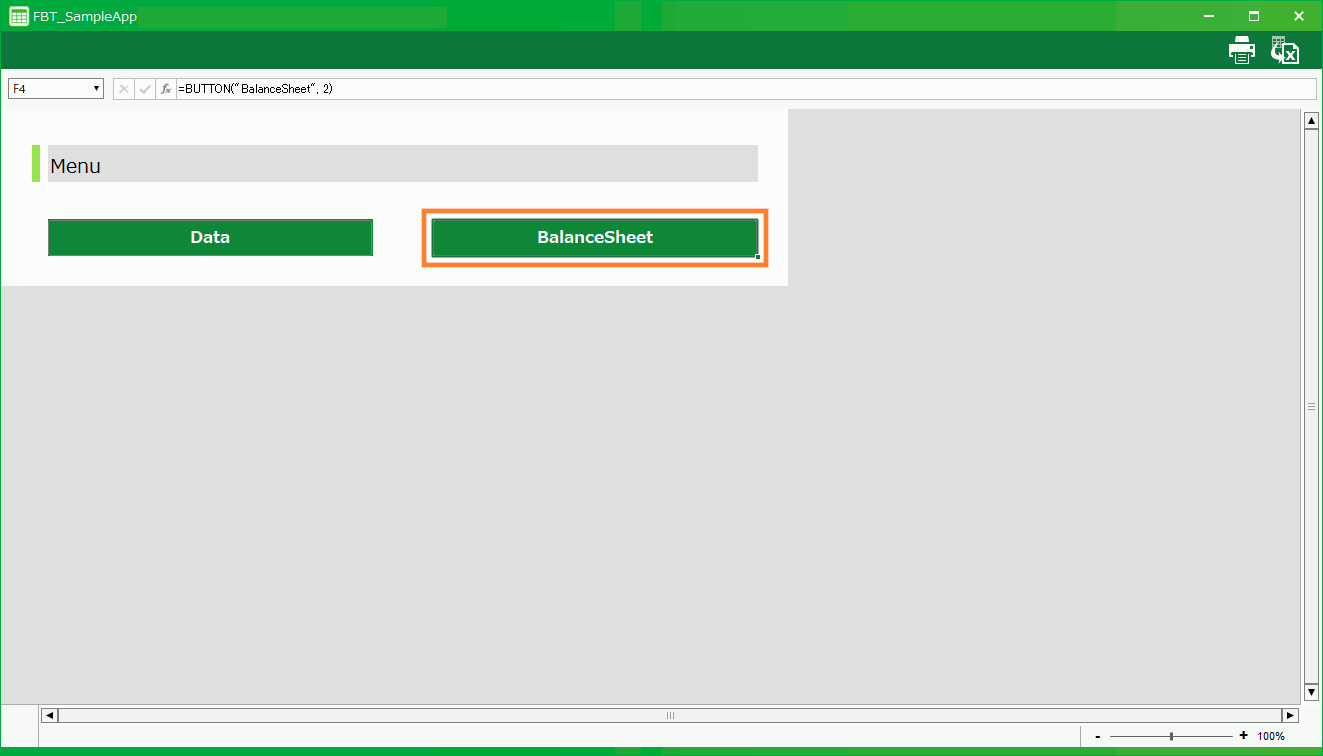
Attention
There are also constraints for each element. Please check each constraint and make sure it does not apply to you.
Layout sheet constraints
Please check if the "Sheet for layout" that will be the application screen does not fall under any of the constraints.
- The Excel formats and functions used must be those supported by CELF.
Data sheet constraints
Check to see if the "Sheet for data" that will be used as databases meet the following restrictions.
- Check to see if the "Sheets for data" that will be used as databases meet the following restrictions
- Do not use functions on columns used in search values.
Reference setup by VLOOKUP constraints
Check to see if the sheet reference "Reference setup by VLOOKUP" does not correspond to a constraint.
- The function used in the reference setting must be "=VLOOKUP" or "=IFERROR(VLOOKUP(~)".
- The parameter of [Search method] of the VLOOKUP function must be "FALSE".
- Do not use Excel "Name definition" for each parameter of the VLOOKUP function.
- The number of items (number of &'s) in [Search value] in the VLOOKUP function and the number of items (number of &'s) in [Search value] in the sheet for data must match.
Related keywords
Classification, organization, folder, directory