Add Control
Add Button
You can add a button control in any cell and execute the created action set like Action Set.
- Select the cell to create the button, then click ‘Button’ button from the ribbon menu.
- Input button label in 'Enter text' dialog, and then click 'OK' button.
Input label is displayed on the set button.
Tip
- It is also possible to add button by inputting formula with button function into the cell directly.
- It is possible to change button label by changing parameter of set button function.
See also
Regarding the connectivity of the action set to the button, refer Assemble Action set>Create connectivity with action set.
Add List
You can add a drop down List control in any cell, and set the item list to select the item from.
- Select the cell to create the List control, then click ‘List’ button from ribbon menu.

- Set list field by changing parameter of List function set into cell.
Structured list with set list field is displayed.
Tip
- It is also possible to set list by inputting the formula with list function into cell directly.
- In LIST function, you can set current selected list field by setting field number as first parameter.
- In LIST function, you can set list field at second or later parameter. List fields can be set as following ways.
- Character ("list field1", "list field2" etc)
- Cell address (A5, B7 etc)
- Cell range (C8:D20, B1:B7 etc)
- The cell with the 'List' control set holds the selected value.
See also
Regarding how to create selected list data from database, refer Create From Getting List.
Add Check button
You can add a checkbutton control in any cell and choose from TRUE or FALSE.
- Select the cell to create the checkbutton, then click 'Checkbutton' from ribbon menu.
- Set 'Checkbutton' label by changing the parameter of CHECK function set in the cell.
The check button with set label is displayed.
Tip
- It is possible to set 'Checkbutton' by inputting formula with CHECK function into cell directly.
- In CHECK function, you can set check status for displayed check button by setting TRUE (checked) or FALSE (unchecked) in the first parameter.
- In the cell with 'Checkbutton', value of TRUE (checked) or FALSE (unchecked) is kept by check status in 'Checkbutton'.
Add Date Input
You can add a date input control in any cell, and then you can input date by displaying calendar.
- Select the cell to create the date input control, then click ‘Calendar’ button from ribbon menu.
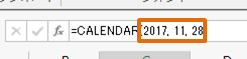
- Change initial date by changing the parameter of CALENDAR function set in the cell. You can set each year, month and day from first to third parameter.
Setting date is set and then calendar is displayed after clicking cell.
Tip
It is also possible to set date field by inputting formula of CALENDAR function into cell directly.