Set the display of the sheet at the release
By specifying the window size and the display scale according to the created sheet (screen), you can open the sheet with the display setting specified when opening the sheet at the release.
Enable display settings
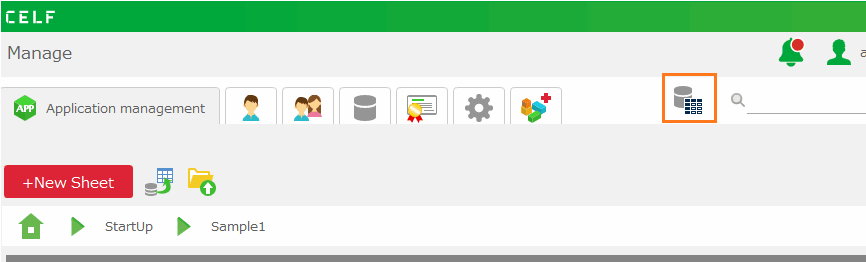
- Click 'Sheet setting' from ribbon menu, then open 'Sheet setting'.
- Open the 'Publish' tab and check 'Specify sheet display settings'.
Tip
If 'Specify sheet display settings' is not checked, the window width is 35cm, the window height is 20cm, and the display scale is 100%.
- Set the window size and display scale at the release.
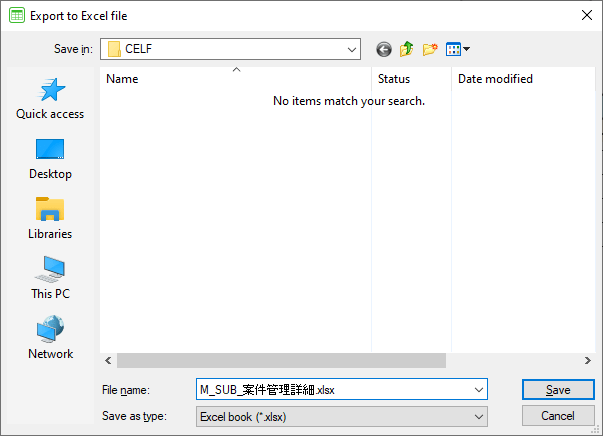
[1] Window width
Specify the window width. The size that can be set is from 10cm to 80cm.[2] Window height
Specify the window height. The size that can be set is from 10cm to 80cm.[3] 'Maximize window' check button
Check to maximize sheet display.[4] Scale
Specify the display scale of the sheet. The display scale that can be set is from 10% to 400%.[5] 'Confirm by test run' button
You can confirm the set display settings in the test run mode.
- Click 'OK'.
- Save the sheet.
Note
- This display setting is applied in the sheet of the published application and in test run mode. It does not apply when editing sheet.
- The display area may be different from the test run mode depending on the OS window system when displaying 'Show sheet [ ] of application [ ] in new window' action with 'Limit operation to active window' enabled.
- If the display is smaller than the specified size, it will be adjusted to the display size.
Specify display settings in test run mode
By clicking the 'Confirm by test run' button, you can update the setting value by changing the window size or display scale for the sheet opened in the test run mode and closing the sheet.
- Click the 'Confirm by test run' button on the 'Publish' tab and open the sheet in test run mode. The sheet is displayed with the set window size and display scale.
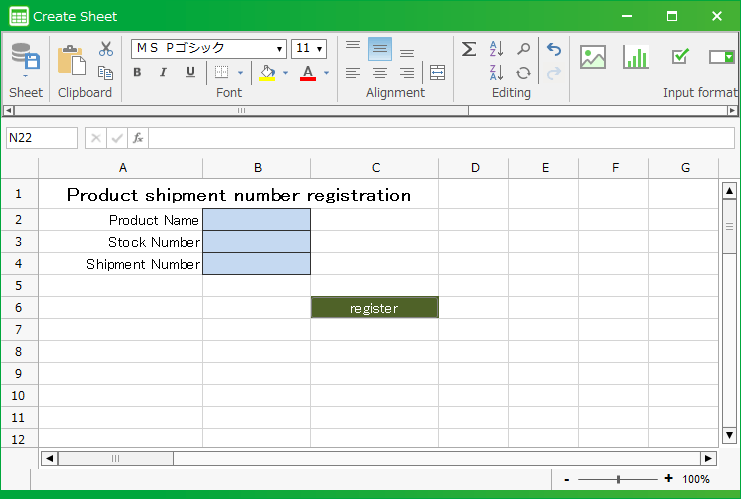
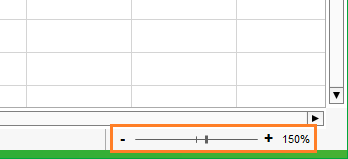
- With the sheet opened in the test run mode, drag the edge of the window to resize the window width and height, or change the display scale.
- If you close the sheet by clicking the close button at the top right of the window, a confirmation dialog will be displayed if there is a change. Click "Yes" to update with the changed size.
- The window size or display scale that was changed in step 2 is set.
Note
If you maximize the window in test run mode, the window size setting value will not be updated even if you close the sheet.
- Click 'OK'.
- Save the sheet.
Related keywords
resize, scale