Freeze Panes
Freeze Row
- Select the cell in column A just below the row you want to freeze.
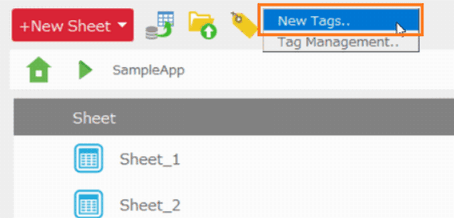
- Right-click cell, and then select 'Freeze Panes' menu.
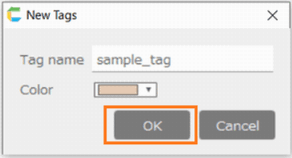
Tip
After freezing the row, that row will remain visible when the sheet is scrolled vertically.
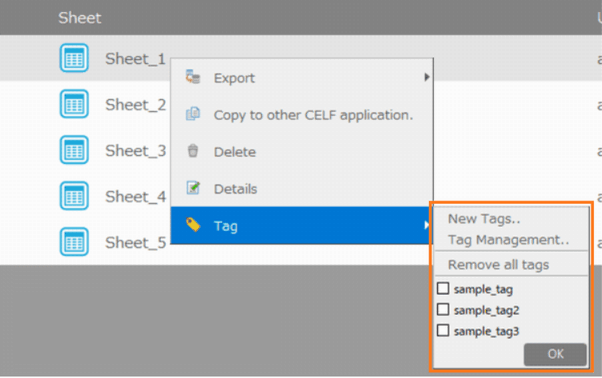
Freeze Column
- Select the cell in the first row and right next to the column you want to freeze.
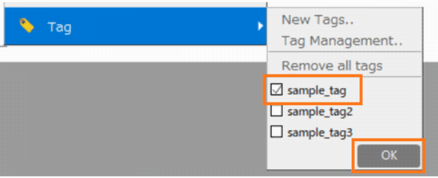
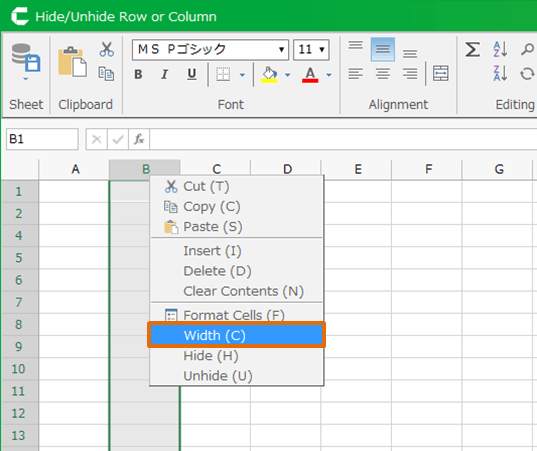
- Right-click cell, and then select 'Freeze Panes' menu.
Tip
After freezing the column, that column will remain visible when the sheet is scrolled horizontally.
Freeze row and column
- Select the cell below the rows and right of the columns that you want to keep visible when you scroll.
- Right-click cell, and then select 'Freeze Panes' menu.
Tip
After freezing the rows and columns, those rows and columns will remain visible when the sheet is scrolled horizontaly and verticaly.
Unfreeze Rows and Columns
- Right-click cell, and then select 'Unfreeze Panes' menu.
Tip
Within the same sheet, you can unfreeze rows and/or columns by selecting 'Unfreeze Panes' menu.