Define a name
By defining a name for a cell or formula, the defined name can be used in place of the cell address, etc.
This section explains how to define names and how to use names in formulas.
Hint
Using names with CELF is very powerful. Compared to directly specifying the cell address and value, the intention of the formula and action is easier to understand.For example, you can see that the intention is easier to communicate with '=price*(1.0+consumption_tax_rate)' than the formula '=C3*(1.0+C4)'.In this case, if the consumption tax rate changes, you only need to change the name definition. You do not need to modify all the formulas that enter the sales tax rate.The same applies when moving a cell with a price entered. You don’t have to modify any formulas that refer to the cell, just change the name references.See also
See Use names in actions for how to use names in actions.
Define a name
First, let’s see how to define a name.
Define names for cells and ranges
Define from the name box
- Select a cell or range.
- Enter a name in the name box at the top left of the sheet and press Enter.
When press the Enter key, the name is registered with the value entered in the name box, using the selected cell or range as the reference range.
In the above case, cell C9 is registered with the name 'Total_Apr'.
Tip
The registered name can be confirmed in the 'Name Management' dialog that is displayed when the 'Name Management' button on the ribbon is clicked.
Define from the right-click menu
- Select a cell or range.
- Select 'Define Name' from the right-click menu to display the "Define New Name" dialog.
- Specify 'Name', 'Comment', and 'Refers to' and click the 'OK' button.
Click the 'OK' button to register the name with the specified content.
In the above case, the range from C5 to C8 will be registered with the name 'Sales_Apr'.
Hint
- In the 'Refers to', the currently selected cell or range is set as the initial value.
- Entering comments is optional.
Define names for formulas and constants
- Click the 'Name Manager' button from the ribbon menu to open the 'Name Manager' dialog.
- Click the 'New' button to open the 'Define New Name' dialog.
- Specify 'Name', 'Comment', and 'Refers to' and click the 'OK' button to register the name.
Click the 'OK' button to register the name with the specified content.
In the above case, the formula that executes the AVERAGE function is registered in the range of C9 to N9 with the name 'Average_Sales'.
Attention
- When importing an Excel file, the names defined in Excel are not imported. Define the name in CELF after import if necessary.
- When defining names, only absolute addresses can be specified for 'Refers to'. If a relative address is specified, it is forcibly converted to an absolute address.
Use name
Describes how to use a defined name.
Use names in formulas
Use name defined as cell
Names defined as cells can be used in the same way as cells.
As an example, define the name 'Total_Apr' as cell C9.
And if you refer to 'Total_Apr' in the cell, you can see that the value of cell C9 is displayed.
Use a name defined as a range
Names defined as ranges can be used in the same way as ranges.
As an example, define the name 'Sales_1Q' as the range C9 to E9.
And if you specify 'Sales_1Q' in the argument of the SUM function, you can confirm that the total value of C9 to E9 is displayed.
Use a name defined as a formula or constant
Names defined as formulas and constants can be used in the same way as formulas and constants.
As an example, define the name 'Average_Sales_Store_Apr' to return the average in the range C5 to C8.
And if you refer to 'Average_Sales_Store_Apr' in the cell, you can see that the average of C5 to C8 is displayed.
Use names for 'Cells that are enabled for input' and 'Cells that are enabled for editing styled text'
Names can also be used in 'Cells that are enabled for input' and 'Cells that are enabled for editing styled text'.
As an example, the store names area and the sales area can be entered when the application is executed. And only the store names area can be formatted.
First, define the store name area and the sales area as names.
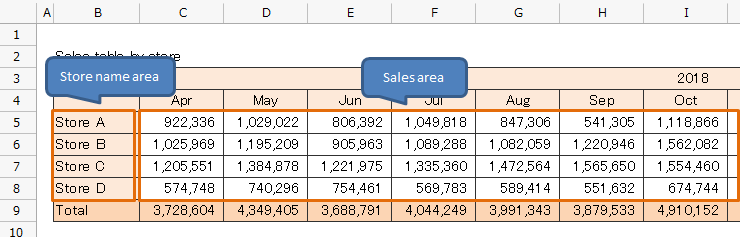
Then, in the Input limitation dialog, specify 'Sales_Area' and 'Store_Name_Area' in 'Cells that are enabled for input', and specify only 'Store_Name_Area' in 'Cells that are enabled for editing styled text'.
Now can edit the sales and store name when run the app, and only the store name can be formatted.
See also
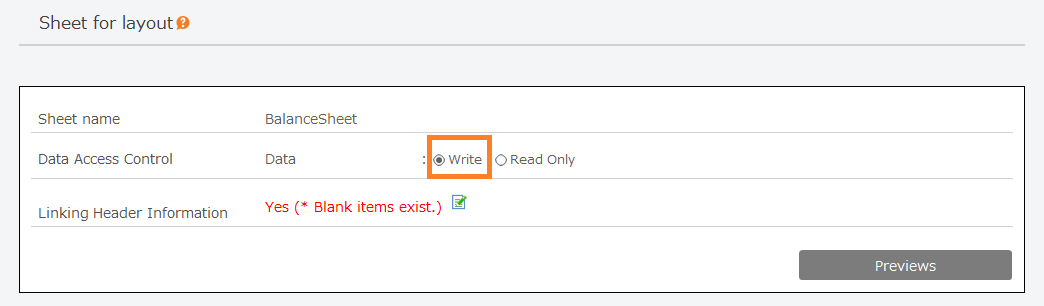
See Allow Cell Input When Publish for how to allow cell input.