Revert to Older Version Sheet
CELF manages the version of the sheet at the time it is published, allowing reverting to an older version without affecting the running application.
It is also possible to revert the version of the sheet to the version being published. This section explains how to do so.
Attention
The version history on a sheet unit described on this page may be abolished in the future. About new functions to obtain backups on a per-app basis see Back up and restore apps.
Revert to Older Version Sheet
When a sheet is published, information on the sheet at the time of publication is saved as history.
Sheets can be reverted at any time to the point in the past when they were published.
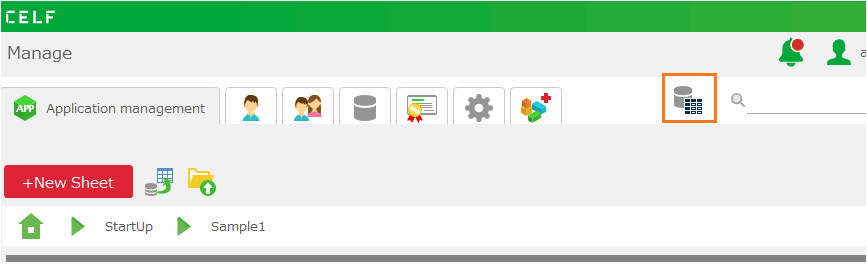
- Open 'Application management' tab in "Manage" screen.
- Open the sheet to revert to old version.
- In sheet edit screen, click 'sheet' button at top left in ribbon menu, and then select 'Replace sheet with old version' menu.
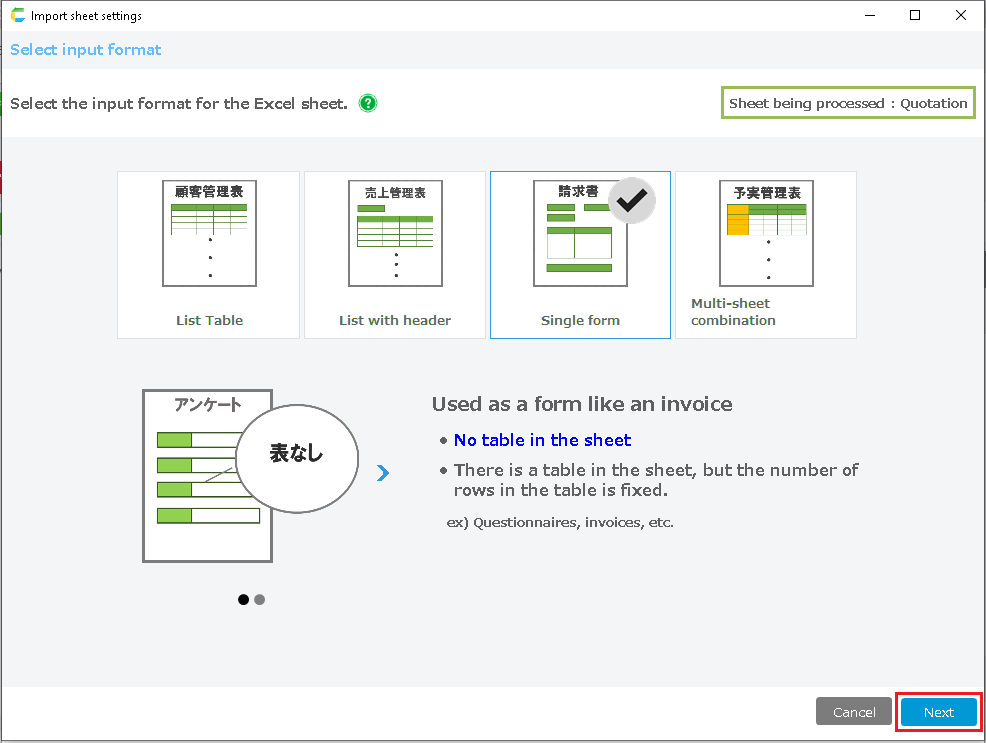
- In 'Select sheet to restore' dialog, select the sheet to restore, and then click 'Restore' button.
- Save the sheet.
Note
Apps reverted to an older version of the sheet will not affect the app being published.
You can use application with new version by upgrading published application including old version sheet.For details on how to upgrade the version, please refer to Re-release by modifying the sheet(new version).
Revert the sheet to the currently published version.
It can also be reverted to the currently published sheet.
This method is useful when a sheet is modified after the application has been published, and you want to discard the modifications and start over again from the point of publication.
- Open 'Application management' tab in "Manage" screen.
- Open the sheet to revert to old version.
- In sheet edit screen, click 'sheet' button at top left in ribbon menu, and then select 'Replace sheet with old version' menu.
- From the list of histories, select a history with " Published" checked, and press the "Restore" button.
- Save the sheet.