Back up and restore apps
By backing up the app in CELF, you can restore it from that backup later.
This feature cannot be used in a distribuable app created by importing a 'Distributable CELF application file (.dcapp)'.
Here is the procedure of backup and restoration.
Backup app
- Open the 'Application management' tab on the administration screen.
- Right-click the app and select the 'Backup' menu.

- On the 'Backup' dialog, enter comments as needed and click the 'Backup' button.
Tip
The latest state of the app will be backed up. If you publish the app and then change it, the changed app will be backed up, not the app at the time of publication.
Attention
The backup of the app does not include the uploaded files, the table definitions or the data. Please make the backup for each information by exporting them as required.Please refer to Export Table Definition for exporting table definition.Please refer to Export Table Data (CSV) for exporting table data.Special consideration is necessary for the upload file.Even if you upload the file again after restoring the app, since the file ID is newly set, it is necessary to change the file ID used in the app.If it is difficult to make changes for files IDs, especially when there are a large number of files, please consider 'Export CELF application file' as a backup alternative.(Export including upload file is possible)Please refer to Export Table Data (CSV) for exporting table data.Please refer to Export Table Data (CSV) for exporting table data.
Restore app from backup
- Open the 'Application management' tab on the administration screen.
- Right-click the application and select the 'Restore from backup' menu.
The 'Restore from backup' dialog is displayed, and the backed up information is displayed in the list.
Tip
In 'CELF version', CELF version at backup is displayed.
- Select the backup information from the list and click the "Restore" button.
Hint
Clicking the trash can icon in the list, and you can delete backup information.
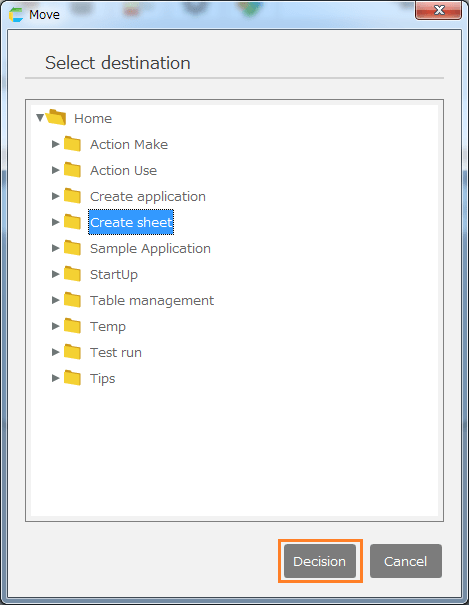
- In the displayed dialog, specify 'Application name' and 'Destination' and click the 'Restore' button.
Attention
Uploaded files and table definitions and data are not restored. If necessary, please save it by exporting etc. at the time of backup and import after application restoration.
Important
To backup and restore applications, users require the following permissions.
- Application author
And also, following permission is necessary to application.
- Manage
