Import apps
This section explains how to import a CELF export file (.capp or .dcapp) and how to add the definition of the app and the tables used by the app.
Importing a 'Distributable CELF application file (.dcapp)' allows you to create an app in which sheets cannot be edited or referenced.
Import a file (.capp) and add an application
- Click the import icon next to "+ New Application" on the application management screen.
- Select the file (.capp) to be imported.
- When the "Import Application" dialog is displayed, click "Execute" button.
Tip
If you want to import the application under a different name, rewrite the input item of "application name" and click the "Execute" button.
Import a file (.dcapp) and add a distributable application
- Click the import icon next to "+ New Application" on the application management screen.
- Select the file (.dcapp) to be imported.
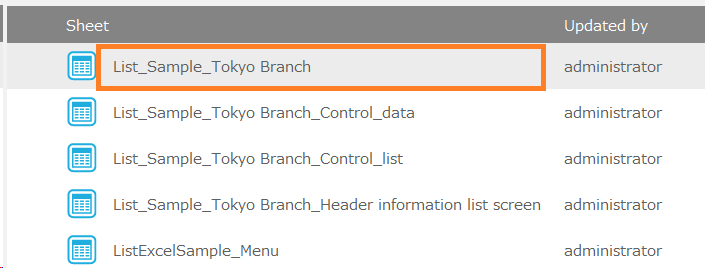
- When the "Import Application" dialog is displayed, click "Execute" button.
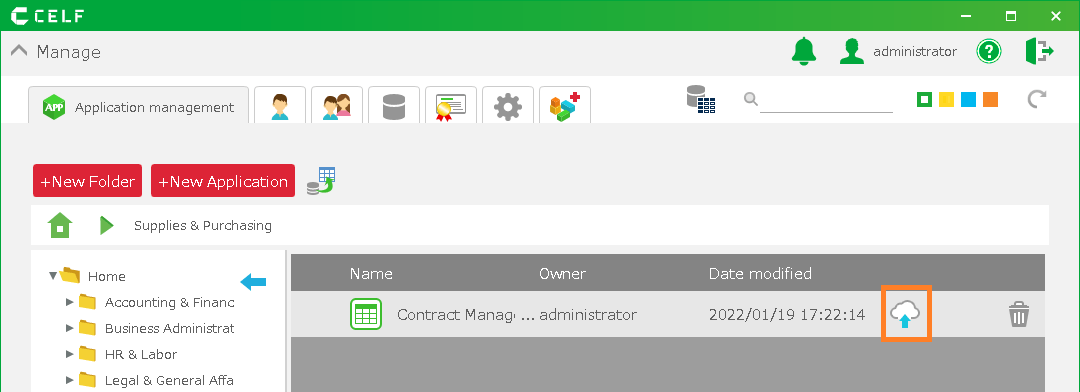
Tip
- The 'File list' is hidden.
- Files included in the app are imported unconditionally.
See also
For details on the settings of actions used in an app, see Configuring action settings for an app.
See also
The data of the table used by the application must be imported separately.For importing table data, see Import table data (CSV) .
Important
Apps created by importing a 'Distributable CELF application file (.dcapp)' differ from regular apps, sheets in a distributable app cannot be edited or referenced, and the following restrictions apply:
- Files included in the app cannot be downloaded or uploaded from the management screen.
- Distributable app cannot be exported.
- Cases where it is necessary to modify the actions themselves in an imported application (for example, actions whose settings are linked to a table data ID column) are not supported. Support for these cases will be provided progressively.
Related keywords
Backup, Restore, Not-Editable