Configure action settings for an app
This section explains how to configure the settings of actions used in an app.
Actions that can be configured are those with a gear icon displayed at the top-right of the tab in the 'Action set settings' dialog. Extension options apply only to those that are installed.
You can also open a sheet and display the 'Action set settings' dialog to configure actions as before.
Configure action settings for an app
- On the application management screen, select the app you want to configure, right-click it, and choose 'Action settings' from the menu.
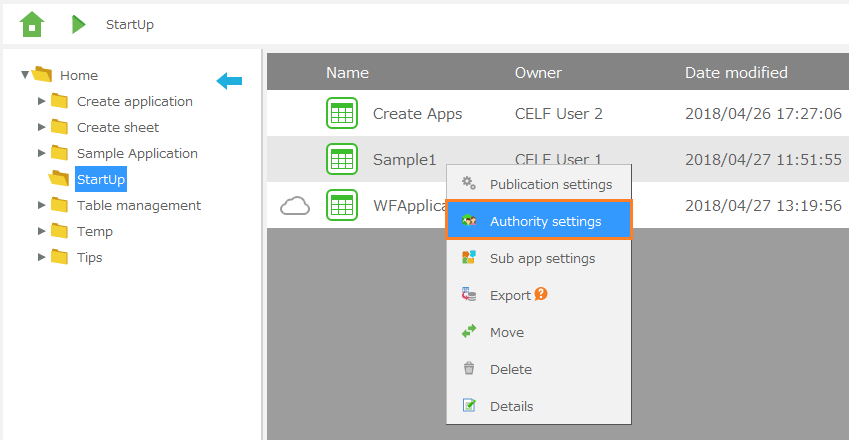
- In the 'Action settings' dialog, a list of configurable action types is displayed. Click the gear button of the action you want to configure.
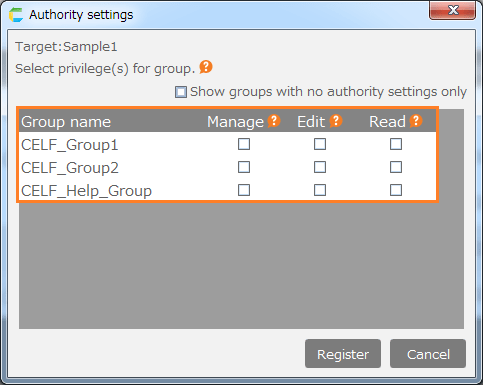
- The action settings dialog will appear, where you can enter the necessary settings as needed.
Important
To configure action settings, users require the following permissions.
- Application author
And also, following permission is necessary to application.
- Edit

Related keywords
Distributable