Start CELF in a past version
Important
You need the system administrator authority to set the start version of CELF.
Attention
This function is intended to temporarily return to the old version when problems occur in the new version.
This feature can not be used in the on-pre version.
The version that can be started is all patch versions in the same minor version as the latest one, and the final patch version of the previous minor version.
(If ver. 2.4.2 is the latest version, 2.4.1, 2.4.0, 2.3.x (latest of 2.3) can be started)
「Excelからアプリを作成する」 The 'Create App from Excel file' function is only available in the latest version. It is not available when launched with previous versions.
Start CELF in a past version
- Open the 'System' tab of the administration screen.
- Click the 'Set' button for 'CELF start version' to open the 'CELF start version settings' dialog.
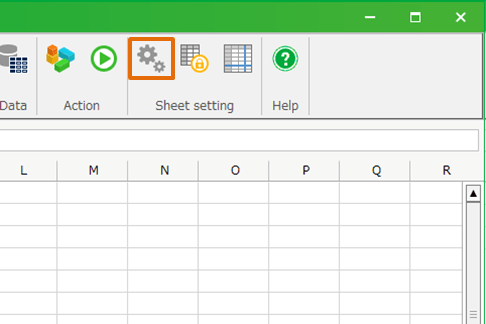
- Check 'Specify the version of CELF to start up', select 'Start version' and click the 'Register' button.
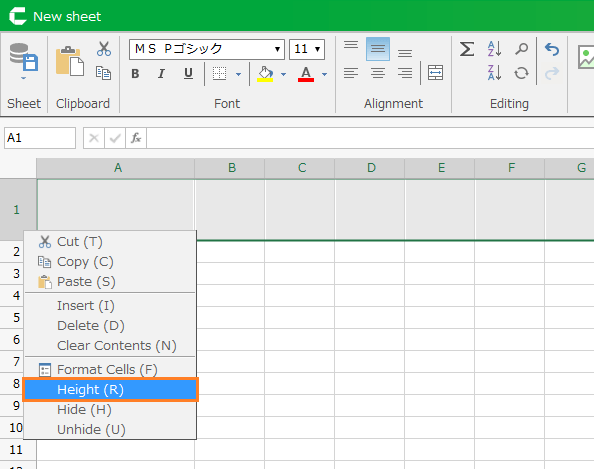
You can confirm that the selected version is set as the start version on the 'System' tab.
If you execute CELF after registration, CELF will start with the specified version.
Tip
The set start version is valid for all users.
The settings for the user who has already logged in when specifying the start version will take effect at the next login.
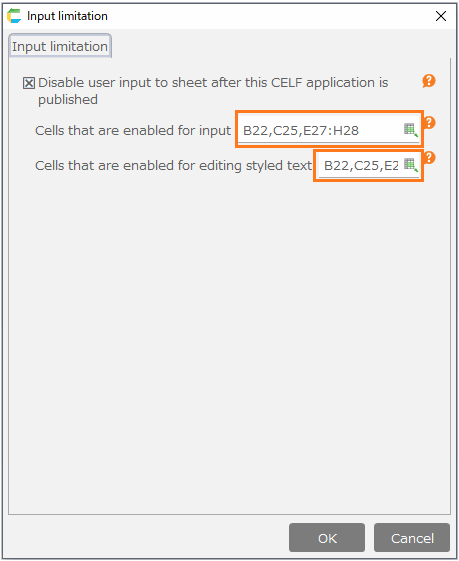
When CELF is started in the past version, the start version is displayed in the title bar.

Attention
- Apps edited with the new version may not work because they are not compatible with past versions.
- Please do not edit the application edited with the new version because it is not compatible with the past version.
Start CELF with latest version (Revert to original version)
- Open the 'System' tab of the administration screen.
- Click the 'Set' button for 'CELF start version' to open the 'CELF start version settings' dialog.
- Uncheck 'Specify the version of CELF to start up' and click the 'Register' button.
You can confirm that the latest version is set as the start version on the 'System' tab.
If you execute CELF after registration, CELF will start with the latest version.