Check RPA license usage
You can check the terminals(PCs) that are currently consuming RPA licenses or release the RPA licenses that are being consumed by terminals.
Note that system administrator authority is required to check the usage status of RPA licenses.
Attention
This page is for CELF RPA users.
Tip
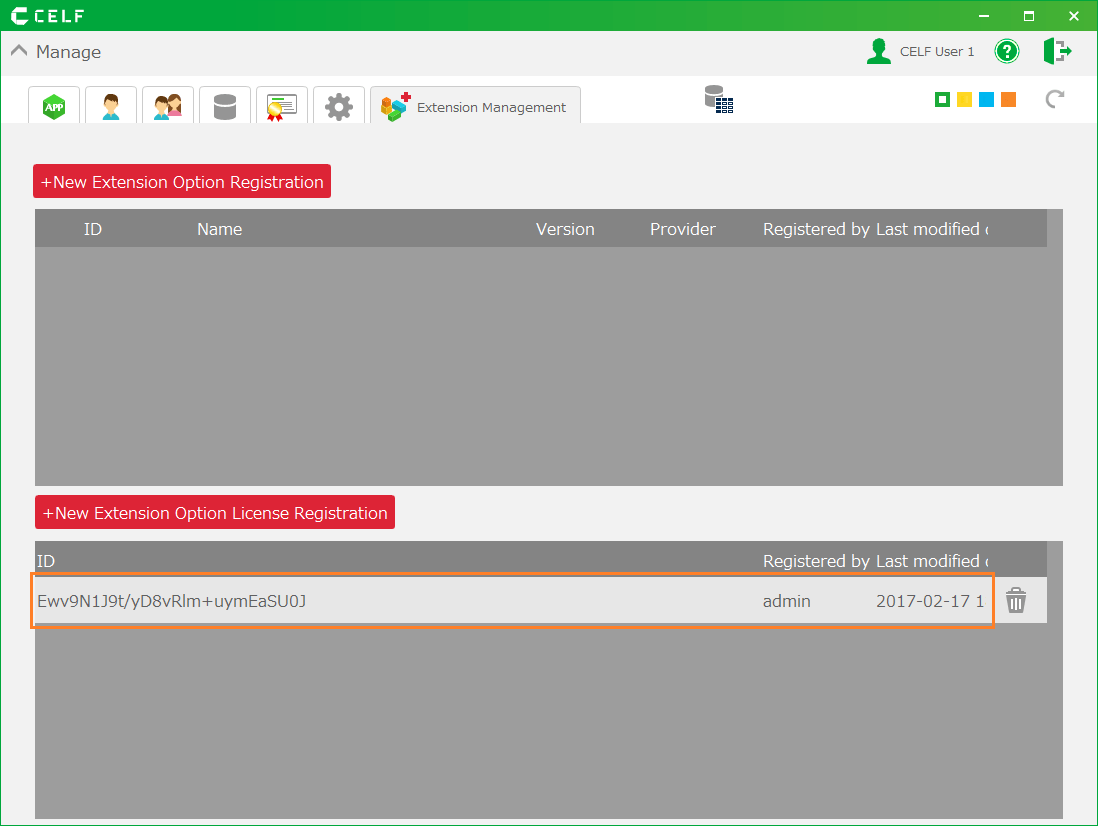
Make sure that the RPA Extended Option License is registered in advance. See Add new extension for registering licenses.
Check RPA license usage
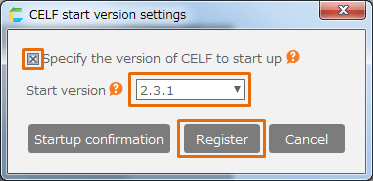
- Open the ‘Extension Management’ tab of the management screen.
- Click the ‘RPA license management’ button.
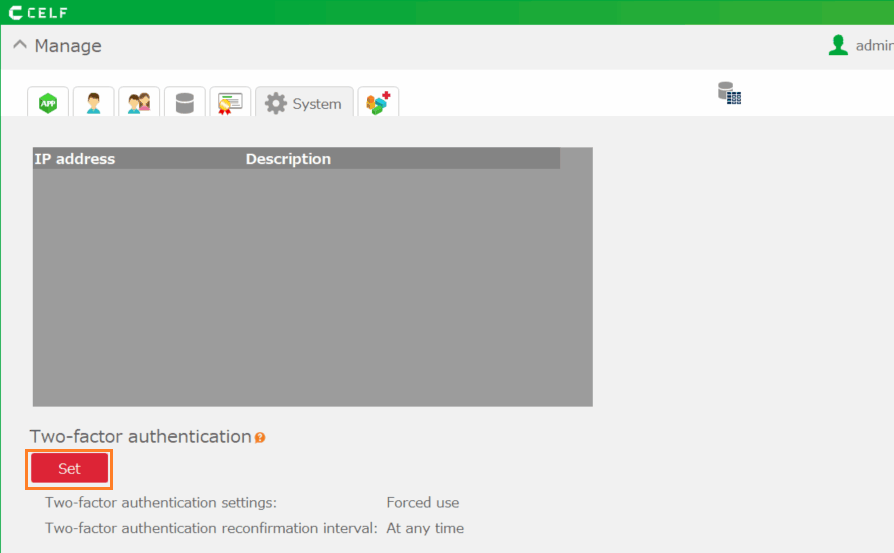
- On the RPA license management screen, you can check the terminals that are currently consuming RPA licenses.
- [1] Active clients
- Displays the number of terminals currently consuming RPA licenses.
- [2] License release button
- Click to release the RPA license for that terminal.
Tip
If the active clients exceeds the authorized clients, the background color of the active clients will change.
Tip
Terminals that satisfy the following conditions are displayed as terminals that are consuming licenses.
- Terminal on which RPA execution environment is installed
- Terminal logged in to CELF within 30 days
Tip
For devices using CELF older than version 2.5.0, the ‘Terminai used’ and ‘User ID’ may not be displayed. When you log in to the latest version of CELF on that terminal, the information is displayed correctly.
Release RPA license
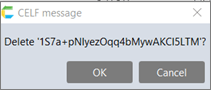
- Click the ‘License Release’ button on the terminal you want to release the RPA license.
- When the confirmation dialog for releasing the license is displayed, click the ‘OK’ button.
Attention
- When the license released terminal logs in to CELF with the RPA execution environment installed, the license is consumed again.
- To avoid consuming licenses, uninstall the RPA runtime environment from the license released terminal.
Important
System administrator authority is required to check the RPA license usage status.

Related keywords
RPA, license, release