Set encryption key information
Important
The 'Encryption key file' created here is literally the 'Key' to the encryption function and is sensitive and confidential information. Please read the following article carefully before use.
- Administrator privileges are required to set the encryption key.
- The encryption key setting is necessary for the proper operation of an application that uses encryption functions and decryption functions. It must be set so that it can be referenced by the app developer as well as by the user.
- The encryption algorithm applied in the encryption and decryption functions is 'AES-256'.
- Encrypted data cannot be decrypted without the encryption key.
- The 'Encryption key file' must be managed strictly with access control, etc.
Attention
icacls "C:\ProgramData\Microsoft\Crypto\RSA\MachineKeys" /inheritance:e /grant Everyone:(RD,RA,REA,WD,AD,WA,WEA,RC)
See also
- See UTIL.ENCRYPT (function to encrypt data) for an example of encryption function usage.
- See UTIL.DECRYPT (function to decrypt encrypted data) for an example of decryption function usage.
Create encryption key
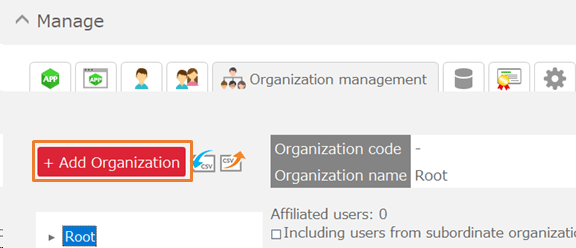
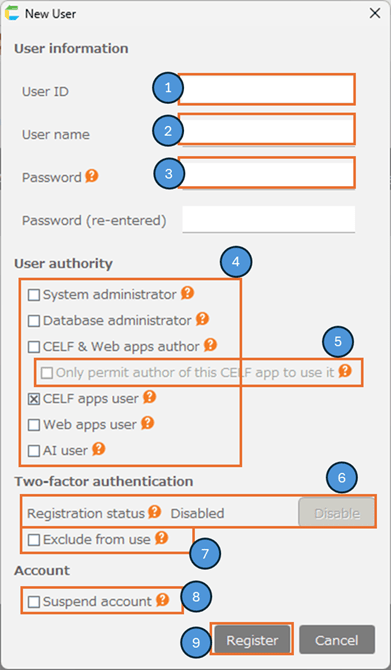
- Open the 'System' tab on the Manage page.
- Click the 'Create' button under 'Encryption Key.'
- In the 'Creating encryption key' dialog, click the 'Create' button to create the encryption key file. Save the file in an arbitrary location when the "Save as" dialog is displayed.
There are two ways to create an encryption key file.
- Create an encryption key file with a random password (default)
- Create an encryption key file with any password (optional)
Default creation creates an encryption key file with a random password.You can also check the 'Create encryption key with any password' check button and enter any password to create an encryption key file. Passwords are case sensitive.
Attention
- By default, an encryption key file is created with a random password. Since it is not possible to create an encryption key file with the same password again, please be careful not to lose it.
- In contrast, if an encryption key file is created with an optional optional optional password, the same encryption key file can be created again with the same password. Therefore, the password you enter must be strictly controlled.
- If the encryption key is leaked, a third party may be able to decrypt the data. Please keep the encryption key file you have created under strict control. If a leak is suspected, the data can be re-encrypted with a new encryption key. See Replace encrypted table data.
Register encryption key information
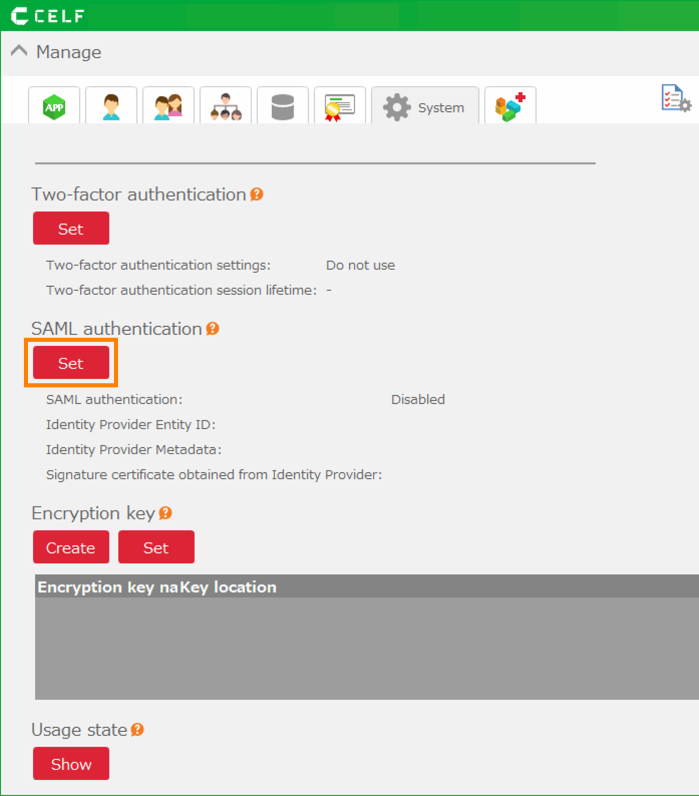
- Open the 'System' tab on the Manage page.
- Click the 'Set' button under 'Encryption key.'
- In the "Setting encryption key" dialog, click the "Add encryption key" button to open the "Add encryption key" dialog.
- In the "Add encryption key" dialog, set the "Encryption key name" and "Key location" and click the "Add" button.
[1] Encryption key name (required)
Specify a unique name that identifies the encryption key (case-insensitive).The encryption key name set here is used as the argument for the encryption or decryption function.[2] Key location (required)
Specify the location where you want to place the encryption key file you have created, either by specifying a web server URL or by specifying a local file path.Reads the encryption key file at the key location set when the encryption or decryption function is executed.You can also set the local file path by selecting the encryption key file with the '…' button to select the encryption key file can also be set.[3] Description (optional)
Set the encryption key description.[4] 'Register this encryption key as the default key' check button
If this check button is enabled, it will be registered as the encryption key name 'default' and will be treated as the default key.When using the default key, the encryption key name specified in the encryption or decryption function can be omitted.
Confirm that the target information has been added to the "Setting encryption key" dialog, and click the 'Register' button.
Hint
The registered encryption key information is immediately reflected for the user who set it, but for other users who are currently logged in, the information is reflected when they log in again.
Attention
- The information in the encryption key file is not maintained in the CELF database and cannot be decrypted, even by the CELF service provider.
- The registered encryption key name must be notified to the app developer.
- If you have set the URL of your web server as the location of the encryption key file, we recommend that you apply appropriate access controls.
- If you set a local file path as the deployment location for the encryption key file, distribute the encryption key file to developers and users and notify them of the deployment location. The distributed encryption key file must be placed in the same path as the deployment location.
- The encryption key file should be distributed only to the PC of the user who is authorized to decrypt it, or placed in a path accessible only to authorized users.
Edit encryption key information
- In the 'Setting encryption key' dialog, click the 'Edit' button of the record of the registered encryption key information to open the 'Editing encryption key' dialog.
- In the 'Editing encryption key' dialog, you can edit the 'Key location' and 'Description'. When edited, click the 'Update' button.
- Confirm that the 'Setting encryption key' dialog reflects the edited information and click the 'Register' button.
Hint
The edited encryption key information is reflected immediately for the user who set it, but for other logged-in users, it is reflected when they log in again.
Attention
- The location of the encryption key file with the same contents as the previously used encryption key file has been changed.
- The file name of the encryption key file with the same contents as the previously used encryption key file was changed.
Attention
- The encryption key file with different contents from the previously used encryption key file is set to the deployment location.
See also
- See Replace encrypted table data for instructions on replacing encrypted data.
Delete encryption key information
- In the 'Setting encryption key' dialog, click the 'Delete' button for the record of the registered encryption key information.
- A confirmation dialog will be displayed. Check the message and click the "OK" button.

- Confirm that the target information has been deleted from the 'Setting encryption key' dialog, and click the 'Register' button.
Hint
Deleted encryption key information is immediately reflected for the user who set it, but for other logged-in users, it is reflected when they log in again.
Attention
- By deleting the encryption key information, the encryption key file cannot be read during the encryption or decryption function processing that referred to this encryption key information, and the function will fail.
- We recommend that you do not delete any encryption key information that is in use.
- Please plan ahead when deleting encryption key information, and if you have stored encryption data in database tables, please do so carefully after replacing the existing data.
See also
- See Replace encrypted table data for instructions on replacing encrypted data.
Related keywords
cryptography, encryption, decryption, security, AES, database, function, key, algorithm, leak, security measure
