Batch registration of user and group information
User information, group information, and user group affiliation information are registered by reading the information file (.csv).
Note that you must have system administrator privileges to use batch registration.
Import user and group information
- Open the 'User Management' tab or 'Group Management' tab in "Manage" screen.
- Click the 'Import' button.
Tip
The same button is available on both the 'User Management' tab and the 'Group Management' tab.
- Configure import settings in the 'Import user group information' dialog.
[1] File name
Select the information file (.csv) to import.Tip
Registration of items for which no file is selected will not be performed.
[2] Replacement (Initial Setting: Not checked)
It is registered after deleting the registered information.Attention
- User group affiliation information
If the group ID is duplicated in the data file to be imported, an error will occur.
- User group affiliation information, table authority information, database connection destination authority information, App editing permission information, application public group information
Hint
The information file to be imported can be created in Export user and group information or in the following format:
- User information
- Header row: id,name, password, administrator?, app-developer?, db-admin?, celf-app-user?, web-app-user?, ai-user?, suspended?, private-developer?, two-fa-exclusion?
Field Contents Mandatory Field id User ID ○ name User Name ○ password Password ○(Only for new registration) administrator? System administrator: 1, others: 0 app-developer? Application author: 1, others: 0 db-admin? Database administrator: 1, others: 0 celf-app-user? CELF App user: 1, others: 0 web-app-user? Web apps user: 1, others: 0 ai-user? AI user: 1, others: 0 suspended? Lock the account: 1, others: 0 private-developer? User who is only allowed for private publication(publish app to himself/herself): 1, others: 0 two-fa-exclusion? User who exclude two-factor authentication 1, others 0
- In order for you to enable private-developer?, administrator? or app-developer? needs to be 1. If administrator? or app-developer? is not 1, the value of private-developer? will be treated as 0.
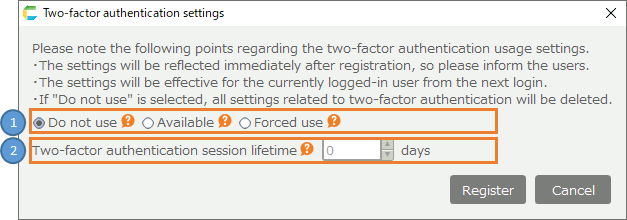
- In order to enable two-fa-exclusion?, the system administrator must set the two-factor authentication settings to 'Available' or 'Forced use'.
- Group information
- Header Row: id,name
Field Contents Mandatory Field id User ID ○ name User Name ○
- User group affiliation information
- Header Row: group-id,user-id
Field Contents Mandatory Field group-id Group ID ○ user-id User ID ○ If you want to register multiple users in a group, enter multiple lines with the same group ID.ex.)group1,user1group1,user2group1,user3An error will occur if a group ID or user ID that is not registered is specified.
- Click 'Register' button.
Important
You need the system administrator authority to import user and group information.

Related keywords
account, user, group, affiliation, read, load, format, comma, separator, delimiter