Register and confirm users
Create User
- Open 'User management' in 'Manage' screen.
- Click '+New User' button.
Attention
- You cannot create users exceeding the number of licensed users. The maximum number of users that can be created is limited by the number of 'Total users' of registered CELF license.Note that users who only use the Web apps (CELF BrowserAccess) and users who are temporarily suspended are not counted towards this limit.
- For information on how to check the number of licenses, please refer to Check the license.
Set the user information.
- Input the information to register in 'User registration' dialog.
[1] User ID
Input the User ID.[2] User name
Input the user name.[3] Password
Input the password. Re-enter to confirm.
Tip
The password must be set along with the policy (structured character). The following policies are the initial setting.
- Minimum length: 8 characters
- Required character types: none
- Valid duration: unlimited
The password policy can be changed as well. Regarding the password policy change, check Set Password Policy.
[4] User Type
Select the user type (authority).
User Detail System administrator A user who can config all settings like users, groups. Database administrator A user who can configure connection to external database. CELF & Web apps author A user who can create and edit CELF apps or Web apps. CELF apps user A user who can use the CELF apps created in the Application Management tab of 'Manage' screen. Web apps user A user who can use the Web apps created in the 'Web App Management' tab of 'Manage' screen. AI user A user who can use the CELF AI features (such as executing the 'Ask AI to perform a task' action). [5] Only permit author of this CELF apps to use it
Check this if this user should not publish CELF apps to anyone other than himself/herself as App author.[6] Two-factor authentication Registration status
Displays whether two-factor authentication is enabled/disabled. To disable 2-factor authentication for a user, click the 'Disable' button.
See also
Two-factor authentication is disabled when a new user is created. You can click the 'Disable' button when two-factor authentication is enabled.See Disable user two-factor authentication for information on disabling two-factor authentication.
[7] Skip two-factor authentication
Check this to disable two-factor authentication for this user.[8] Lock this account
Check this to suspend using CELF by this user.[9] 'Register' button
Register new user with the above settings.
- Click 'Register' button.
Attention
- For item '[4] Select the user type (authority)', the 'AI user' option will be enabled when a CELF license with paid CELF AI feature is registered.
- For items '[6] Two-factor authentication Registration status' and '[7] Skip two-factor authentication', the system administrator must set the two-factor authentication usage settings to 'Available' or 'Forced use'. If 'Do not use' is set, these items will not be displayed in the dialog.
See also
You can register multi-user at the same time. Refer Batch registration of user and group information
Filtering Users
- Open 'User management' in 'Manage' screen.
- Click 'Filter settings' button.
Attention
If filtered by the value of the search box, you cannot use the search box at the same time, so cancel the filtering by the search box and open the "Filter Settings" dialog box.
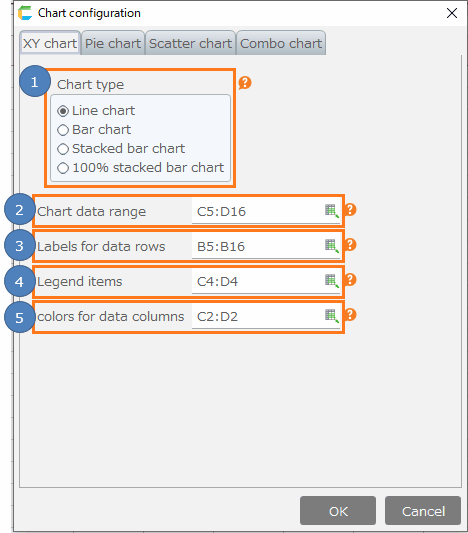
- Set filtering conditions in the "Filter Settings" dialog.
Attention
'Skip two-factor authentication" and "Two-factor authentication" are displayed only when the system administrator has set the two-factor authentication settings to 'Available' or 'Forced use'.
Hint
Selecting "Authority" will filter the list according to the 'User Type' set during registration, as follows.
Authority User Type System administrator System administrator Application author System administrator or CELF & Web apps author Database administrator System administrator or Database administrator Application user CELF apps user or Web apps user who don’t have any authority/privilege of the above
- Click 'Execute' button.
Tip
When filtering by setting conditions the following will be displayed.
Attention
When filtering by search box value, if you are already filtering by 'Filter settings', the filtering by 'Filter settings' will be canceled because it cannot be used at the same time.
Important
You need the system administrator authority to set user setting.

Related keywords
account, adding, multi-factor authentication, search