Check the Data on the Screen of Another System
When checking the data on the screen of another system, perform the check on CELF upon copying the data to the CELF sheet.
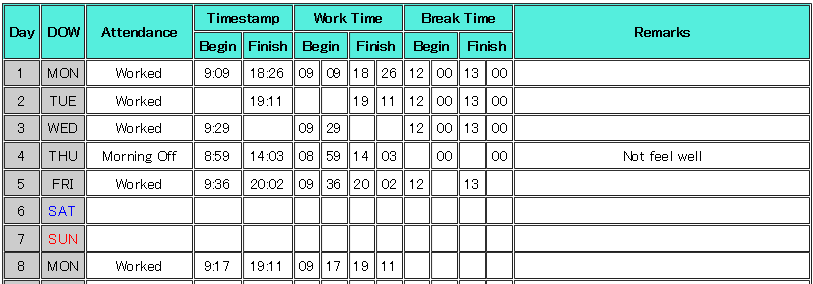
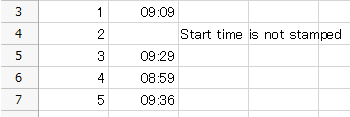
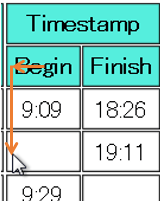
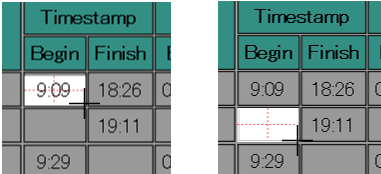
Here is the process that checks any missing "Begin timestamp" on the web page like below.
See also
Check items with values that can be selected
If items to be checked have values that can be selected and copied, copy the data to the CELF sheet through copy & paste.
How to set the operation for copying values
Here, a process that will select and copy the value through drag & drop using the mouse is created.
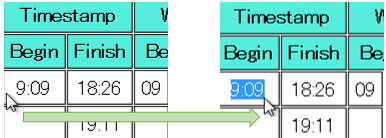
The start and end positions of drag & drop are identified based on the following concept.
Image search the header of the target column and identify the position of the target item
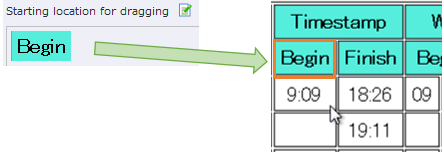
Specify the drag & drop position through the distance from the center position of the searched image
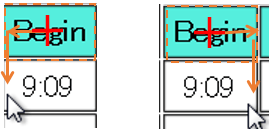
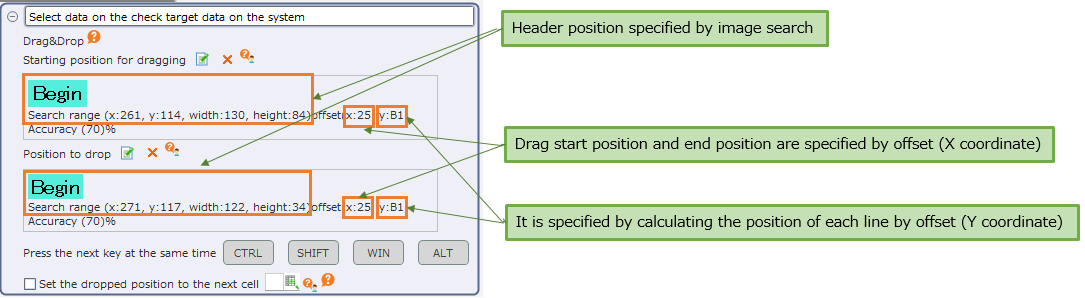
The vertical position (Y-coordinate) is specified by calculating the amount to shift the position to be operated for each line.
If it is set to operate as shown above through the "Drag & Drop" action, then it will be as follows.
See also
Refer to "Specify the Operation Target" on how to set the operation target.
How to set the operation for copying data to the CELF sheet
You can copy the selected data to the CELF sheet through "Copy to clipboard" and "Paste clipboard content".
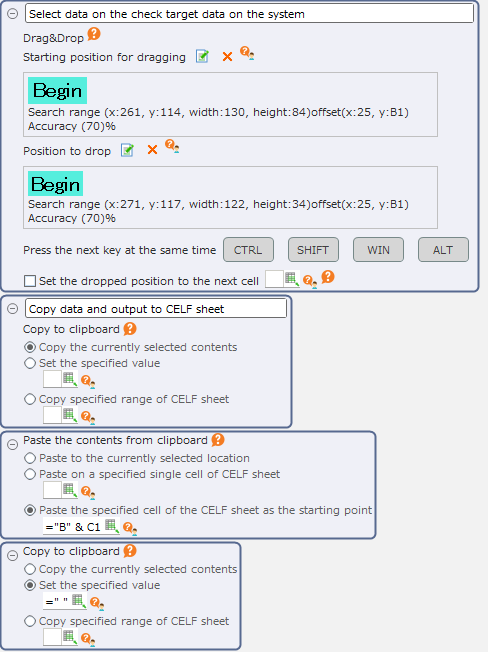
How to set the operation for checking data
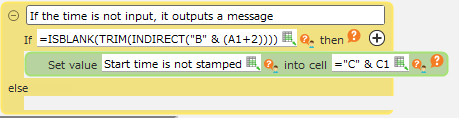
The data on the CELF sheet is checked using the branch action on the "Control" tab and the CELF function, etc. Here, the "ISBLANK" function is used to check if the data is blank or not.
Tip
When performing more complicated controls such as changing the check conditions for each day of the week, copy the required items to the sheet in the same way as in 2 and then correct the check conditions of the branch action.
See also
For a list of actions and functions, refer to the "Documents" > "Action list" and "Function List" in CELF help.
Action set for checking data using copy & paste
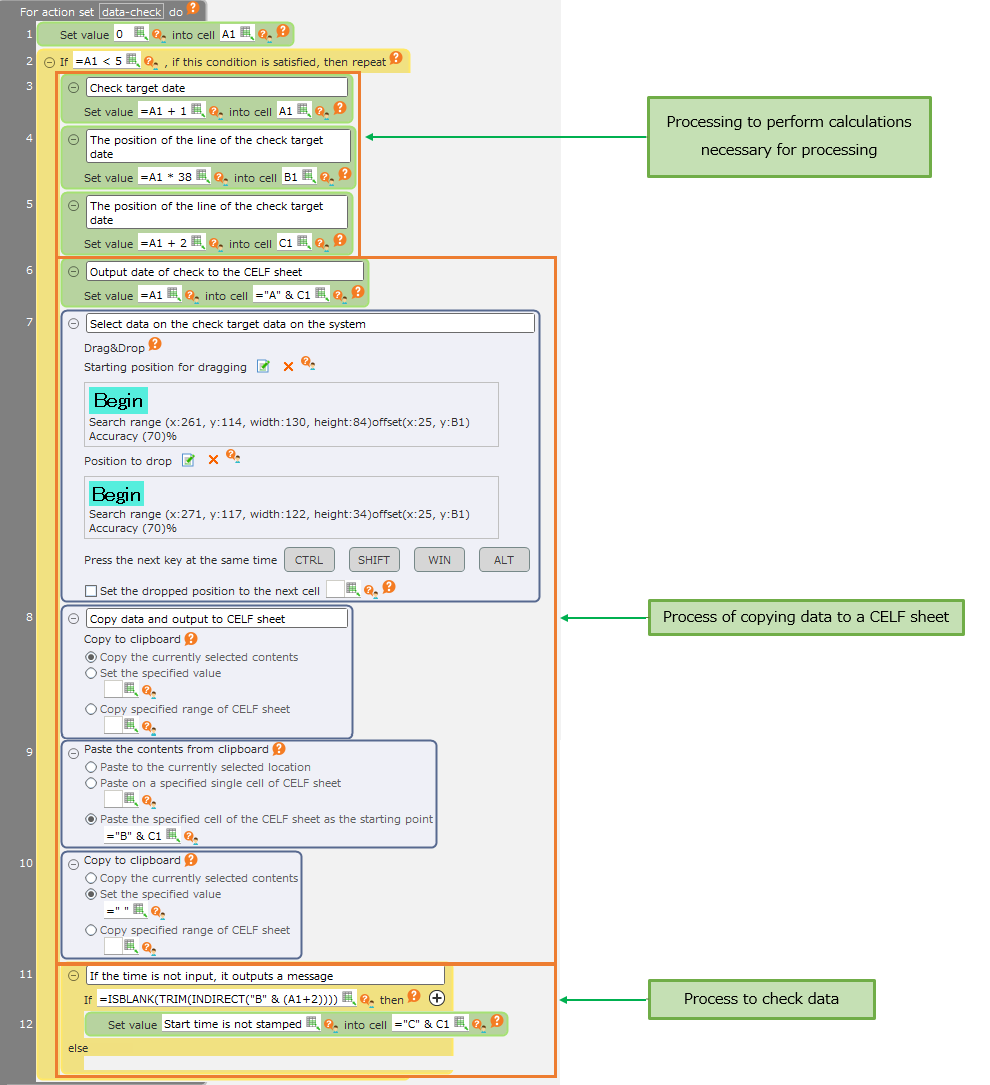
The action set for repeatedly checking each row using the method for copying data is as follows.
Checking of items with values that cannot be selected
If the item to be checked does not have a value that can be selected through drag & drop and so on, copy the data to the CELF sheet using the OCR function.
How to set the operation for copying values
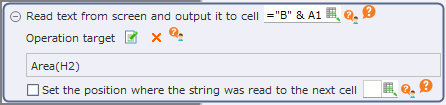
Use the "Read text from a specified area of the screen and set to cell" action.

Here, the cell reference is used as the target to be read.
Checking the approximate coordinates and the size of the target area to be read
By using the area selection function, you can check the coordinates and size values of the area on the screen.
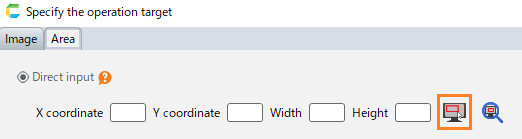
Check the coordinates of several areas and calculate the shift amount of the position to be operated.
Set the information of the target area to be read using the function into the cell
Here, make sure to acquire the area to be read from the "H2" cell.

The coordinates and sizes set in each cell are set to the values examined in 1, but Y coordinates vary per target row, so they are set to be generated via calculation.
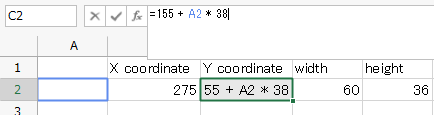
In the "H2" cell, generate the region information from the data on coordinates and size by using the "CONCATENATE" function and "UTIL.JOIN" function.

See also
Refer to the "Documents" > "Function list" in CELF help for details on the "CONCATENATE" function and "UTIL.JOIN" function.
Acquire area information from cells and read strings
Set the "Read text from a specified area of the screen and set to cell" action in such a way that it will refer to the area information set in 2.
How to set the operation for checking data
The check process is the same as "Check items with values that can be selected".
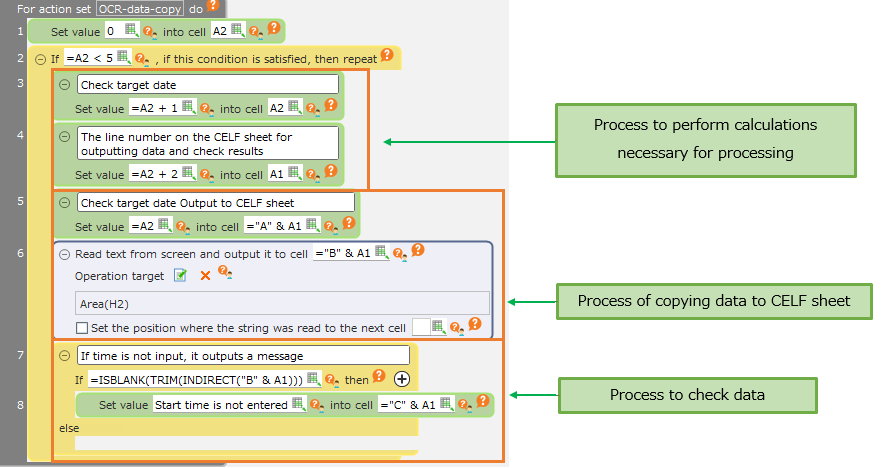
Action set for checking data that is read using OCR
The following is the action set for repeatedly checking each row using the method for reading data through the OCR.
Note