Start the Process After Waiting for the Particular Screen to be Shown
Use the "Wait until image appears" action
By using the "Wait until image appears" action, you can continue the operation after waiting for a particular dialog to appear, and perform processing only when the particular message dialog of the application has been displayed.
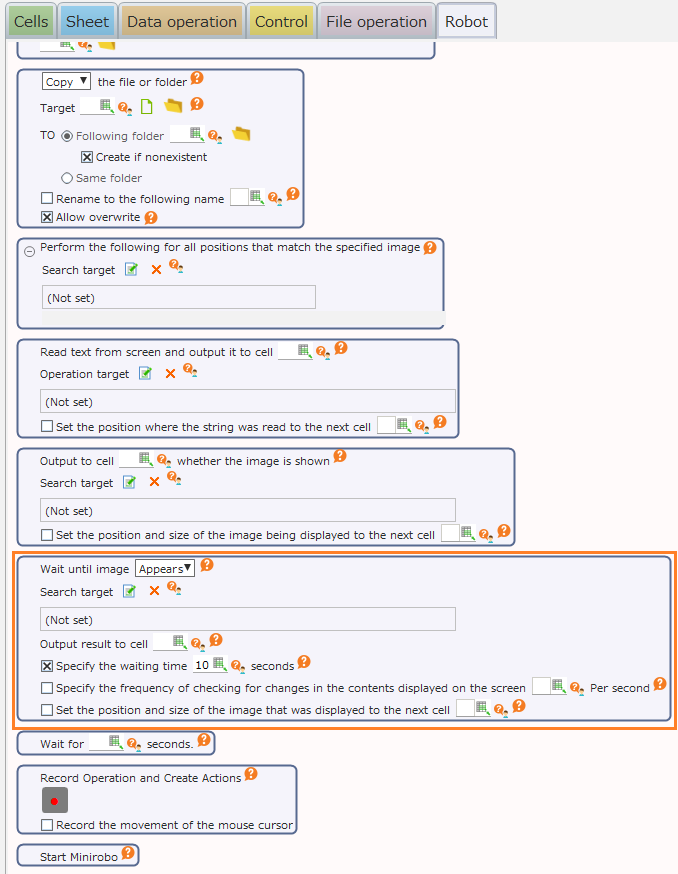
You can prevent the following process from being executed before the window is displayed by setting the app to wait for the target app’s screen (or part of it) to be displayed after launching the app, as shown below.
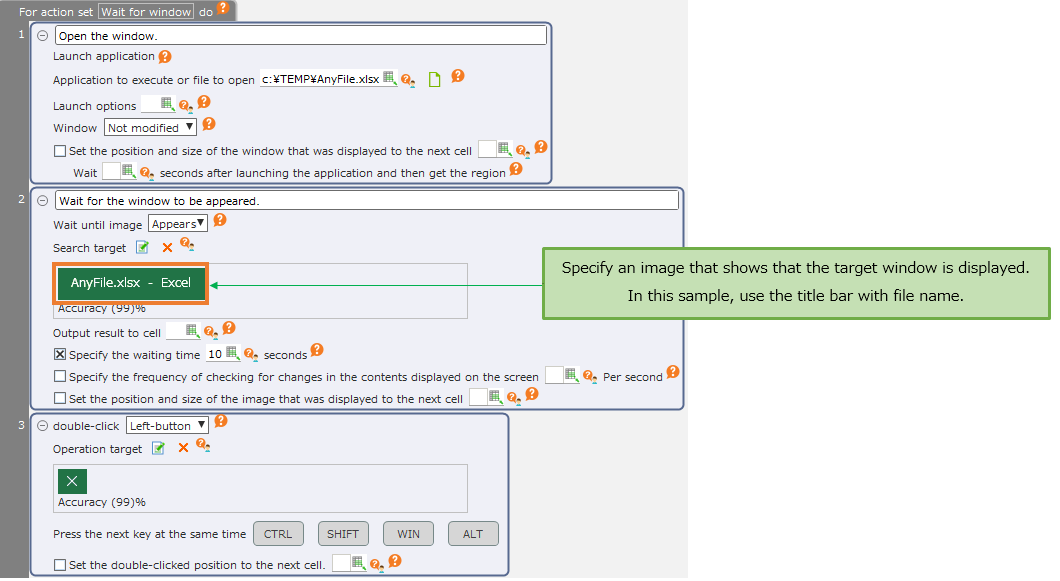
Tip
You can use the "Wait for ○seconds" action to wait for the window to be displayed, but if it is difficult to specify the appropriate number of seconds, such as the case that the time until the window is displayed varies depending on the PC, it may be better to wait for the image to appear or disappear.
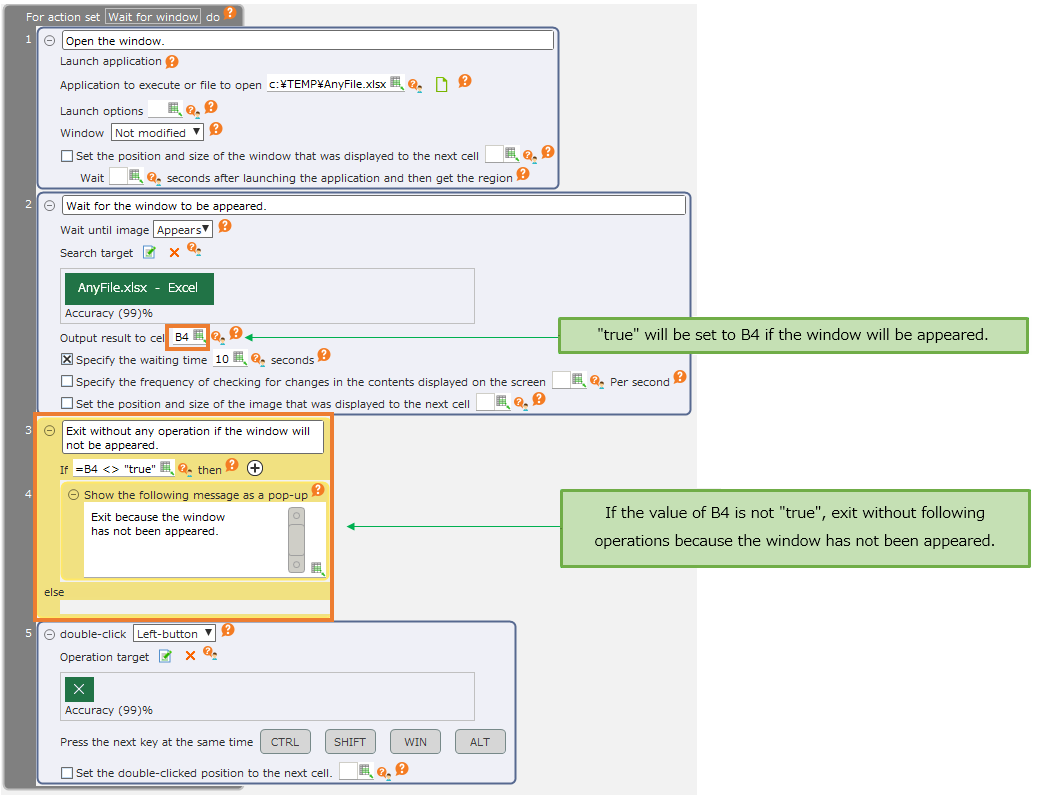
As an application, by combining branching actions, the process can be terminated in the middle if the window was not shown.