Specify Schedules and Automatically Execute
By using the CELF function to execute applications by specifying URLs and the Windows task scheduler, robot applications can be executed automatically.
This sample shows how to create an application to open and close the specified web page.
Create an application to be executed
Create an application that is made up of an action set that performs automatic operation.
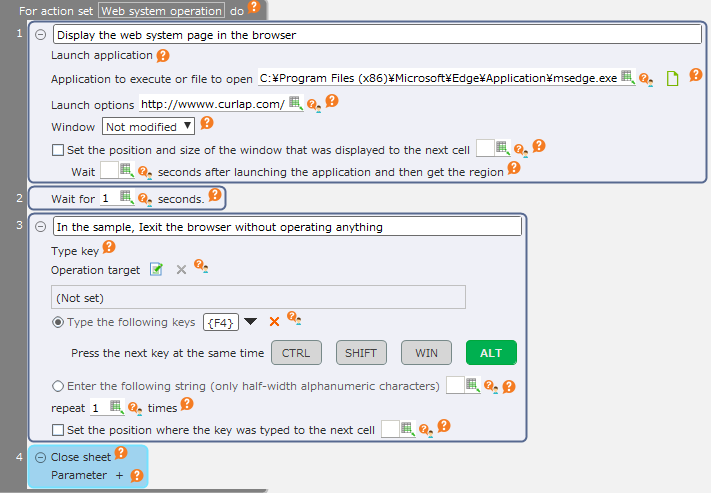
In the "Action definition" dialog, set it in such a way that it is executed when the sheet is shown.
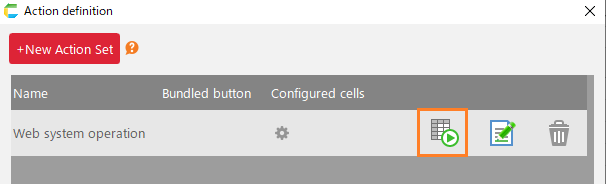
Set the sheet created above as the start sheet and then publish the application.
See also
Refer to "Published/Unpublished" > "Publish application" in the CELF help for the method on releasing the application.
Create the application URL for automatic login
Acquire the application URL.

See also
Refer to "Launch Application Using URL" > "Get Application URL" in CELF help for the method on acquiring the application URL.
Add the following query information into the URL acquired in 1 in order to launch the application without logging in on the login screen.
- Login User ID
- Password
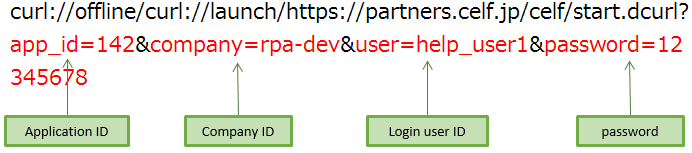
Create batch file
The method of using rundll32.exe to launch the application is set as an example for when the link URL of the CELF application is invoked from the bat file, etc.
Create the rundll32.exe command string. Add the URL that was created in the creation of the application URL for automatic login as an argument.
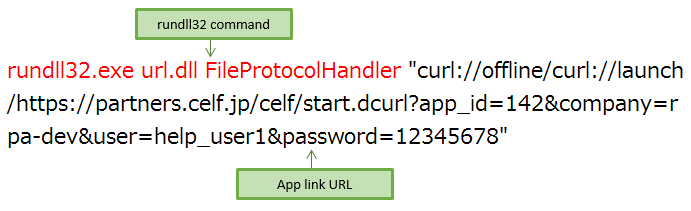
Save the command string created in 1 to a .bat file.

Hint
Write the command in one line without line breaks. The image is shown using the "Word Wrap" function in Notepad.
Double-click the .bat file created in 2 and check if the application launches.
Tip
The rundll32.exe is an executable file that invokes a function in DLL file.
Set in the task scheduler
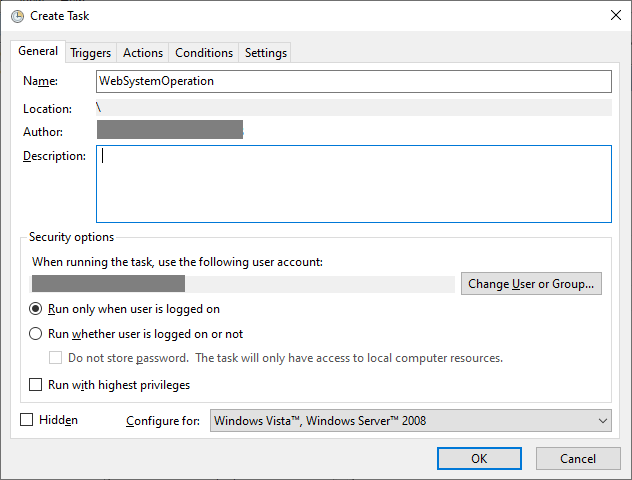
Launch the task scheduler and create a task.
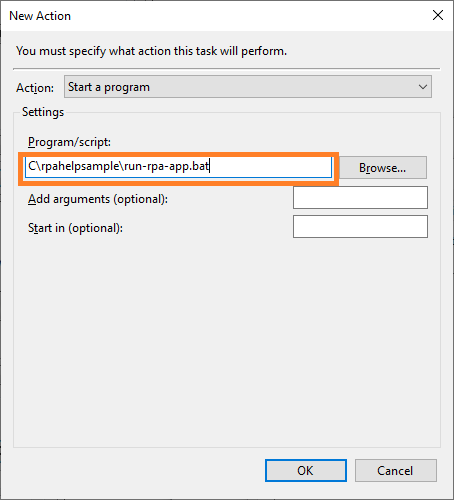
Open the "Actions" tab, click the "New" button, and then select the .bat file that was created in the creation of the batch file.
Note
The robot action will not work if the user is not logged in, the PC is locked, or the screen saver is running. If it is executed from the task scheduler, make sure that the user is not logged out and the PC is not locked.
See also
By making a remote desktop connection using two PCs, you can lock the local PC while running robot actions on the remote one. See Execute robot actions with PC locked for details.