Execute robot actions with PC locked
Robot actions usually do not work properly when the PC is locked.
However, by making a remote desktop connection using two PCs, you can lock the local PC and execute robot actions on the remote one. This section describes the procedure.
Requirements
- PC on which the robot actions will be executed (hereafter referred to as "RPA-executing PC")
- PC (hereinafter referred to as "client PC") with remote desktop connection to RPA-executing PC
Attention
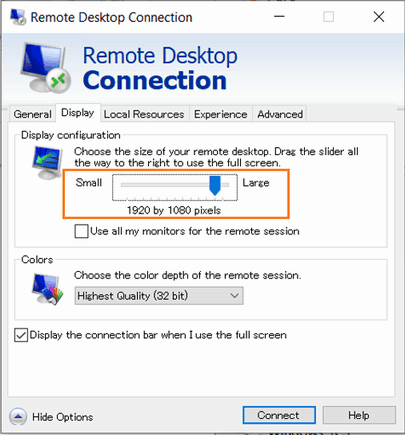
Client PC should be prepared to use the same display resolution as the RPA-executing PC.
Change the settings of the client PC
Make changes to the registry. Registry keys vary depending on the coverage of the registry.
Attention
- It is recommended to create a backup before making changes to the registry.
- Please note that any changes to the registry are at your own risk.
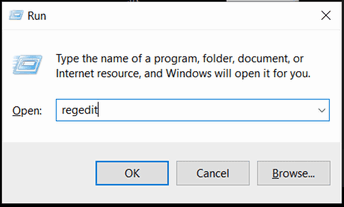
Press Win + R, type "regedit" and click OK.
Go to the registry key.
[1] If you want to enable the setting for the current user only
Registry key:HKEY_CURRENT_USER¥Software¥Microsoft¥Terminal Server Client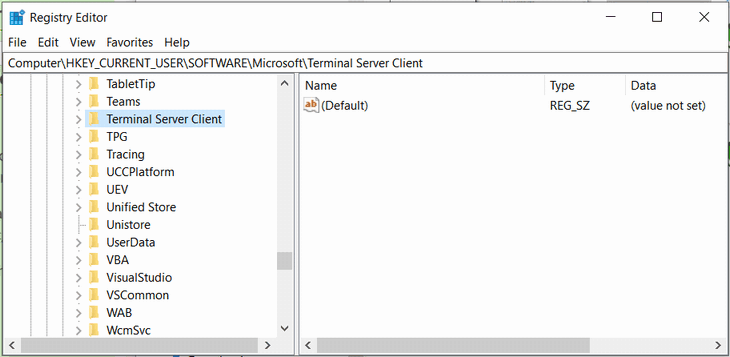
[2] If you want to enable the setting on a per-PC basis (all users)
Registry key:HKEY_LOCAL_MACHINE¥Software¥Microsoft¥Terminal Server Client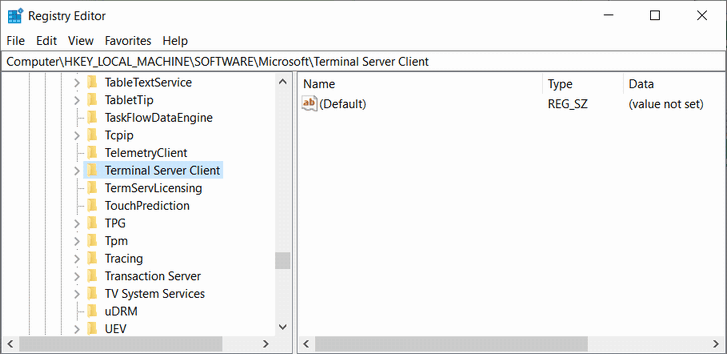
Right-click in the right panel in the Registry Editor and click on DWORD (32-bit) Value.
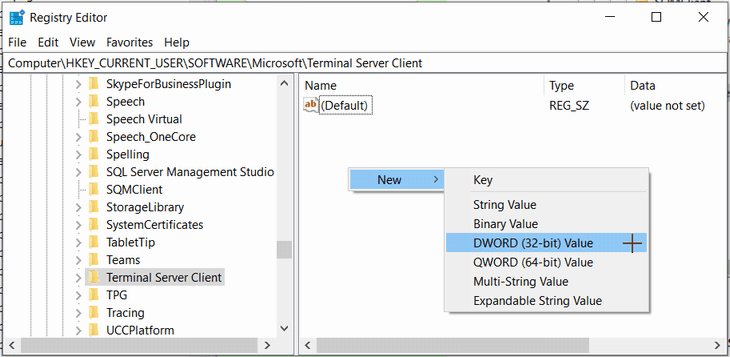
Rename it to "RemoteDesktop_SuppressWhenMinimized".

Double-click "RemoteDesktop_SuppressWhenMinimized" and enter 2 for "Value data".
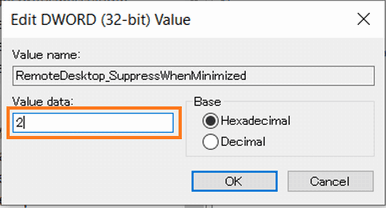
Click "OK".
Tip
If both [1] and [2] registries exist, the setting of [1] will take precedence.
Attention
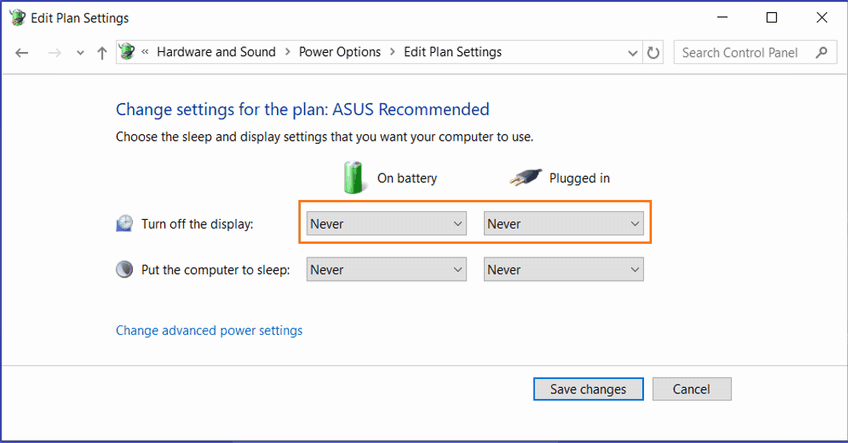
- If the client PC is shut down while the robot action is running, the action will not work properly. Therefore, we recommend that you check the power settings of your client PC.
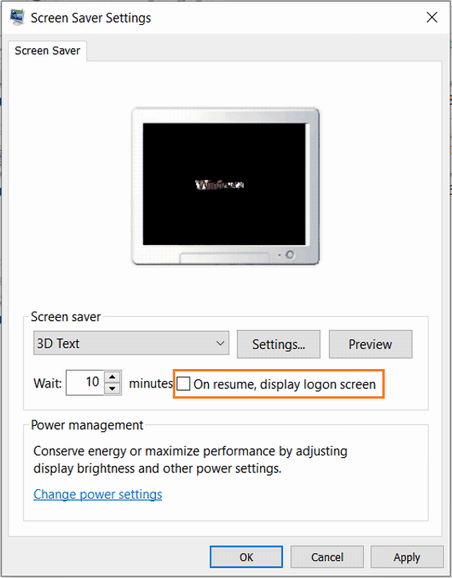
In the Screen saver settings, uncheck "On resume, display logon screen".
(If the client PC is a laptop) Change the "Turn off display" setting to "Never".
Set up a task scheduler on the RPA-executing PC
- Referring to Specify Schedules and Automatically Execute , create a task scheduler to run the application on the RPA-executing PC.
Connect from client PC to RPA-executing PC with "Remote Desktop Connection"
On the Remote Desktop Connection Settings screen, change the "Display configuration" under the "Display" tab to the same resolution as the RPA-executing PC.
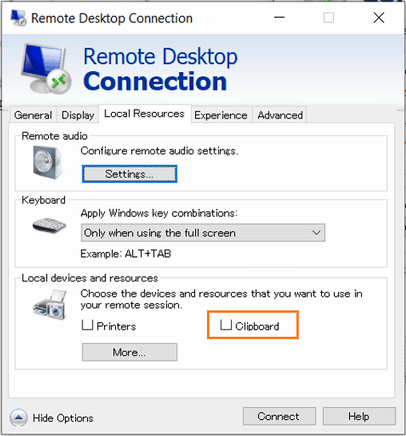
Uncheck "Clipboard" under the "Local Resources" tab.
Attention
If checked, actions that handle the clipboard may not work properly.
Click "Connect"
Attention
The RPA-executing PC must be logged in.