Operate at Position Where Image is Shown
This will explain the settings for operation at the position where the icon and button on screen are shown.
When operating at the position where the image is shown,
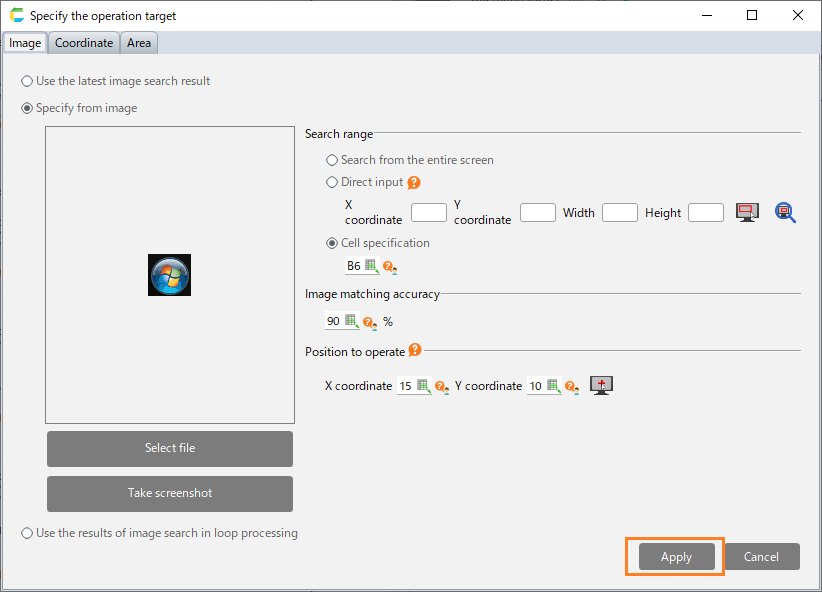
select the "Image" tab in the "Specify the operation target" dialog.
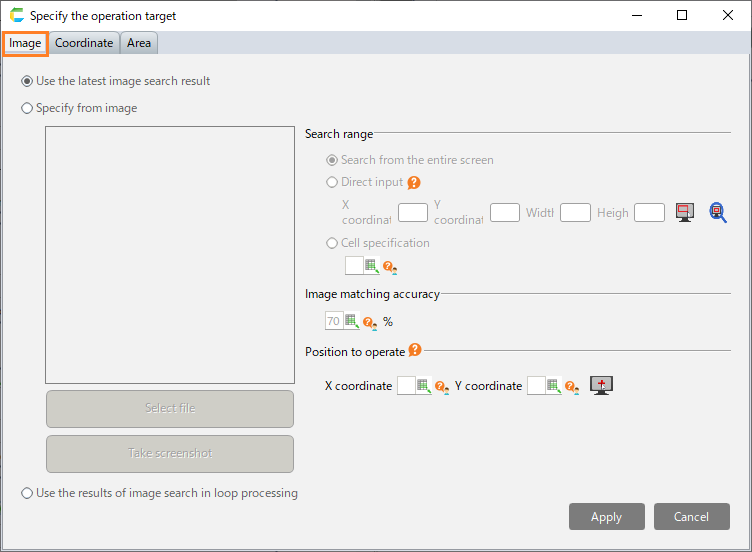
Select "Specify from image".
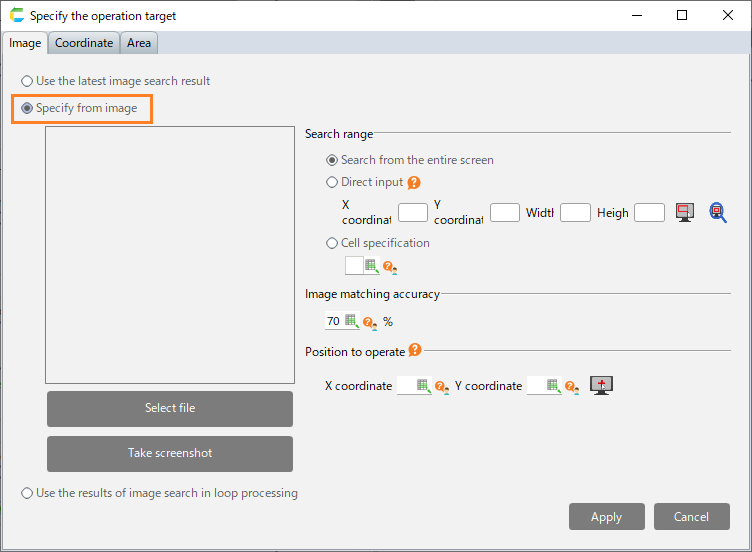
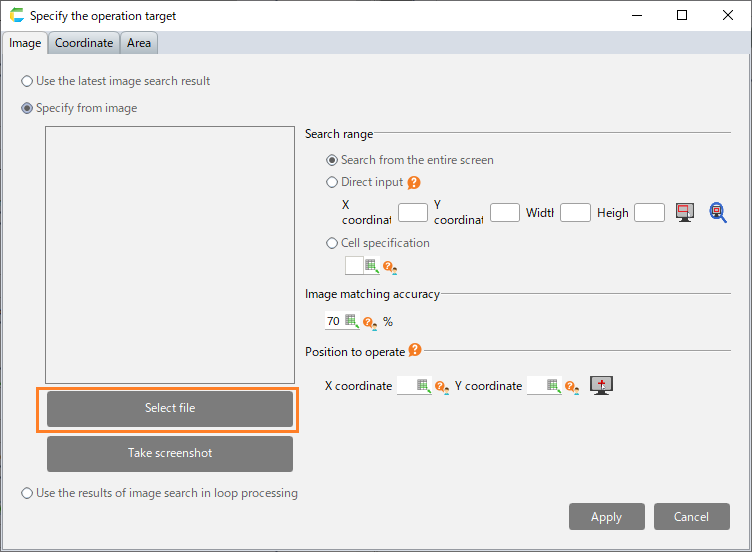
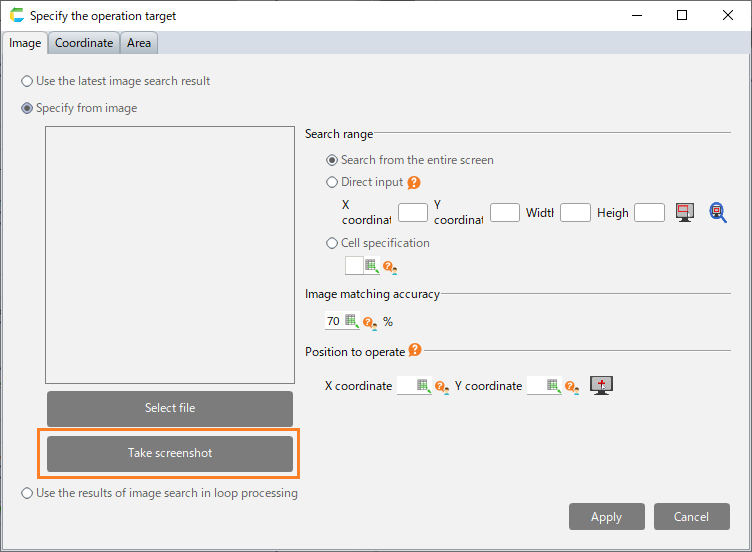
Set the image to be searched.
- "Select file" button
- "Take screenshot" button
Note
if screenshot being taken is displayed at a magnification higher than that of Windows settings, please refer to "The screenshot acquisition mode may be shown at a display scale setting different from the setting in an environment where the display scale setting of the screen is changed"
Click the "Apply" button.
When operating at the the position where the image is displayed (Advanced settings)
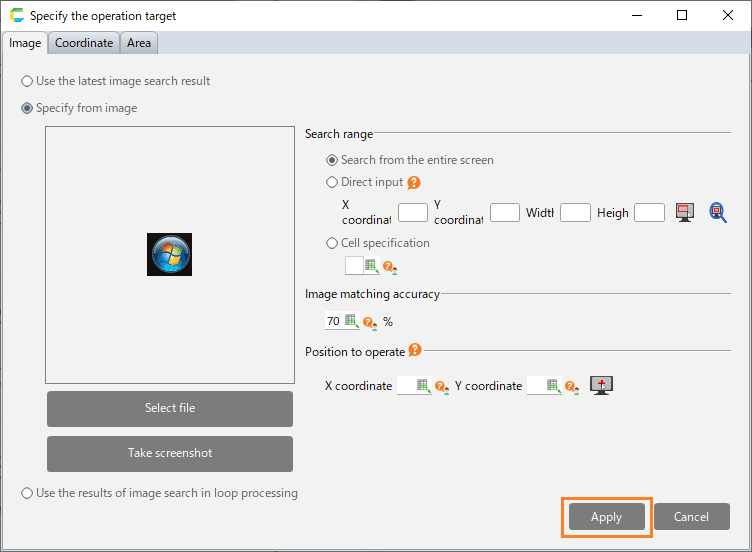
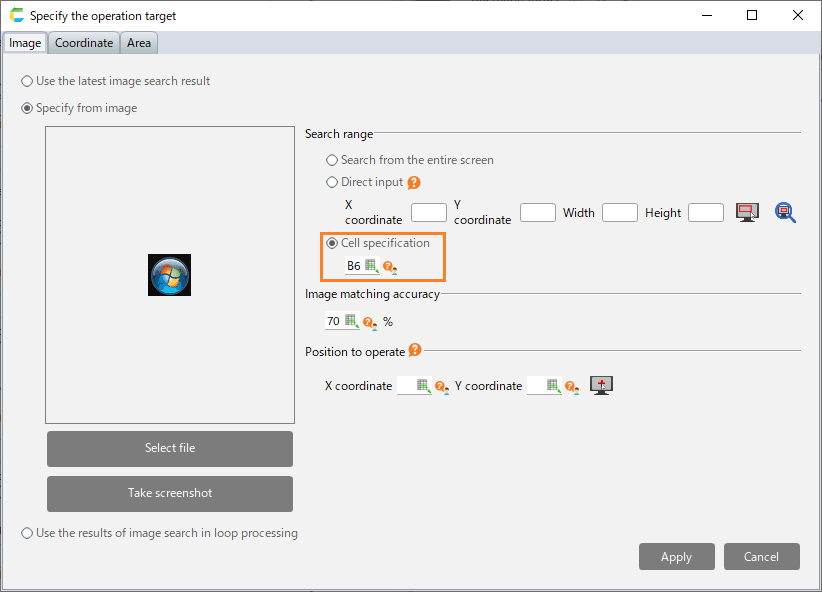
Select the "Image" tab in the "Specify the operation target" dialog and then set the image.
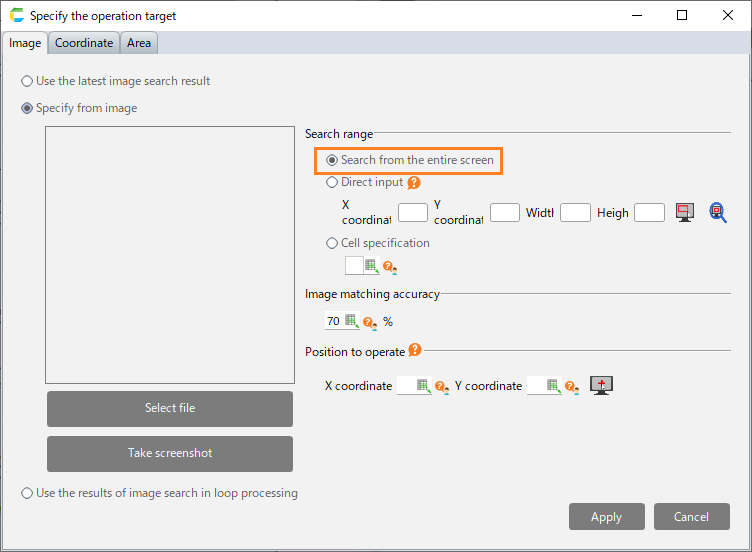
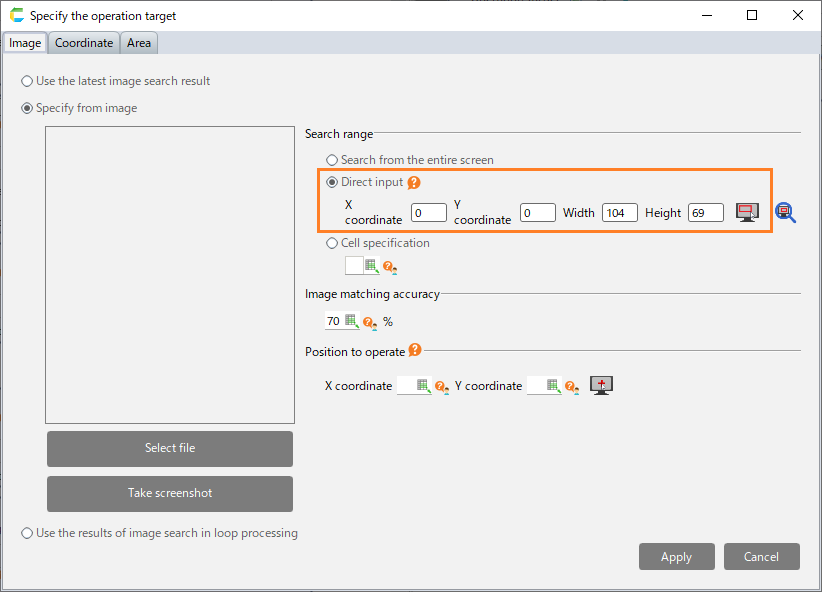
Set the search range.
- Search from the entire screen
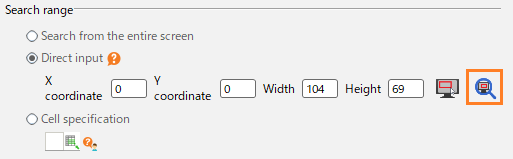
- Direct input
Hint
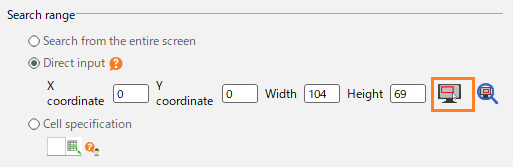
In case of direct input, you can select the search range using the mouse by clicking the Select range button.Hint
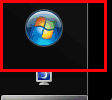
By clicking the range confirmation button, you can display the area specified by direct input on the screen with a red frame.
- Cell specification
Hint
The smaller the search range, the shorter the time it takes to search.
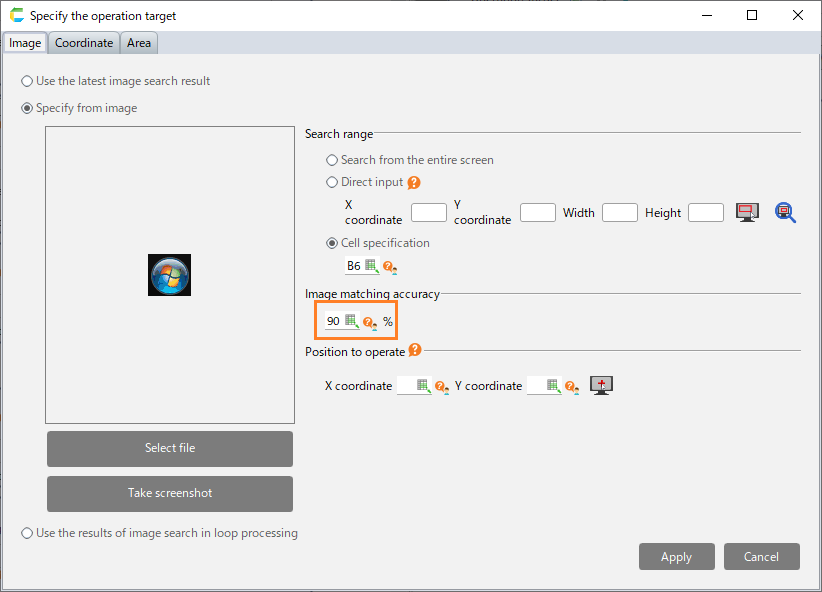
Set the image matching accuracy.
Hint
The image matching accuracy sets how much the set image has to match with the display contents on the screen before it can be declared as "Displayed". The smaller the value, the more similar icons will be searched, and the larger the value, the more only exact matches will be found.
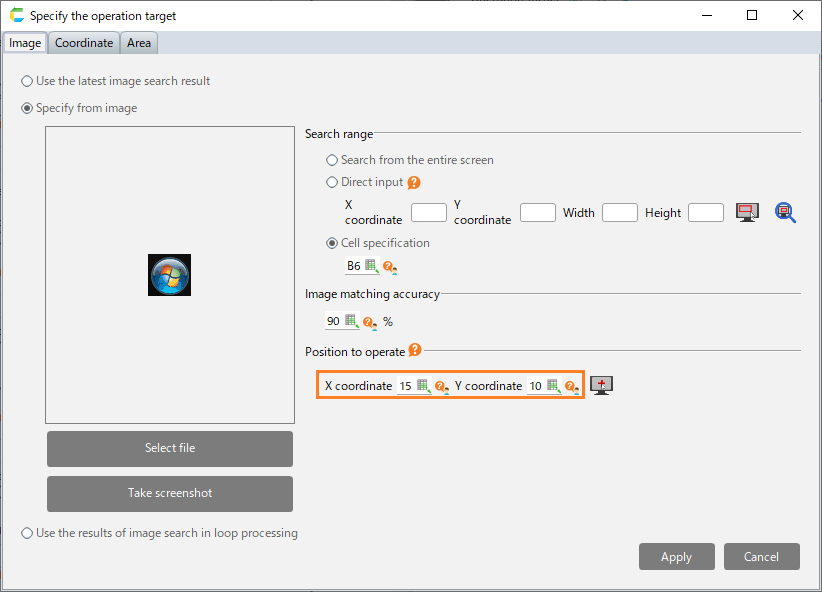
Set the position to operate.
Hint
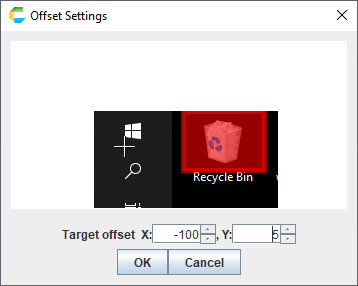
If Operate is not set, clicking and other operations will be performed on the center of the image. If the X coordinate is negative, the operation is performed on the position shifted to the left;if it is positive, the operation is performed on the position shifted to the right. If the Y coordinate is negative, the operation is performed on the position shifted upward; if it is positive, the operation is performed on the position shifted downward.
Hint
By clicking the setting button of the position to operate, you can set the operation position by mouse operation.Click the "Apply" button.

When operating at the position where the last action was performed with the image as the target
select the "Image" tab in the "Specify the operation target" dialog.
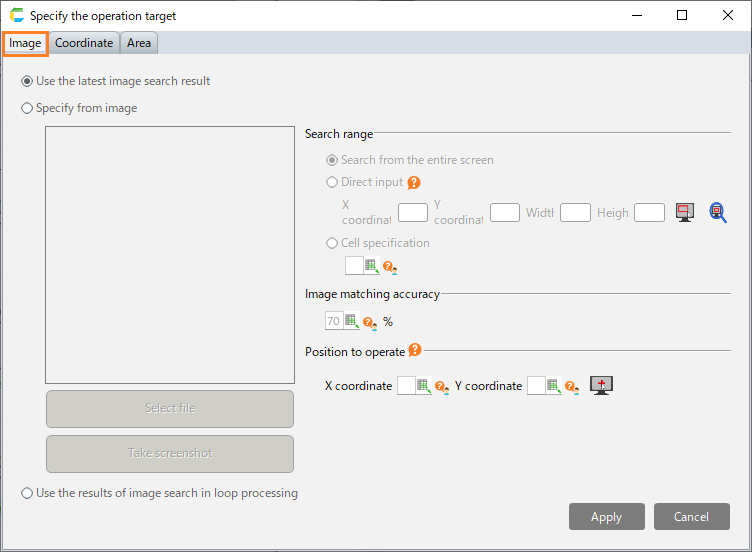
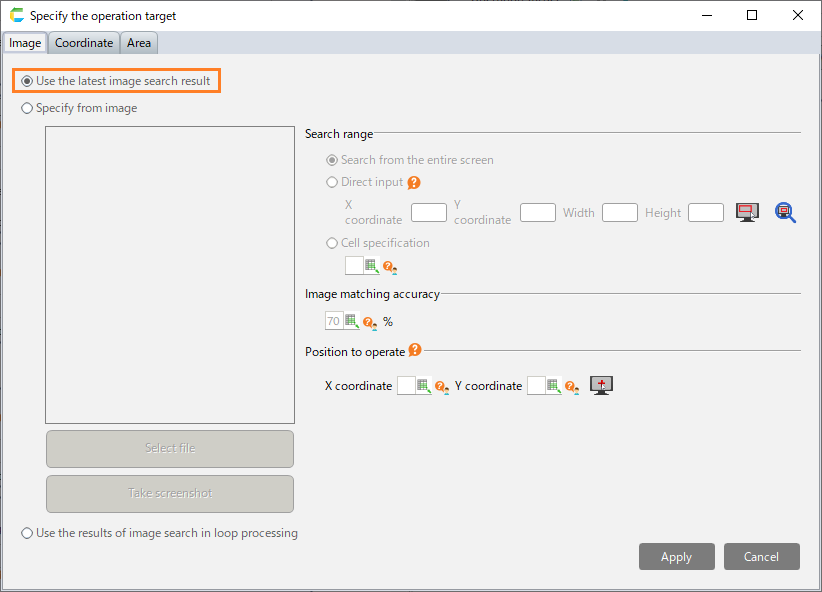
Select "Use the latest image search result".
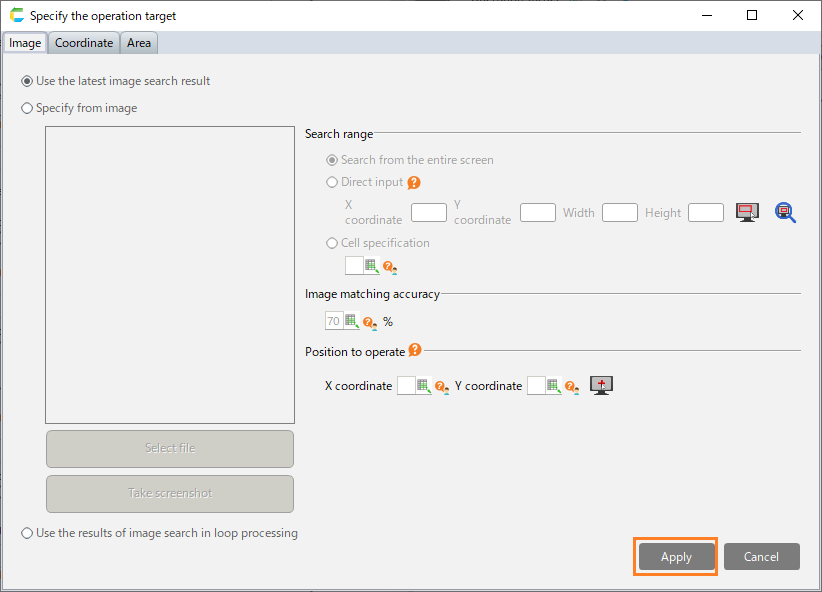
Click the "Apply" button.
When using the image results in the "Perform the following for all positions that match the specified image" action
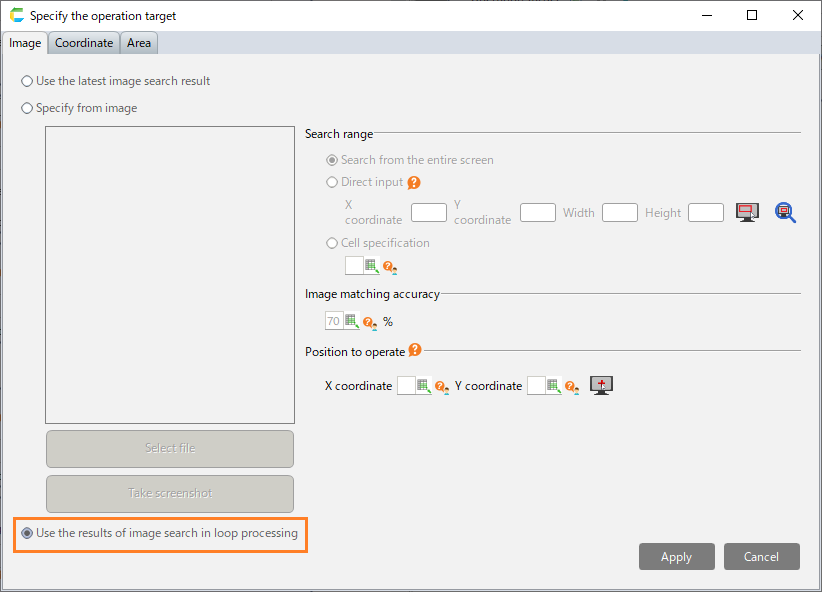
select the "Image" tab in the "Specify the operation target" dialog.
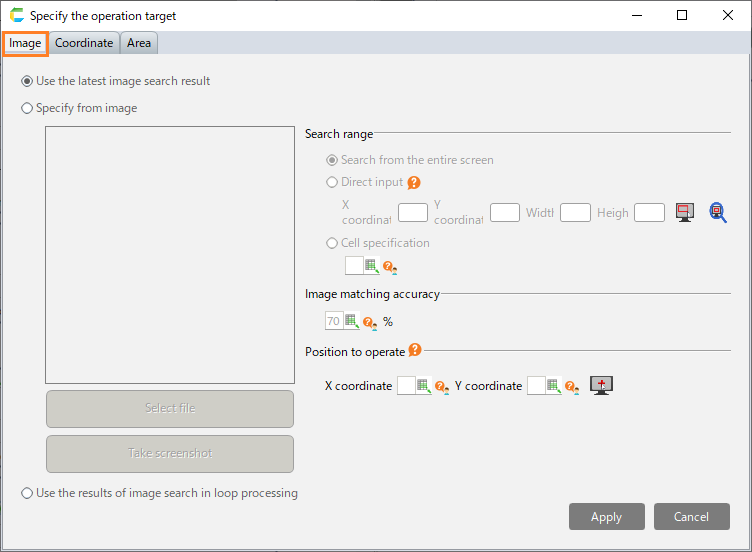
Select "Use the results of image search in loop processing".
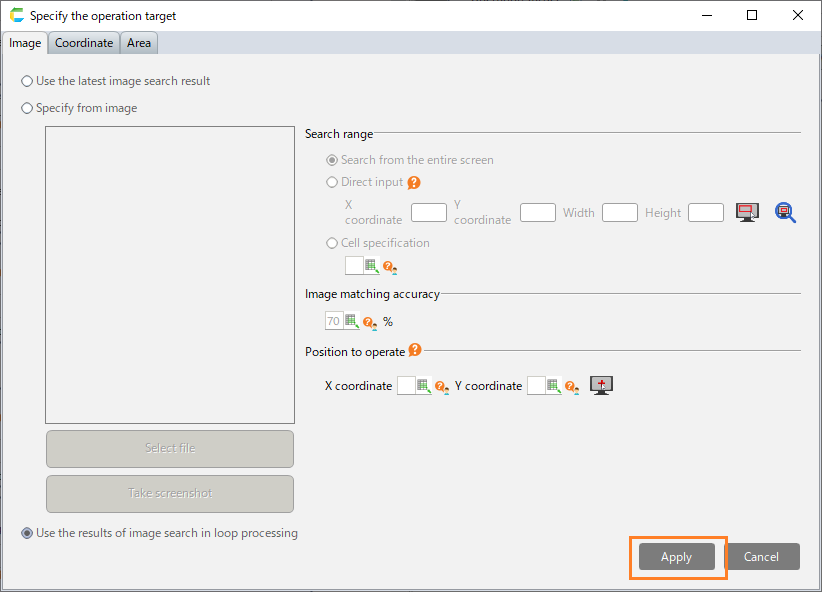
Click the "Apply" button.
Note
The "Use the results of image search in loop processing" can only be used with actions that are set in the "Perform the following for all positions that match the specified image" action.
Hint
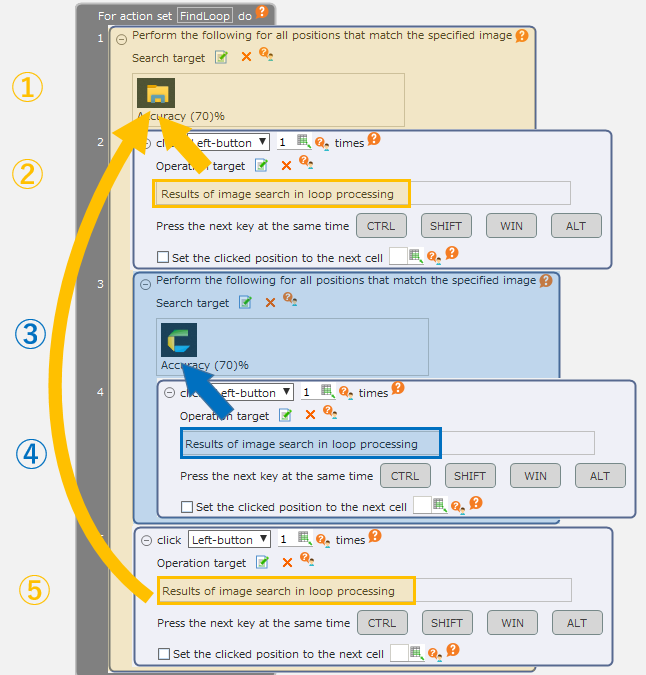
In the action that set the "Use the results of image search in loop processing", perform the operation at the position that displays the image of the "Perform the following for all positions that match the specified image" action for which such action is set.In the following example, "Use the results of image search in loop processing" is set through the ②, ④, and ⑤ actions.② and ⑤ are set in the action of ①, so use the search results of ①.④ is directly set in the action of ③, so use the search result of ③.