Keyboard Operation
You can perform keyboard entry.
Type key
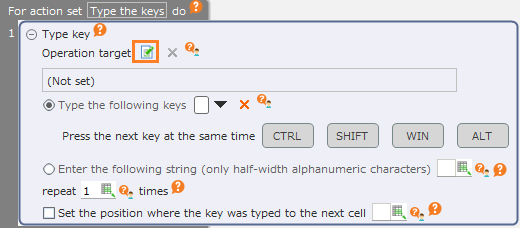
Drag the "Type key" action from the "Robot" tab and set it to the edit area.
Click the "Specify the operation target" button.
Tip
The setting of the operation target can be omitted. If omitted, the operation is executed on the spot.
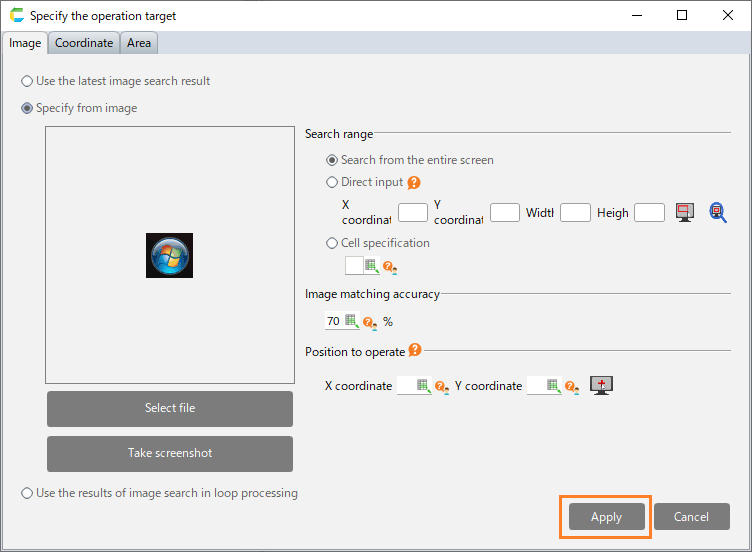
In the "Specify the operation target" dialog, specify the position where the key will be inputted and then click the "Apply" button.
See also
Refer to "Specificy operation target" on how to set the operation target.
Set the keys to be pressed.
Directly specify the key to be pressed.
Select "Type the following keys".
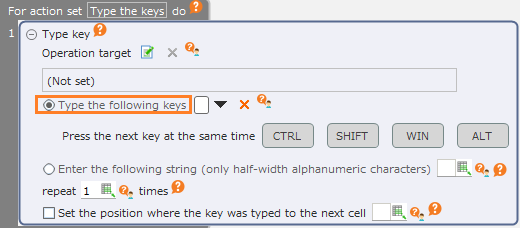
Set the keys to be pressed.
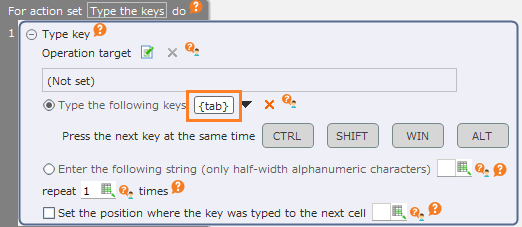
See also
Refer to "How to set the key to be inputted" on how to set the key.
Select the keys that will be pressed at the same time as the set key.
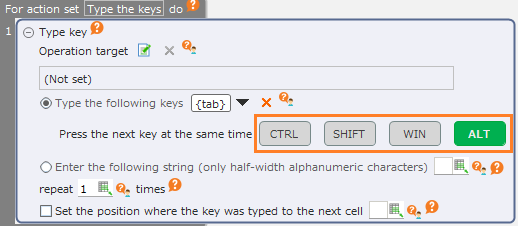
Specify the key to be pressed as a string of half-width alphanumeric characters..
Select "Enter the following string (only half-width alphanumeric characters)".

Set the string you want to enter.

Hint
This allows you to enter strings through key input even for controls that do not support Ctrl + V or structural analysis.
It is recommended to use faster input actions such like the "Paste string" action or the "Screen item operation through structural analysis" action to set strings in general input fields.
Note
The following characters are supported:
- Alphanumeric a-z, A-Z, 0-9
- Following symbols + * ^ - _ ~ = , . / \ @ ; : ( ) [ ] { } < > " ' ` ! ? # $ % & |
The keys corresponding to these characters may be typed. Other characters not included in the above will be ignored.
If you specified uppercase or some symbols, the Shift key will be pressed while the appropriate keys are being typed.
e.g.)
- "a": "A" key will be typed.
- "A": Shift + "A" key will be typed.
- "!": "Shift + 1" key will be typed.
- "aあA": Assuming that "aA" is specified 、the A key is pressed, followed by the Shift + A key.
Note
When specifying by string, function keys such as Tab and Enter cannot be specified.
Select "Type the following keys" to enter these keys.
Note
A modifier key cannot be specified by a string.
Select "Type the following keys" or use the Hold keys action to press key modifiers.
Note
CELF RPA supports only keyboards with Japanese key layout.
If you use a keyboard that does not have Japanese key layout, some symbols will not be entered as printed on your keyboard when you specify the keys by character string.
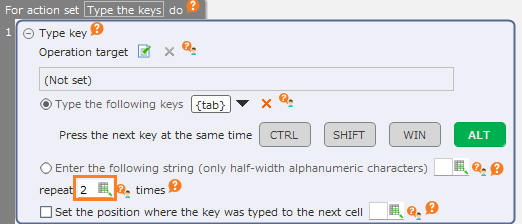
Set the number of times the key will be pressed.
By checking off the "Set the position where the key was typed to the next cell" check button, the position of the mouse pointer when the key was actually pressed will be set into the cell.
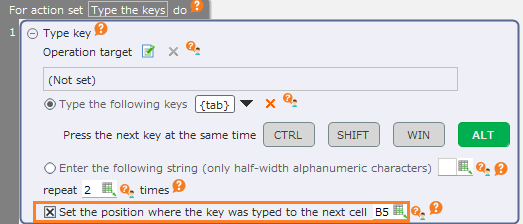
See also
The position information that has been set can be used as the position information of the operation target of another action. Refer to "Use the coordinates set in the cell" for details.
See also
To input long sentences, use the "Paste string" action, the "Paste clipboard content" or the "Screen item operation through structural analysis" action.
Attention
When inputting important information such as a password, be careful not to divulge the information to other users.Even when the application has been published to other users, the string in the input field will not be masked.Information can be protected by acquiring the values to be set from cells that cannot be browsed by other users.
Press and hold the key
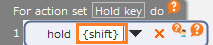
Drag the "Hold key" action from the "Robot" tab and set it to the edit area.
Set the keys to be pressed.
See also
Refer to "How to set the key to be inputted" on how to set the key.
Hint
The pressed key can be released through the "Release key" action.
Attention
When inputting important information such as a password, be careful not to divulge the information to other users.Even when the application has been published to other users, the string in the input field will not be masked.Information can be protected by acquiring the values to be set from cells that cannot be browsed by other users.
Release key
Drag the "Release key" action from the "Robot" tab and set it to the edit area.
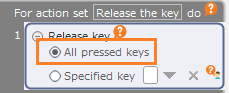
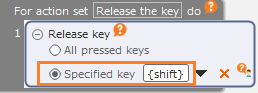
Set the keys to be released.
- All pressed keys
Release all keys so that no key is being pressed.
- Specified key
Release only the specified key.
See also
Refer to "How to set the key to be inputted" on how to set the key.
Hint
The "Release key" action can release the key that was pressed through the "Hold key" action.
Attention
When inputting important information such as a password, be careful not to divulge the information to other users.Even when the application has been published to other users, the string in the input field will not be masked.Information can be protected by acquiring the values to be set from cells that cannot be browsed by other users.
Perform shortcut key operation
Drag the "Perform shortcut key operation of Excel" action from the "Robot" tab and set it to the edit area.
Tip
"Perform shortcut key operation of Outlook" action can be configured by the same operation.
Select the shortcut key operation to perform.
If you have already configured shortcut key operations, select the operation you want to perform from the 15 most recently selected shortcut key operations.
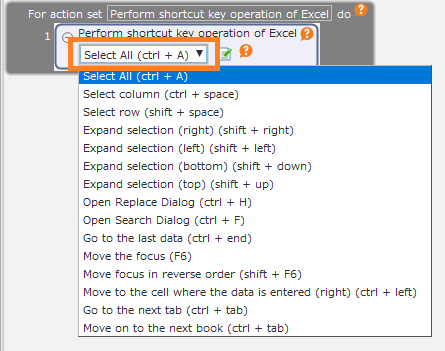
If you have no selection history list, or want to set a shortcut key operation that is not on the list, you can select the operation from the shortcut key selection dialog.
Click the Set button.
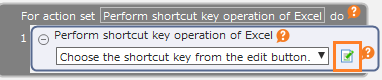
Select the operation to perform and click the "Apply" button.

Hint
Select "Category" to narrow down the list by type of operation.
Hint
You can filter the shortcut keys related to any words in the keyword field.
Tip
If you specify both "Category" and "Keywords", only shortcut key operations that apply to both will be shown.
You can specify the continuous input count if the repeat count field is shown.

Tip
The repeat count field is shown only for some shortcut key operations.
If the input internal field is shown, you can set the internal between key presses.
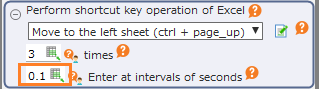
Tip
The repeat interval field is shown only for some shortcut key operations.


How to set the key to be inputted
Select the key input field and then press the key as you want to set it.

Some keys are input from the menu that is displayed when the “▼” button on the right of the input field is clicked.

When changing the key input contents, delete the contents that have been inputted once through the "x" button on the right of the entry field and then reset the contents.