Application Operation
You can launch the application or operate the window.
Launch application
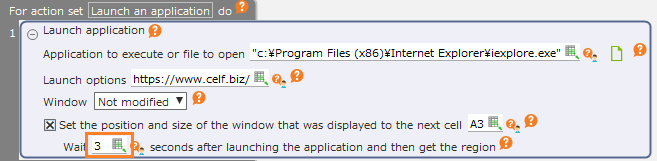
Drag the "Launch application" action from the "Robot" tab and set it to the edit area.
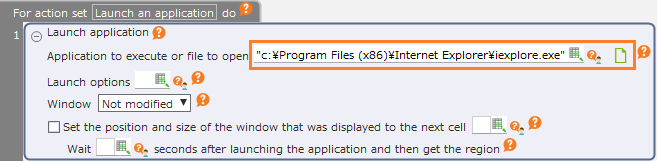
Set the file to be executed or opened.
Hint
In addition to executable files such as .exe, you can set files such as .txt, .bat etc. and open them.
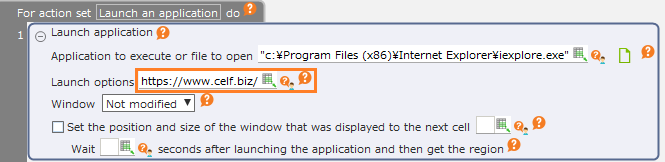
If the application to be executed supports the command line argument, you can set them in "Launch options". "Launch options" is optional.
Note
For the details of the option to be set to "Launch options", please refer to the help of the application to be executed.
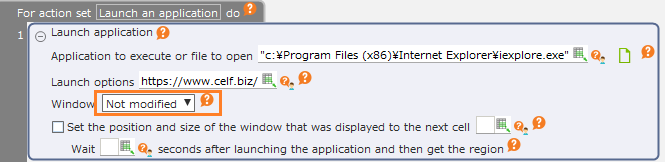
You can set the initial state of the window and open it in the maximized or minimized state.
Note
If the application to be executed is not supported, the initial state of the window may not be changed.
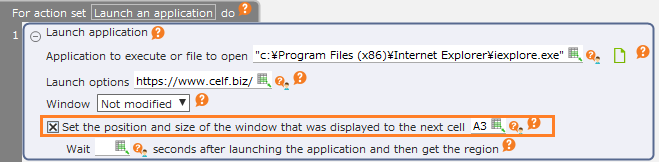
By checking off the "Set the position and size of the window that was displayed to the next cell" check button, the information on the position and size of the window that was actually displayed will be set into the cell.
See also
The position information that has been set can be used as the position information of the operation target of another action. For details, refer to "Use the coordinates set in the cell".
By setting "Wait N seconds after launching the application and then acquire the area", it is possible to get the window area after waiting for the window for which you want to acquire the area to be displayed. This setting can be omitted.
Hint
If setting is omitted, the area of the window displayed at the forefront is acquired immediately after launching the application.
Hint
To close the application, close the window of the application by using the "Close window" action.
Show window at the forefront
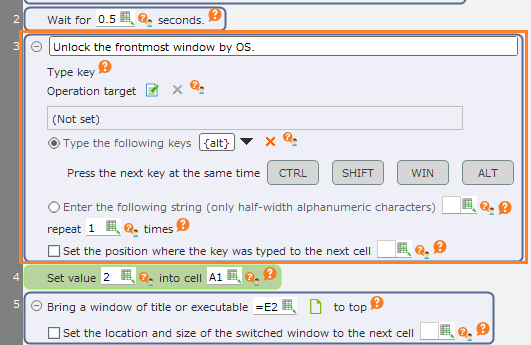
Drag the "Show window at the forefront" action from the "Robot" tab and set it to the edit area.
Set a portion of the title of the window to be displayed or the executable file of the application.

Hint
The window title can be set to any name. To specify the application, set files with .exe, .bat or .cmd extension.
Note
Specify the executable file, and if the target window cannot be found, launch the specified application.
By checking off the "Set the position and size of the switched window to the next cell" check button, the information on the position and size where the window was actually displayed will be set into the cell.

See also
The position information that has been set can be used as the position information of the operation target of another action. For details, refer to "Use the coordinates set in the cell".
Tip
If the task bar icon blinks and the window does not be brought to top, you may be able to switch the window by pressing the "Alt" key by "Type key" action before "Show window at the forefront" action.
Close window
Drag the "Close window" action from the "Robot" tab and set it to the edit area.
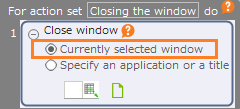
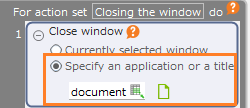
Set the window to be closed.
- Currently selected window
- Close the window currently displayed at the forefront of the screen.
- Specify an application or a title
- Close the specified title or the window of the executable file.
Hint
The window title can be set to any name. To specify the application, set the file with .exe extension.
Note
Operations requiring administrator privilege, such as running applications that require elevation of privilege to execute, may not work as expected.