Batch Processing
You can perform processing for all the positions where the particular buttons and icons are displayed.
Operating all locations where images are displayed
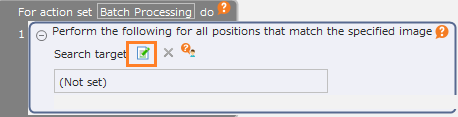
Drag the "Perform the following for all positions that match the specified image" action from the "Robot" tab and set it to the edit area.
Click the "Specify the operation target" button of the "Search target".
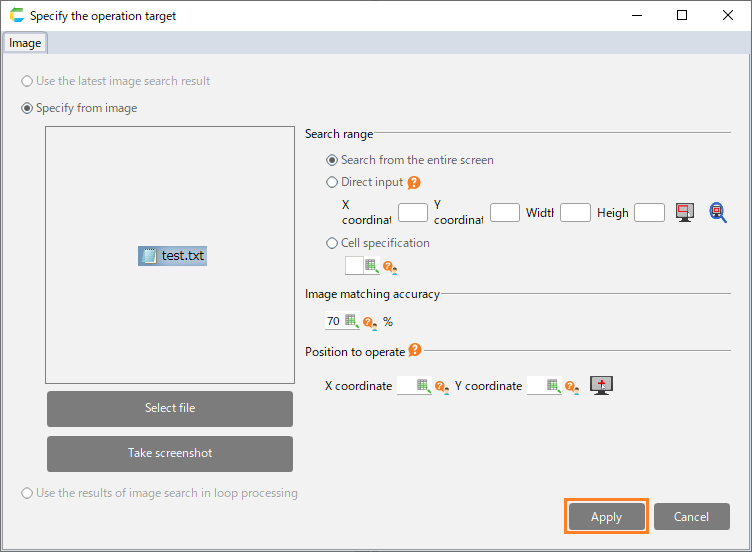
In the "Specify the operation target" dialog, specify the image to be searched from the screen and then click the "Apply" button.
See also
Refer to "Specificy operation target" on how to set the operation target.
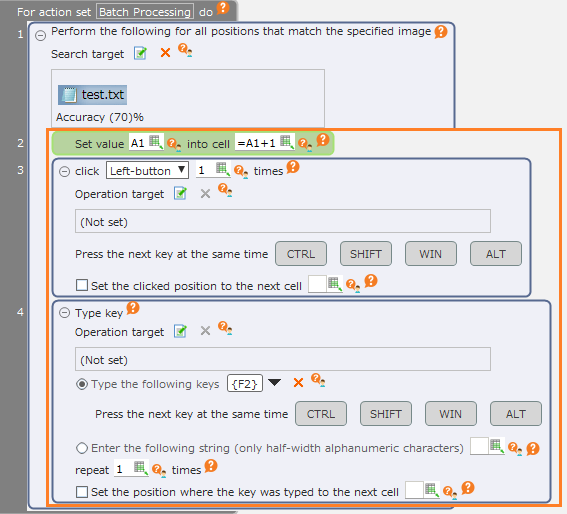
Set the action to be done for the position where the image specified through the "Search target" is displayed.
See also
When operating at the position of the image that has been set here, set "Use the results of image search in loop processing" as the operation target of the action. Refer to When using the image results in the "Perform the following for all positions that match the specified image" action for details.
Note
Up to 100 items can be run at once.
Tip
The operation is performed in sequential order, starting from the position that is a better match to the image specified in the "Search target".