Operation by Structural Analysis (Object Recognition)
You can analyze the internal structure of the operation target application and Web page to identify and operate screen items.
The following browsers are supported when operating Web pages.
- Microsoft Edge
- Windows® 11(64bit)
- ※verified version: 21H2
Attention
Depending on the application, particular screen items may not correspond to operations by structural analysis.
When executing an operation
- Specified operation does not work and has no response
- "Failed to get the value" or "Failed to set the value" error occurs
If the above behavior happens, please check the following points.
- The screen item is correctly recognized in the "Screen item" field in the "Operation target"of the action
- The window title at the time of execution matches the value of the "Window" item in the "Screen item" field within the "Operation target" of the action
- When the operation target is the "Selective Input Field", there is an option completely matching the value specified in "Select the following value"
- If the operation target is "List", there is an option that completely matches the value specified for "Set the following value"
- There is a choice of a display name that partially or completely matches the name specified when the operation target is "Area"
If none of them works even if there are no problems, please use actions other than structural analysis (Mouse actions or Keyboard actions).
What is structural analysis (object recognition)
Note
The structural analysis of CELF RPA identifies the operation target window by application type and window title.
If the window title has changed since the action set was created,
If the same application as the window that has been set is open, the operation will be performed on the foremost window in that application.
If the same application as the window that has been set is not open, the operation target will not be found and an error occurs.
Note
If you are using the profile feature in Microsoft Edge, the screen item may not be found and may generate an error.
If you are running a robot to operate Edge with the profile feature, make sure you are using the same profile name as when your application was developed.
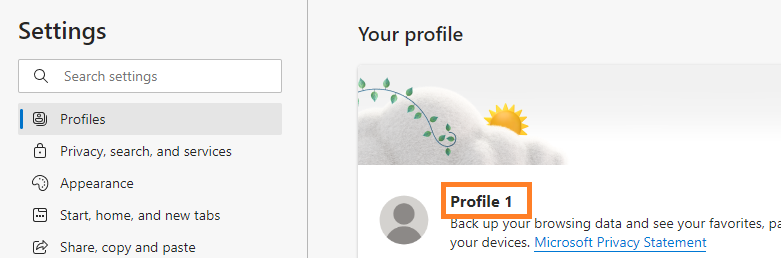
You can see which profile you are currently using on the Microsoft Edge settings screen.
Screen item operation through structural analysis
See also
For examples of how to use the "Screen item operation through structural analysis" action, refer to "Registering data using structural analysis".
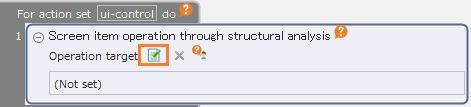
Drag the "Screen item operation through structural analysis" action from the "Robot" tab and set it to the edit area.
Click the "Specify the operation target" button.
Hint
For details about how to set the operation target, see "Operation target setting method of structural analysis action".
Set the value to be entered according to the set screen item.
See also
Refer to "Screen item operation through structural analysis - Screen items and setting contents that can be set as operation targets" for the types of screen items that can be set as operation targets and the settings for each type.
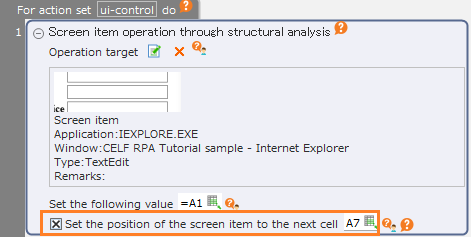
If you check the "Set the position of the screen item to the next cell" check box, information on the position and size of the specified screen item displayed at the time of execution will be set in the cell.
Note
Acquiring the position of the screen item may fail if processing involving a change in the internal structure (such as screen transition, title of window changes, appearance of page changes, etc.) is performed by operating screen items.
See also
The set position information can be used as operation target position information of another action.For details, refer to "Use the coordinates set in the cell".
Screen item operation through structural analysis - Screen items and setting contents that can be set as operation targets
In the "Screen item operation through structural analysis" action, the following types of screen items can be set as operation targets.
TextEdit
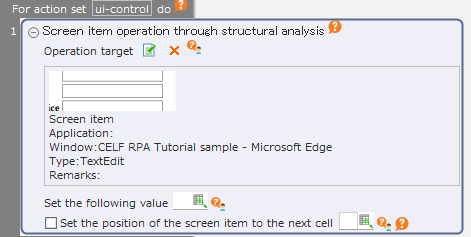
Enter the value specified in "Set the following value". The value will be overwritten.
Selective Input Field
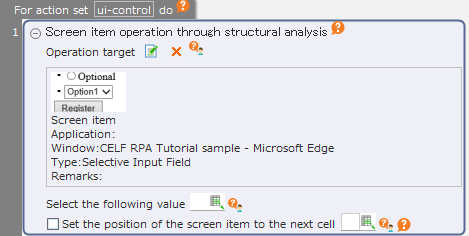
Select the item specified in "Select the following value". Item names that match exactly, including upper and lower case letters, will be selected.
Tip
If there is no exact match, the first partial match found will be selected.
List
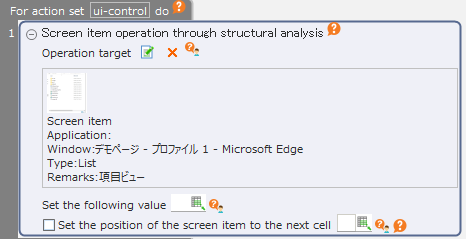
Select the item specified in "Set the following value". Item names that match exactly, including upper and lower case letters, will be selected.
Tip
If there is no exact match, the first partial match found will be selected.
Note
When the operation target is "List", only the list box can be selected. If the screen item is not a list box, such as when the layout of the web page is created in the list, you can not set the value.
SpinControl
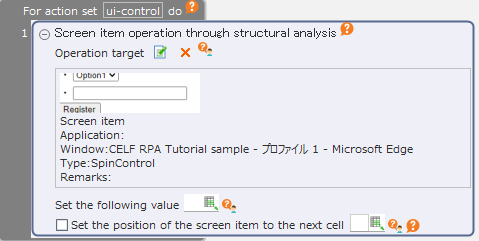
Enter the value specified in "Set the following value". The value will be overwritten.
Tip
In SpinControl which does not support operation by structural analysis, the value may not be set even if no error occurs.
Use different action such as Type key for these input fields.
Option (single selection)
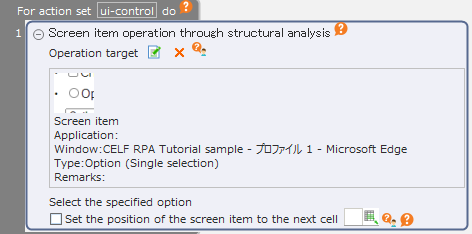
Select the specified option.
Option (multiple selection)
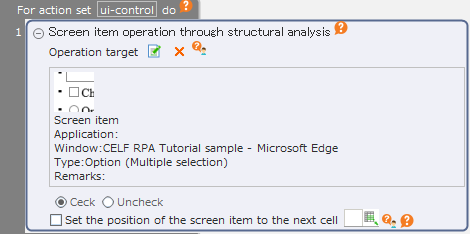
Select or deselect the specified item.
Area
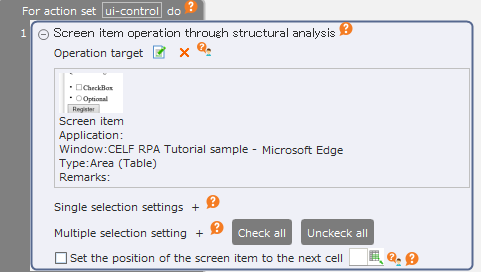
Select and deselect all options within the specified range at once.
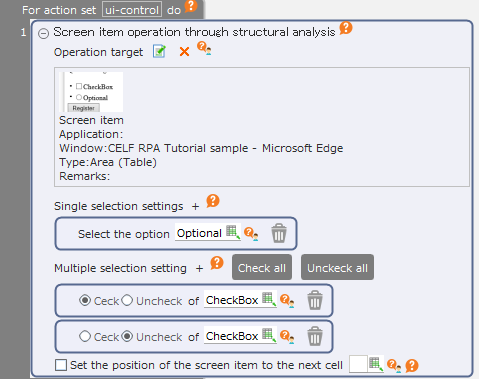
Click the "+" button to add setting fields for single selection and multiple selection.
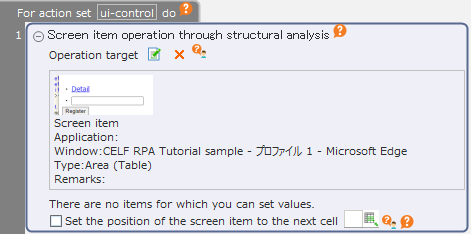
The single selection and multiple selection setting fields within the range are displayed only when "Option (single selection)" and "Option (multiple selection)" exist within each range. If no option exists, the setting field is not displayed.
Note
Only "Option (single selection)" and "Option (multiple selection)" can be set with area designation. Please select other types of screen items individually.
Button
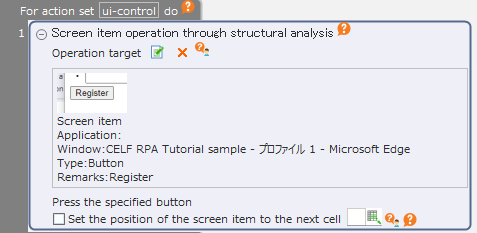
Click the specified button.
Hyperlink
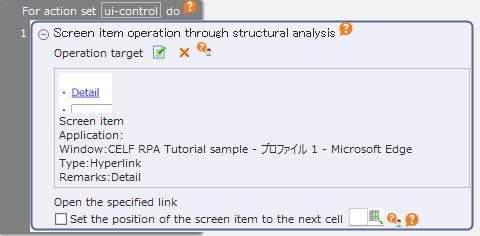
Click the specified hyperlink.
Get value from screen item
See also
For examples of concrete usage of the "Get value from screen item" action, refer "Copy values from system screen item using structural analysis" and "Copy values from the table on the screen using structural analysis".
From the "Robot" tab, drag the "Get value from screen item" action and set it in the edit area.
Click the "Specify the operation target" button.
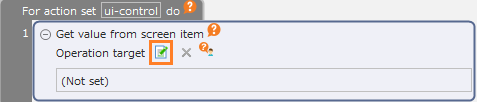
Hint
For details about how to set the operation target, see "Operation target setting method of structural analysis action".
Set the cell to set the acquired value.
See also
Refer to "Get value from screen item - Screen items and setting contents that can be set as operation targets" for the types of screen items that can be set as operation targets and the settings for each type.
If you check the "Set the position of the screen item to the next cell" check box, information on the position and size of the specified screen item displayed at the time of execution will be set in the cell.
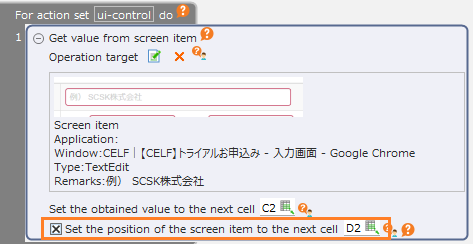
Get value from screen item - Screen items and setting contents that can be set as operation targets
In the "Get value from screen item" action, the following types of screen items can be set as operation targets.
Characters
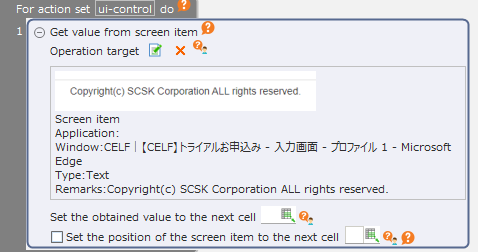
Acquire the displayed string.
TextEdit
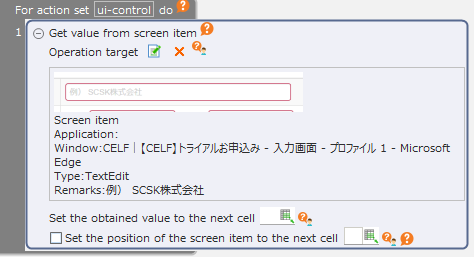
Acquire the entered string.
Selective Input Field
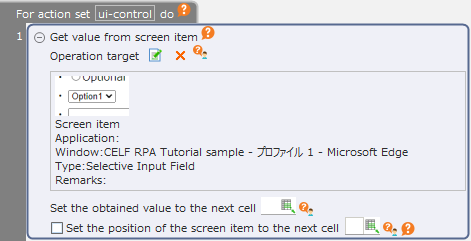
Acquire the displayed string of the selected item.
List
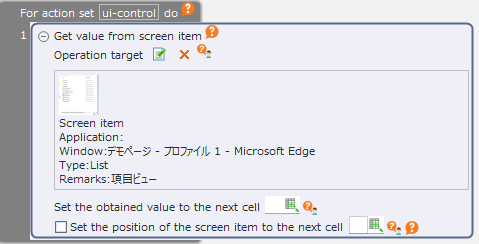
Acquire the displayed string of the selected item.
Tip
If the selected list cannot be manipulated as a list box, it will be manipulated as a "Area (List)". It is determined automatically if it can be manipulated as a list box.
SpinControl
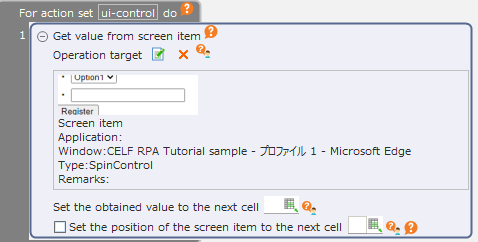
Acquire the displayed string.
Option (single selection)
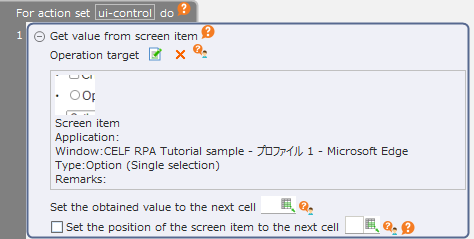
Set "true" in the cell if the specified choice is selected, and "false" if it is not selected.
Option (multiple selection)
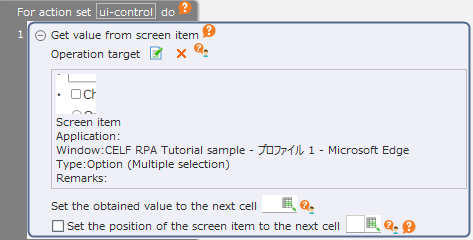
Set "true" in the cell if the specified choice is selected, and "false" if it is not selected.
Table
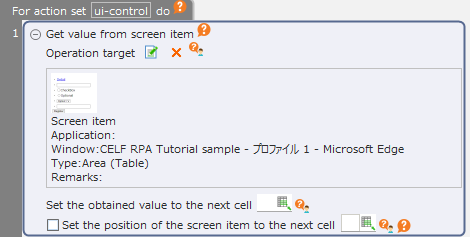
Copy the value of the cell in the specified table. By checking the "Copy cell merging state" check button, you can merge the cells of the CELF sheet in the same way as the specified table.
Area (List)
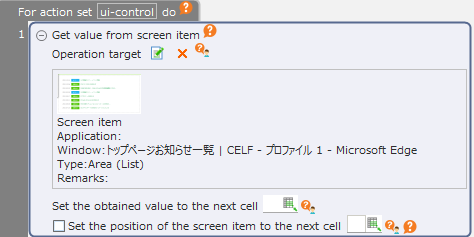
Copy the texts that are displayed in the specified area, just as if you selected a table.
Tip
If the selected list can be manipulated as a list box, it will be manipulated as a "List". It is determined automatically if it can be manipulated as a list box.
Area (other than List)
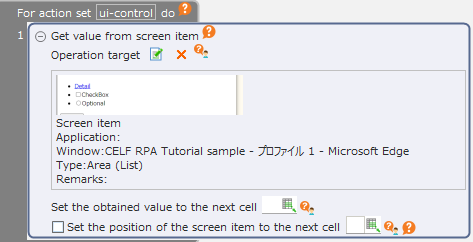
Gets a list of the item names of the selected "Option (single selection)" and "Option (multiple selection)" within the specified area. The list is set downward at the beginning of the specified cell.
Note
Only the label of "Option (single selection)" and "Option (multiple selection)" can be acquired by area specification. Please select other types of screen items individually.
Tip
The list of selected choices is sorted in ascending order of UTF-8 character codes.
Operation target setting method of structural analysis action
In the operation target setting of the structural analysis action, you can select the operation target from the list of items displayed on the screen.
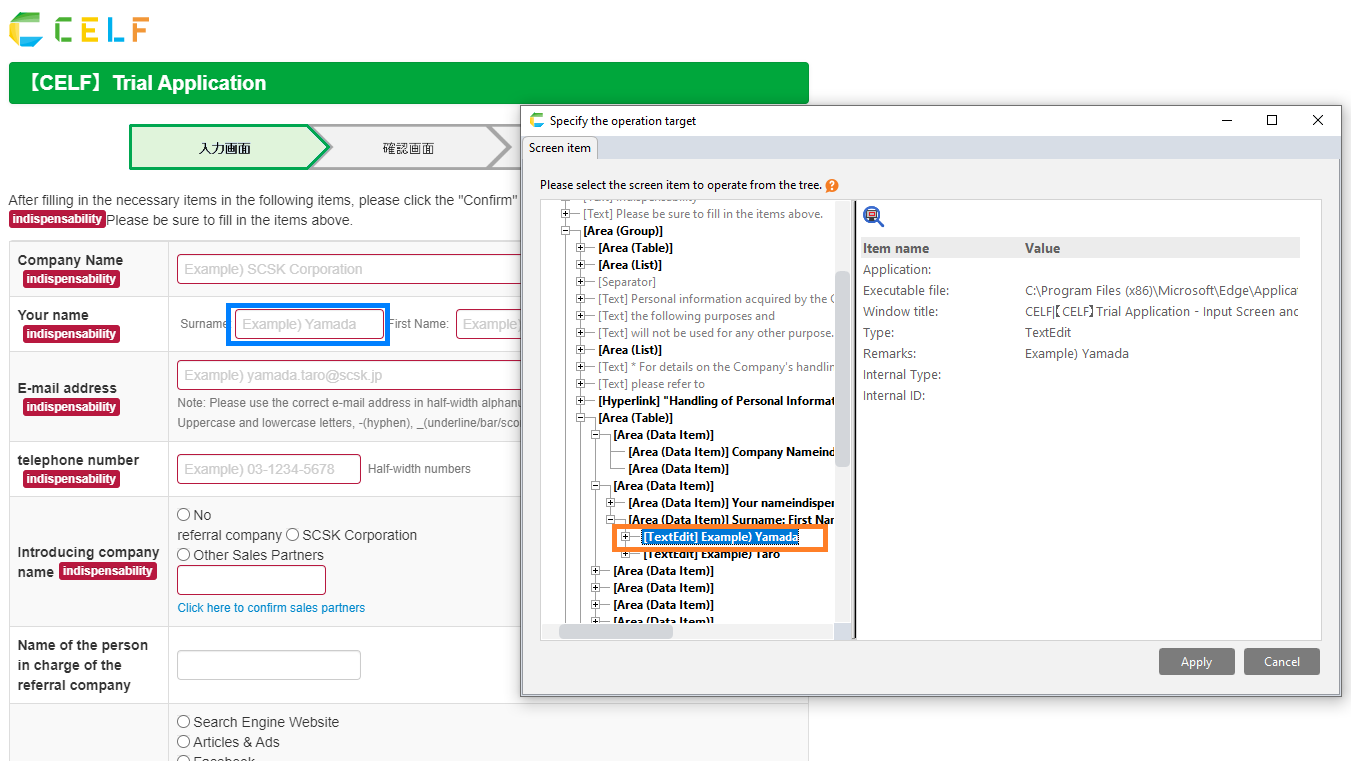
Set operation target
Click the operation target specification button.

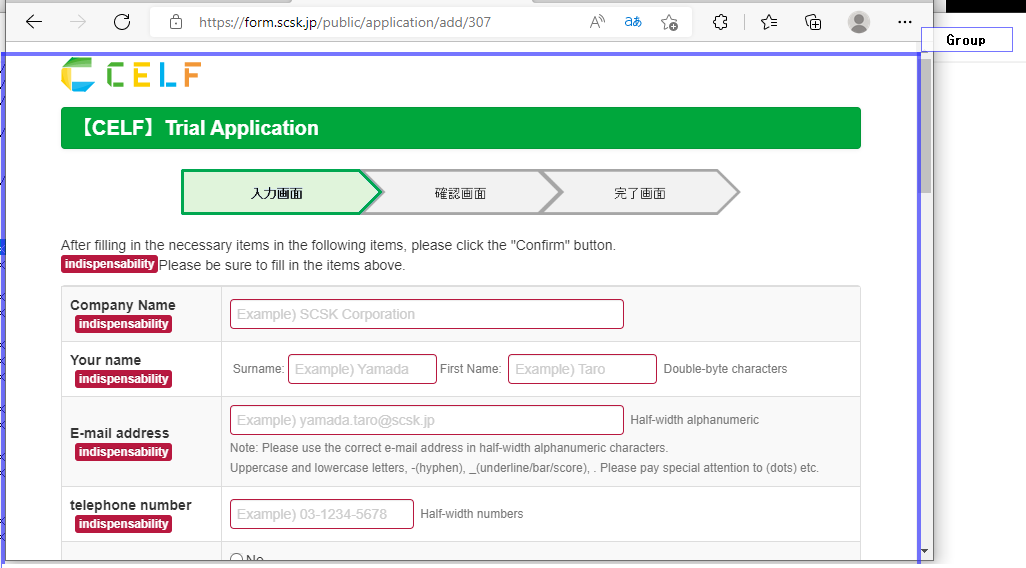
Click the screen item you want to work with, or the area near where the screen item is located.
Tip
Screen items enclosed in a blue frame when the mouse cursor is hovered over them represent items that can be operated by RPA, while those that are enclosed in gray frames cannot be operated by RPA.Even if you click an item enclosed in a gray frame that cannot be operated by RPA, the setting screen will be displayed, and the screen items placed in it can be selected from the list.Select the item you want to operate from the list of screen items displayed on the Operation Target setting dialog.
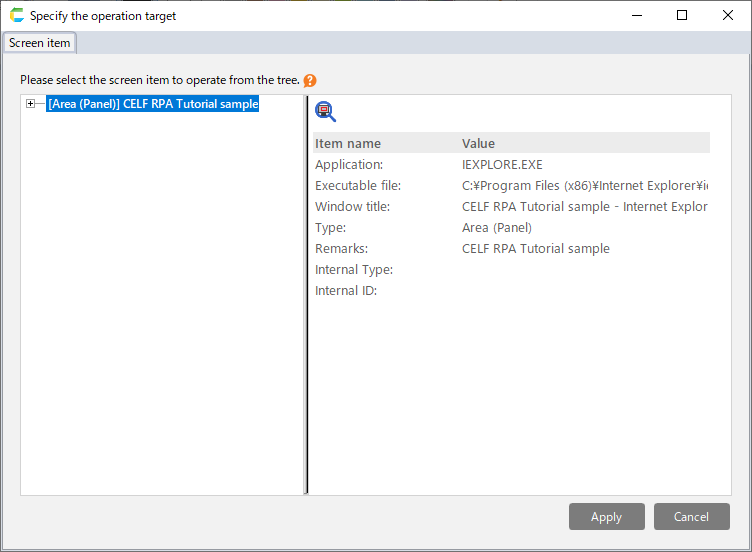
Hint
If [+] is displayed to the left of the screen item, click to display a list of the screen items that are placed in it.
Click the "Apply" button.
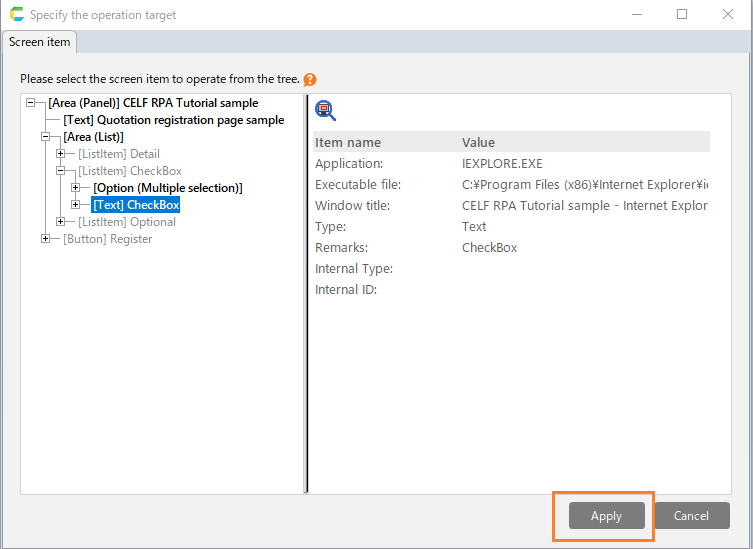
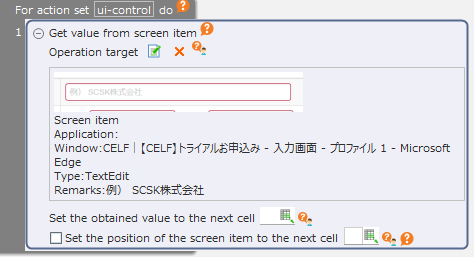
The specified item is set as the operation target.
Cancel operation target setting
To cancel the operation target setting, press the "Esc" key while selecting the screen items,or click the "Cancel" button on the setting screen displayed after selecting the screen items.If canceled, the operation target setting will not be changed.
Confirm the selected screen item
When you select an item in the operation target setting screen, the corresponding screen item is highlighted.
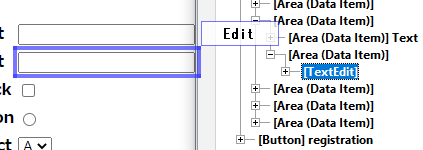
Or you can highlight the screen items by clicking on the Confirm button.
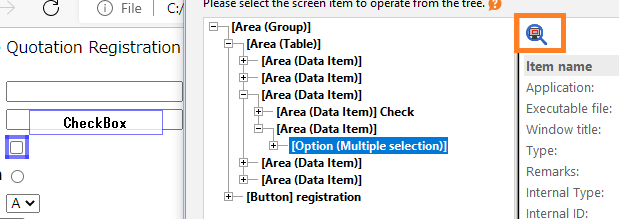
Also, the type of the screen item is displayed in the upper right corner of the frame.
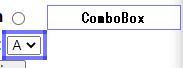
About items that can be set as operation targets and items that can not be set
Items that can be set as operation targets are displayed in black bold.
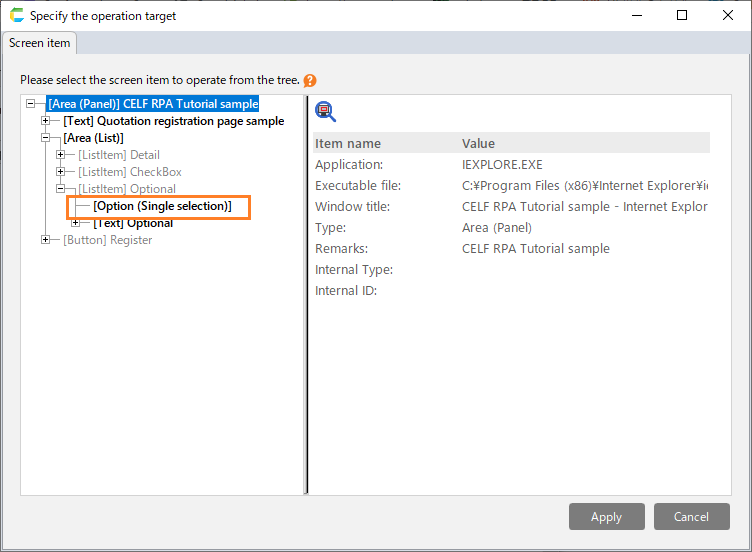
Items that can not be set as operation targets are displayed in gray text.
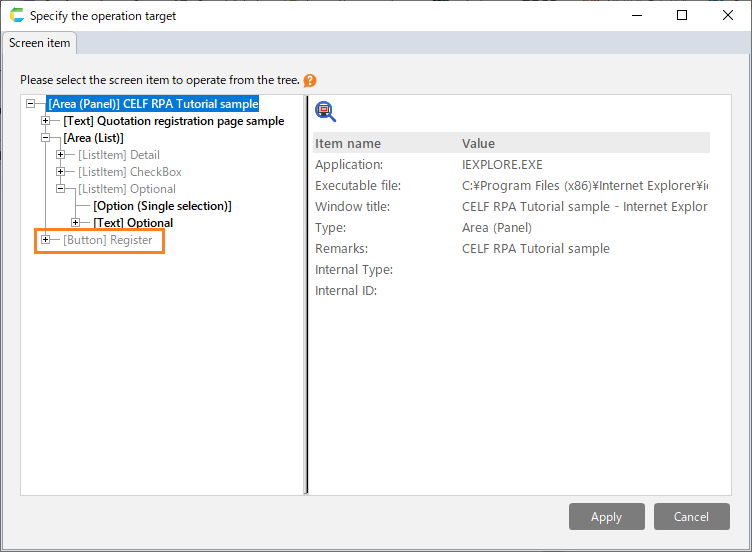
The type of screen items that can be set as an operation target varies from action to action. For details, see the explanation of each action.
Note
The structural analysis of CELF RPA identifies the operation target window by application type and window title.
If the window title has changed since the action set was created,
If the same application as the window that has been set is open, the operation will be performed on the foremost window in that application.
If the same application as the window that has been set is not open, the operation target will not be found and an error occurs.
Note
If you are using the profile feature in Microsoft Edge, the screen item may not be found and may generate an error.
If you are running a robot to operate Edge with the profile feature, make sure you are using the same profile name as when your application was developed.
You can see which profile you are currently using on the Microsoft Edge settings screen.