Character String Operation
You can paste any character to items on the screen, or read the characters displayed on screen as data.
Paste string
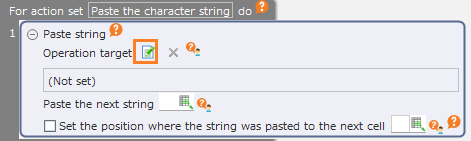
Drag the "Paste string" action from the "Robot" tab and set it to the edit area.
Click the "Specify the operation target" button.
Tip
The setting of the operation target can be omitted in the "Paste string" action. If omitted, the string is pasted on the position currently selected on the screen.
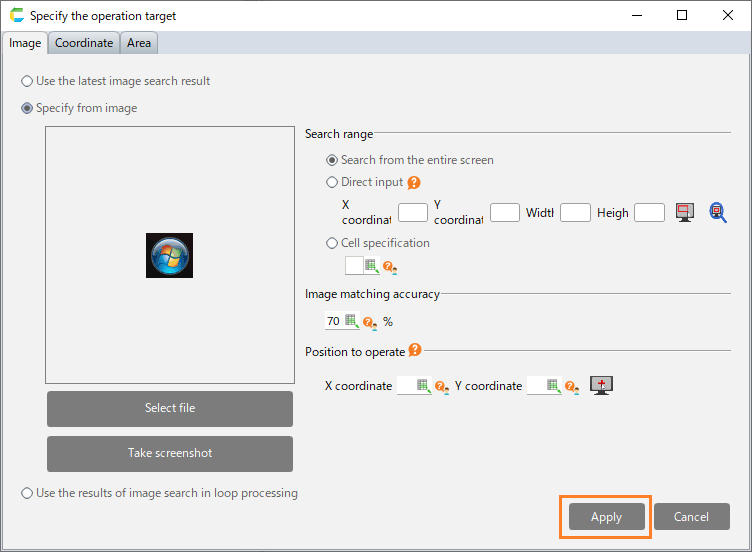
In the "Specify the operation target" dialog, specify the position where the string will be pasted and then click the "Apply" button.
See also
Refer to "Specificy operation target" on how to set the operation target.
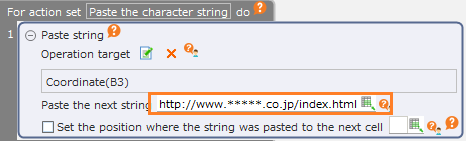
Set the string to be pasted.
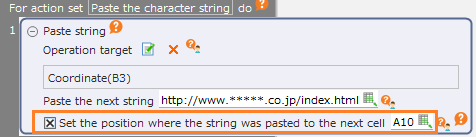
By checking off the "Set the position where the string was pasted to the next cell" check button, the information on the position where the string was actually set will be set into the cell.
See also
The position information that has been set can be used as the position information of the operation target of another action. Refer to "Use the coordinates set in the cell" for details.
Note
By executing the "Paste string" action, the specified string will be set on the clipboard.In case you do not want to change the content of the clipboard, save the data in advance with "Paste clipboard content"and put it back on the clipboard with "Copy to clipboard"after pasting the string.Note
If the string does not paste even though no error occured, it may be resolved by adding the "Wait" action before or after "Paste string".The appropriate waiting time depends on the app, but in most cases, waiting for 0.1 to 0.3 seconds will solve it.Attention
Read characters from the screen
Drag the "Read text from a specified area of the screen and set it in a cell" action from the "Robot" tab and set it to the edit area.
Set the cell where the string that was read will be set.
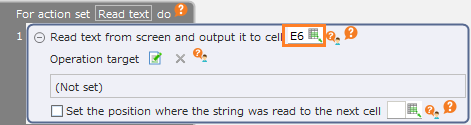
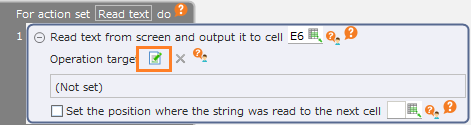
Click the "Specify the operation target" button.
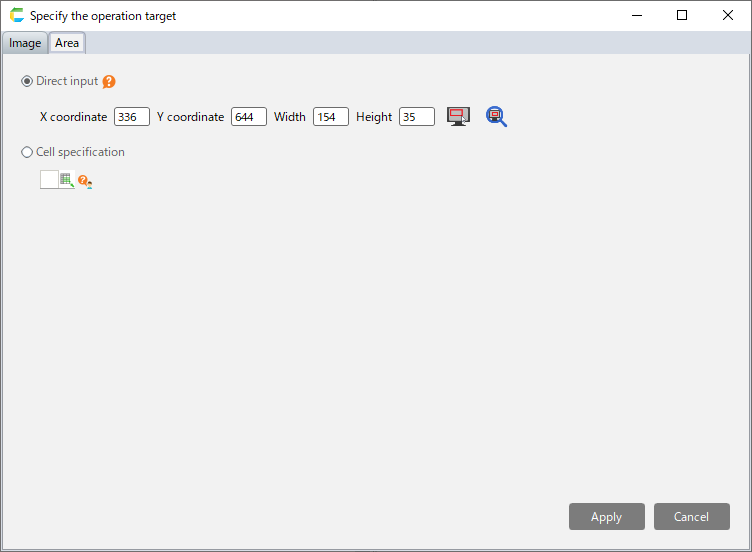
In the "Specify the operation target" dialog, specify the area where the characters will be read and then click the "Apply" button.
See also
Refer to "Specificy operation target" on how to set the operation target.
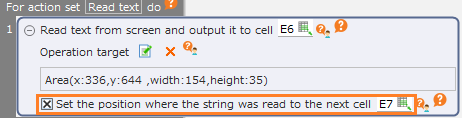
By checking off the "Set the position where the string was read to the next cell", the information on the position where the read characters were actually displayed will be set into the cell.
See also
The position information that has been set can be used as the position information of the operation target of another action. Refer to "Use the coordinates set in the cell" for details.
Note
- Reading string from specified screen area is an experimental feature. It may produce different reading results than expected, such as typos or garbled characters.
- If the characters cannot be read or are read incorrectly, the reading accuracy may be improved by making the characters to read show in larger font.