Mouse Operation
You can operate the mouse buttons, wheel and mouse pointer.
Click mouse button
Drag the "Click mouse button" action from the "Robot" tab and set it to the edit area.
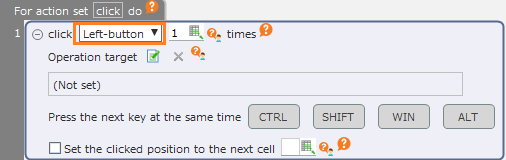
Select the button to be clicked.
Hint
The "Middle-button" refers to the middle button of the mouse. The click of the mouse wheel is usually the middle button.
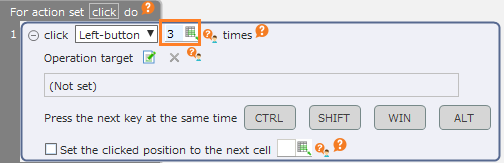
Set the number of clicks.
Tip
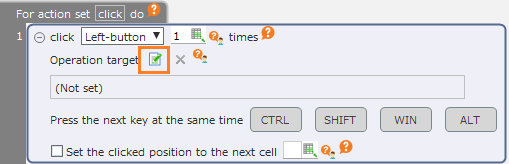
When you set the number of clicks twice, the action is the same as the action of "Double click mouse button" action.You can also set the number of clicks to three or more times.For example, in some applications you can use the triple-click of the displayed characters to select the entire sentence.Click the "Specify the operation target" button.
Tip
The setting of the operation target can be omitted. If omitted, the operation will be executed on the spot.
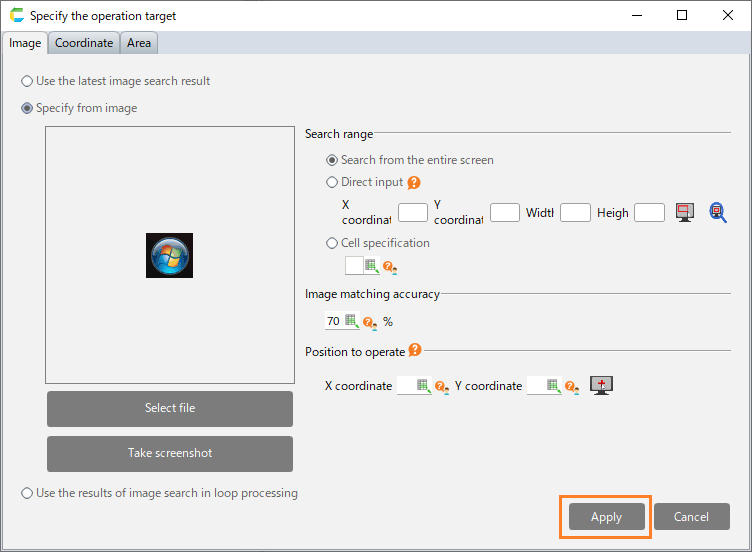
In the "Specify the operation target" dialog, specify the position where the button will be clicked and then click the "Apply" button .
See also
Refer to "Specificy operation target" on how to set the operation target.
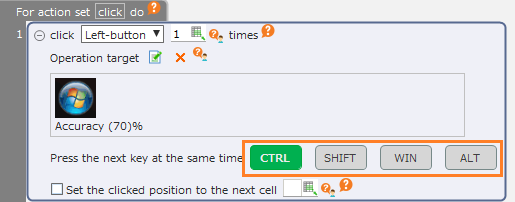
Select the keys that will be pressed at the same time as clicking.
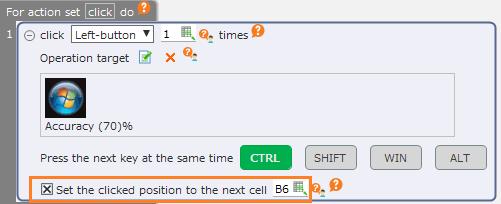
By checking off the "Set the clicked position to the next cell" check button, the information on the position that was actually clicked will be set into the cell.
See also
The position information that has been set can be used as the position information of the operation target of another action. Refer to "Use the coordinates set in the cell" for details.
Double-click mouse button
Drag the "Double-click mouse button" action from the "Robot" tab and set it to the edit area.
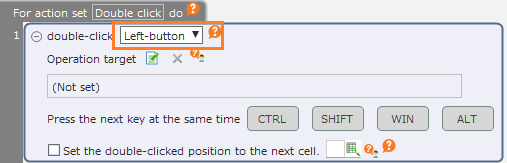
Select the button to be double-clicked.
Hint
The "Middle-button" refers to the middle button of the mouse. The click of the mouse wheel is usually the middle button.
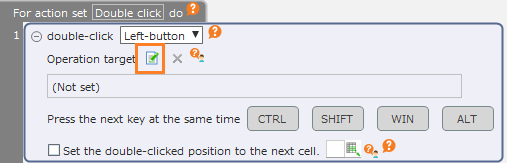
Click the "Specify the operation target" button.
Tip
The setting of the operation target can be omitted. If omitted, the operation will be executed on the spot.
In the "Specify the operation target" dialog, specify the position where the button will be double-clicked and then click the "Apply" button.
See also
Refer to "Specificy operation target" on how to set the operation target.
Select the keys that will be pressed at the same time as double-clicking.
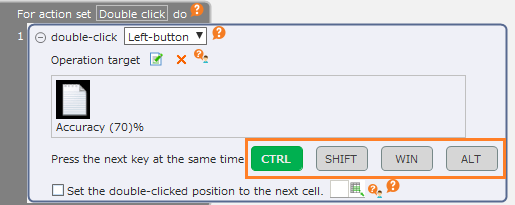
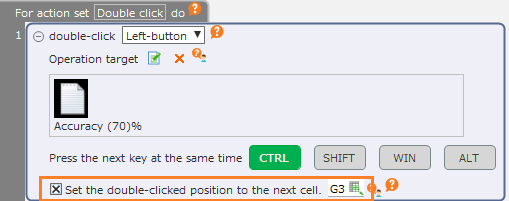
By checking off the "Set the double-clicked position to the next cell" check button, the information on the position that was actually double-clicked will be set into the cell.
See also
The position information that has been set can be used as the position information of the operation target of another action. Refer to "Use the coordinates set in the cell" for details.
Tip
The action of "Double-click mouse button" action is the same as when click number is set to 2 in "Click mouse button" action.
Hold the mouse button in the pressed state
Drag the "Hold the mouse button" action from the "Robot" tab and set it to the edit area.
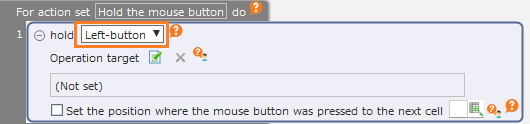
Select the button to be pressed.
Hint
The "Middle-button" refers to the middle button of the mouse. The click of the mouse wheel is usually the middle button.
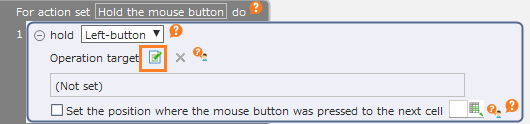
Click the "Specify the operation target" button.
Tip
The setting of the operation target can be omitted. If omitted, the operation will be executed on the spot.
In the "Specify the operation target" dialog, specify the position where the mouse button will be pressed and then click the "Apply" button.
See also
Refer to "Specificy operation target" on how to set the operation target.
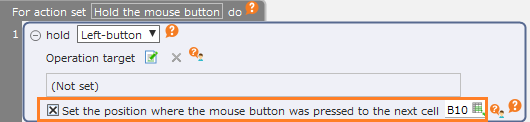
By checking off the "Set the position where the mouse button was pressed to the next cell", the information on the position where the mouse button was actually pressed will be set into the cell.
See also
The position information that has been set can be used as the position information of the operation target of another action. Refer to "Use the coordinates set in the cell" for details.
Hint
The pressed button can be released through the "Release mouse button" action.
Release mouse button
Drag the "Release mouse button" action from the "Robot" tab and set it to the edit area.
Select the button to be released.

Hint
The "Middle-button" refers to the middle button of the mouse. The click of the mouse wheel is usually the middle button.
Scroll mouse wheel
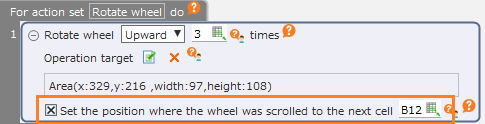
Drag the "Scroll wheel" action from the "Robot" tab and set it to the edit area.
Select the direction to which the wheel will be scrolled.
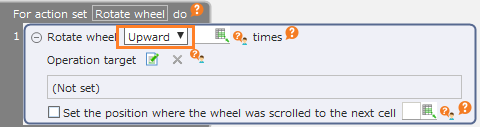
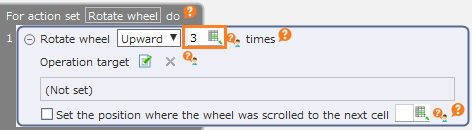
Set the amount by which the wheel will be scrolled.
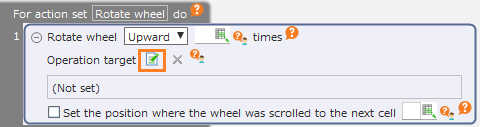
Click the "Specify the operation target" button.
Tip
The setting of the operation target can be omitted. If omitted, the operation will be executed on the spot.
In the "Specify the operation target" dialog, specify the position where wheel will be operated and then click the "Apply" button.
See also
Refer to "Specificy operation target" on how to set the operation target.
By checking off the "Set the position where wheel was scrolled to the next cell", the information on the position where the wheel was actually scrolled will be set into the cell.
See also
The position information that has been set can be used as the position information of the operation target of another action. Refer to "Use the coordinates set in the cell" for details.
Drag & Drop
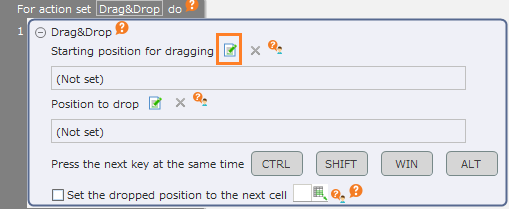
Drag the "Drag & Drop" action from the "Robot" tab and set it to the edit area.
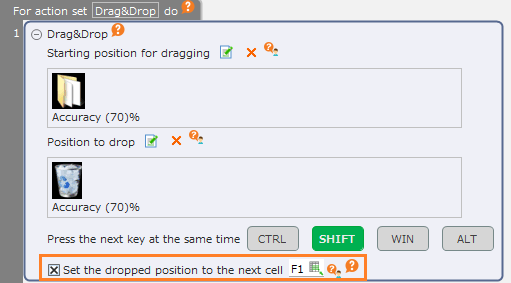
Click the "Specify the operation target" button of the "Starting position for dragging".
Tip
Specifying the position to start dragging from can be omitted. If omitted, drag starts on the spot.
In the "Specify the operation target" dialog, specify the position where dragging will start and then click the "Apply" button.
See also
Refer to "Specificy operation target" on how to set the operation target.
Click the "Specify the operation target" button of the "Position to drop".
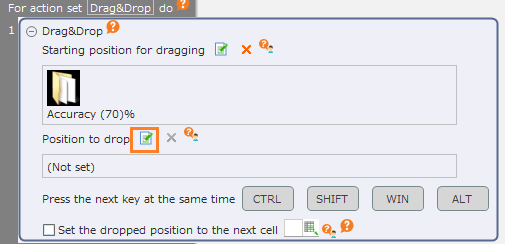
In the "Specify the operation target" dialog, specify the position to dropand then click the "Apply" button.
See also
Refer to "Specificy operation target" on how to set the operation target.
Select the keys that will be pressed at the same time as clicking.
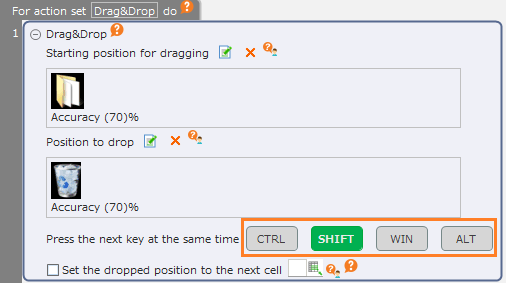
By checking off the "Set the dropped position to the next cell" check button, the information on the position that was actually dropped will be set into the cell.
See also
The position information that has been set can be used as the position information of the operation target of another action. Refer to "Use the coordinates set in the cell" for details.
Move mouse pointer
Drag the "Move mouse pointer" action from the "Robot" tab and set it to the edit area.
Click the "Specify the operation target" button.
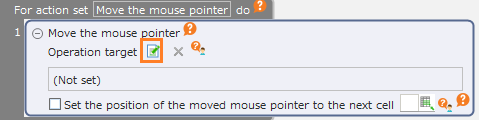
In the "Specify the operation target" dialog, specify where the mouse pointer will move and then click the "Apply" button.
See also
Refer to "Specificy operation target" on how to set the operation target.
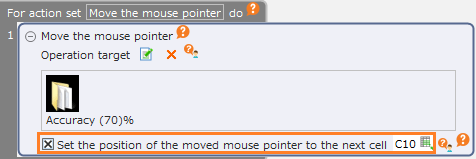
By checking off the "Set the position of the moved mouse pointer to the next cell" check button, the position information on the actual cursor movement destination will be set into the cell.
See also
The position information that has been set can be used as the position information of the operation target of another action. Refer to "Use the coordinates set in the cell" for details.