Image Search
You can check if the button and window are shown on the screen.
Checking if the specified image is displayed
Drag the "Set to cell whether the image is displayed" action from the "Robot" tab and set it to the edit area.
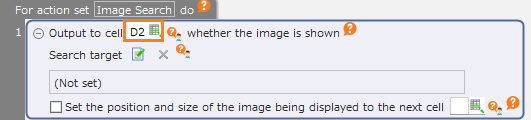
Set the cell where the search result will be set.
Tip
Set "true" if the image is displayed and "false" if it is not displayed.
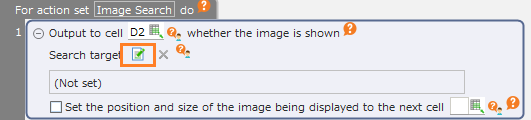
Click the "Specify the operation target" button.
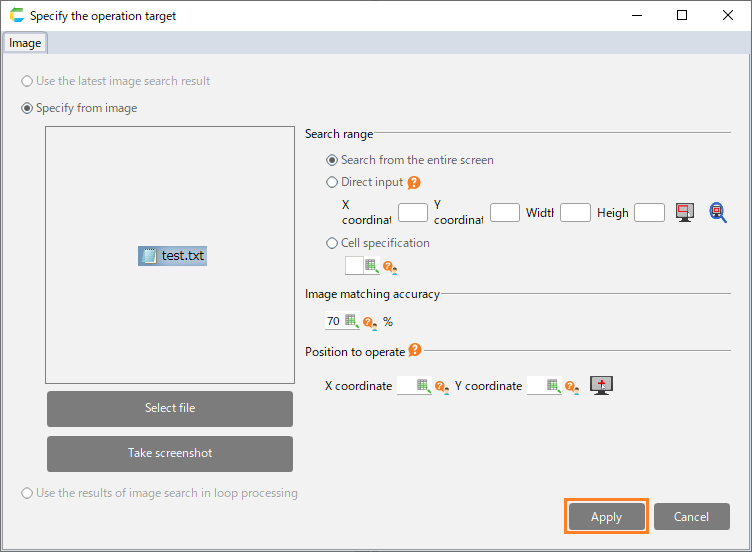
In the "Specify the operation target" dialog, specify the image to be searched and then click the "Apply" button.
See also
Refer to "Specificy operation target" on how to set the operation target.
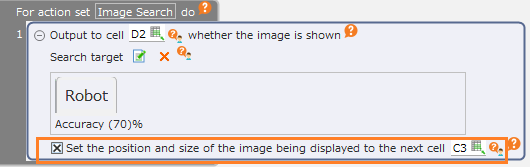
By checking off the "Set the position and size of the image that is displayed to the next cell" check button, the information on the position and size where the image was actually displayed will be set into the cell.
See also
The position information that has been set can be used as the position information of the operation target of another action. Refer to "Use the coordinates set in the cell" for details.