Files and Folders Operation
You can operate files and folders.
Search in the specified folder
Drag the "Search in the specified folder" action from the "Robot" tab and set it to the edit area.
Set the search target folder.
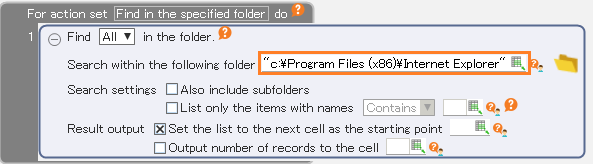
Configure settings for narrowing down the search results.
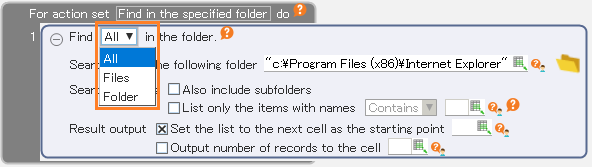
Choose the type of search target.
Hint
If you want to search for a specific type of file, also specify the extension in "Backward name matching search".
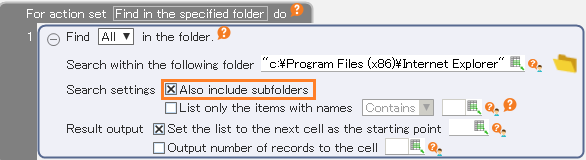
If you also want to find the contents of the folder found in the search, tick "Also include subfolders".
Tip
If unchecked, only files and folders directly under the target folder will be searched.
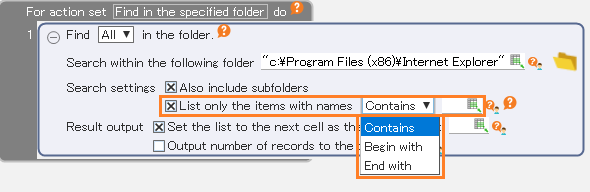
You can narrow down the search results by file name or folder name. This setting can be omitted.
Tip
When "Contains" is set, a partial search is performed on the entire path.When "Begin with" or "End with" is set, forward search or backward search is only performed for file names or folder names.The configured name is not case sensitive.Note
Wild cards (symbol that matches any character) are not supported.
Set the output method of the search results.
Set the cell to output the list of the search results. This setting can be omitted.
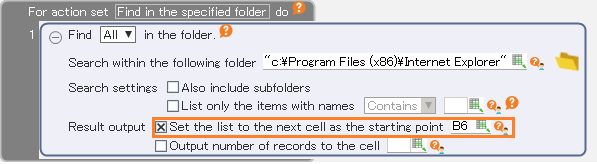
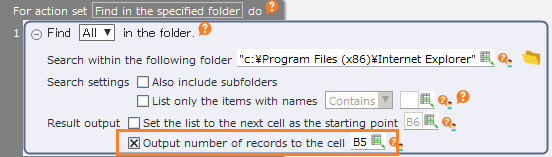
Set the cell to output the number of the search results. This setting can be omitted.
Hint
It is possible to output the list and the number at the same time by setting both the list of search results and the number of results. However, it can not be set to output neither.
Tip
The maximum number of rows in the list of search results that can be retrieved is limited to the number of rows on the sheet.
Tip
The find results will be sorted in ascending order of path.
Check if file or folder exists
Drag the "Check whether the folder with the following path exists" action from the "Robot" tab and set it in the edit area.
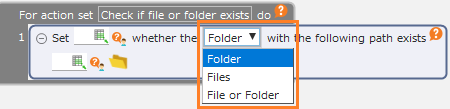
Set the type of check target.
Set the path to check.

Set the cell to set the check result.

Tip
If the check target exists "true", if it does not exist "false" is set.
Copy/Move/Rename the file
Drag the "Search in the specified folder" action from the "Robot" tab and set it to the edit area.
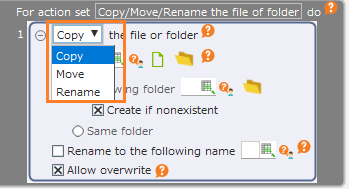
Select the content of the operation.
Hint
"Rename" only renames without moving the file or folder. If you want to rename it and copy/move it to another folder,select "Copy" or "Move".
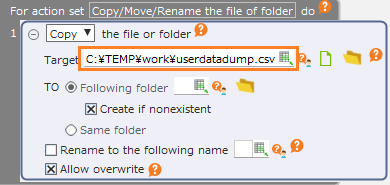
Set the file or folder to operate.
See also
By setting the cell range as the operation target, you can operate on files and folders listed in the specified range of cells at one time. For more details, please refer to "Set conditions and move files/folders".
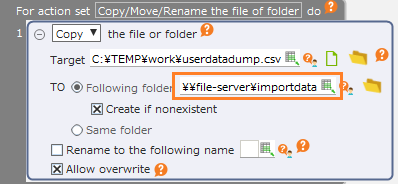
Set the Copy/Move destination.
Tip
The destination of "Rename" is fixed to the "Same folder". If you want to rename it and copy/move it to another folder, select "Copy" or "Move".
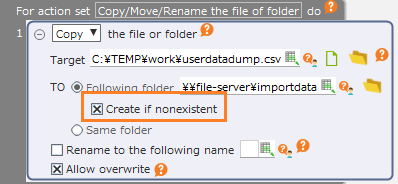
Set whether to create the destination folder if the specified folder does not exist.
Tip
If you uncheck "Create if nonexistent", an error will be occurred if the destination folder does not exist.
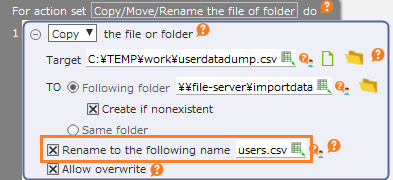
If you want to rename the file or folder, specify the new name.
Tip
"Rename" or "Copy in the same folder" requires renaming.
Tip
Naming conventions such as reserved characters and max length of file/folder names conform to Windows.
Note
If you specified a cell range to operating target, the setting of "Rename to following name" will be ignored and the file/folder will be copied/moved with original name.
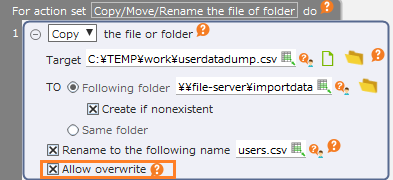
Set whether to overwrite if there is already a file/folder with the same name in the destination.
Tip
If you uncheck "Allow overwrite", an error will be occurred if a file/folder with the same name is exists in the destination.
Note
"Copy/Move/Rename the file" action prohibits modification of important files and folders on the system. You can not add, move or rename files/folders in the following locations:
- System folder (C:\Windows and all of the contents)
- Application folder (C:\Program Files, C:\Program Files (x86) and all of the contents)
- User folder of other users (C:\Users and its direct childs, C:\Users\OtherUsersName and all of the contents)
The following folders can not be moved or renamed, but files/folders can be added to the folder, content can be moved, and renaming is possible.
- Folders for current user (C:\Users\CurrentUserName\Desktop etc)
- LocalAppData folder (C:\Users\CurrentUserName\AppData\Local)
- LocalLowAppData folder (C:\Users\CurrentUserName\AppData\LocalLow)
- RoamingAppData folder (C:\Users\CurrentUserName\AppData\Local)