How to use the app with added features
The following functions will be added to the "Quotation" application created with the "Create app from Excel file" function.
- Execute circulation
- Show circulation status
- Show circulation history
- Comments
The process is as follows
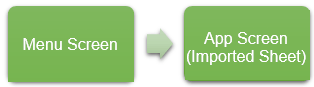
- Register the quotation data from the "Quotation_Header Information List" (data circulation will be started at the time of registration).
- Select the data being circulated from the "Circulation data list screen" and perform various circulation processes
Furthermore, if you Publish the application and use it, please specify the "Quotation_Menu" sheet in the Start sheet.
Start data circulation
To register a new quote and circulate it, follow the steps below.
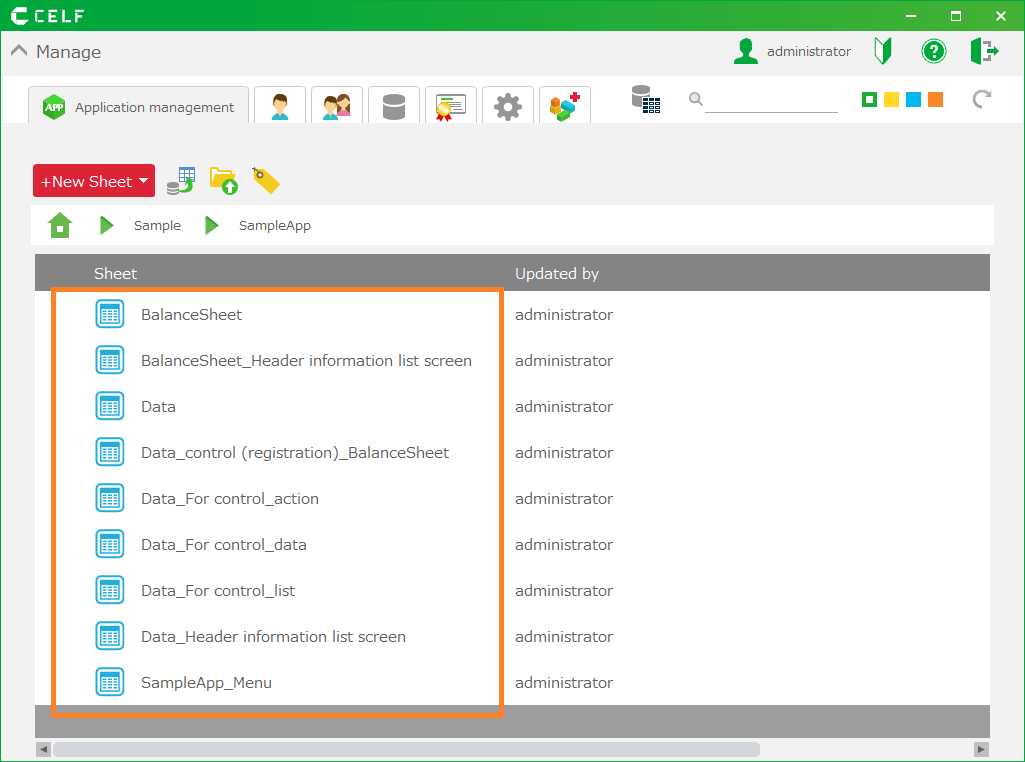
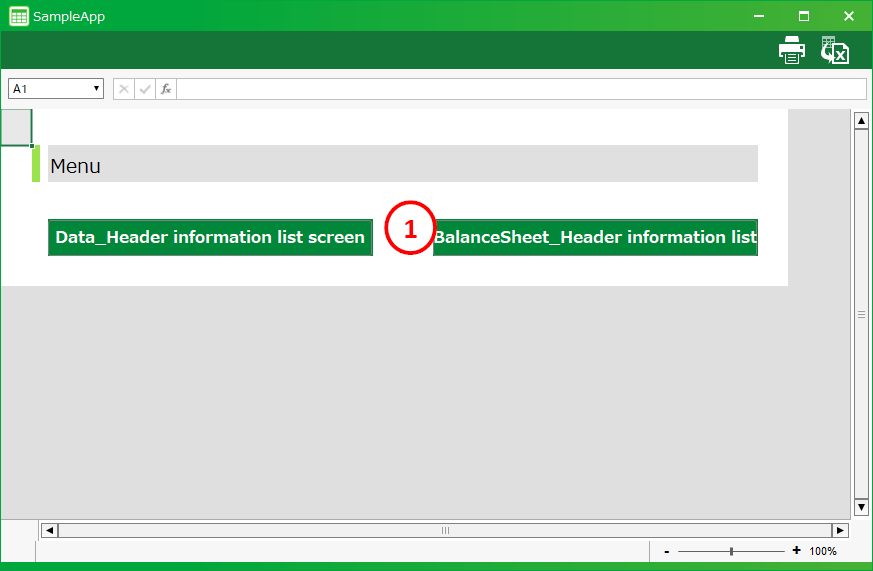
- Click the "Quotation_Header Information List" button in the Menu screen.
- Click the "New Registration" button in the opened List screen.

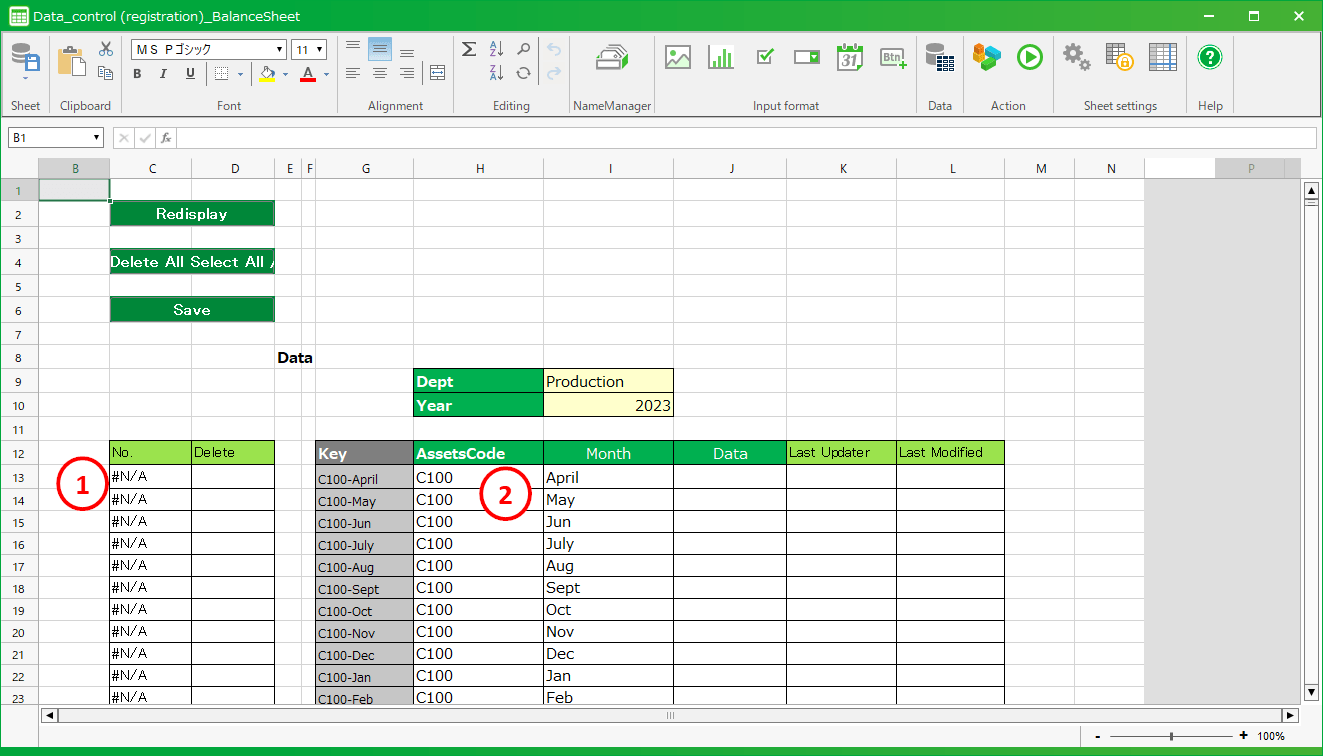
- When the "Quotation" screen appears, enter the values and click the "Save" button. Enter the values and click the "Save" button. When you save the file, the circulation will start automatically.
Hint
If you want to start circulating the existing data, click the "Search" button on the screen of No.2 above.
After that, check the target data and click on the "Detailed View" button to display the "Quotation" screen for that data.
Hint
The data that has started to be circulated will be displayed in the Circulation Data List screen.
From there, you can perform various circulation processes.
Delete data
- Click the "Quotation_Header Information List" button in the Menu screen.
- In the opened List screen, check the box of the data you want to delete and click the "Delete" button.
Hint
Data that has already been circulated cannot be deleted.
- Data will be deleted.
Execute circulation
Execute the circulation process (application, approval, etc.) for the data for which circulation has been started.
- Click the "Circulation Data List" button in the Menu screen.
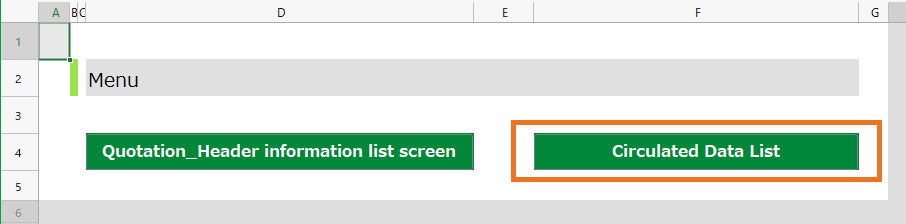
- The list screen that opens will display the data being circulated. Check the data that you want to process, and click the "Detailed View" button.

- On the "Quotation" screen that appears, click the "Execute Circulation".
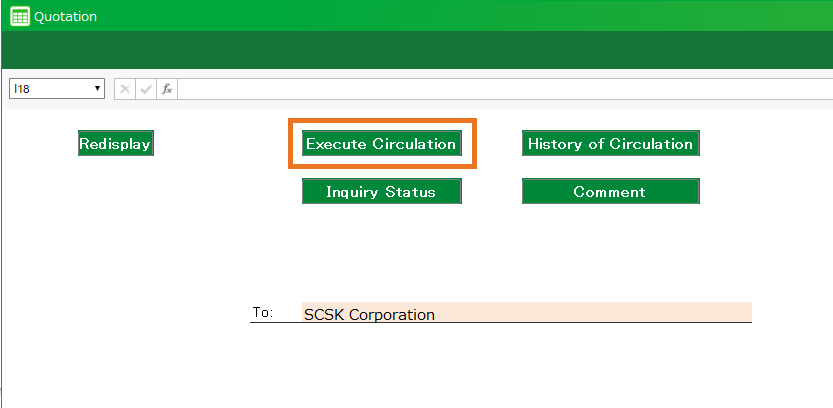
Note
You cannot update the quotation data if it is displayed from the Circulation Data List screen.
- A drop-down list will appear showing the processes that can be executed at this time. Select the process you want to run, and click the "Execute" button.
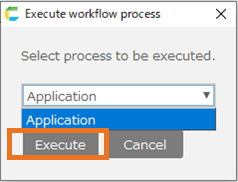
Hint
If you are not the person in charge of the circulation, an error will occur.
- The process is completed when the message "Process completed" appears.
Confirm circulation status/history
Display the circulation status and history for the data that has started circulating.
- Click the "Circulation Data List" button in the Menu screen.
- The list screen that opens will display the data being circulated. Check the data that you want to process, and click the "Detailed View" button.
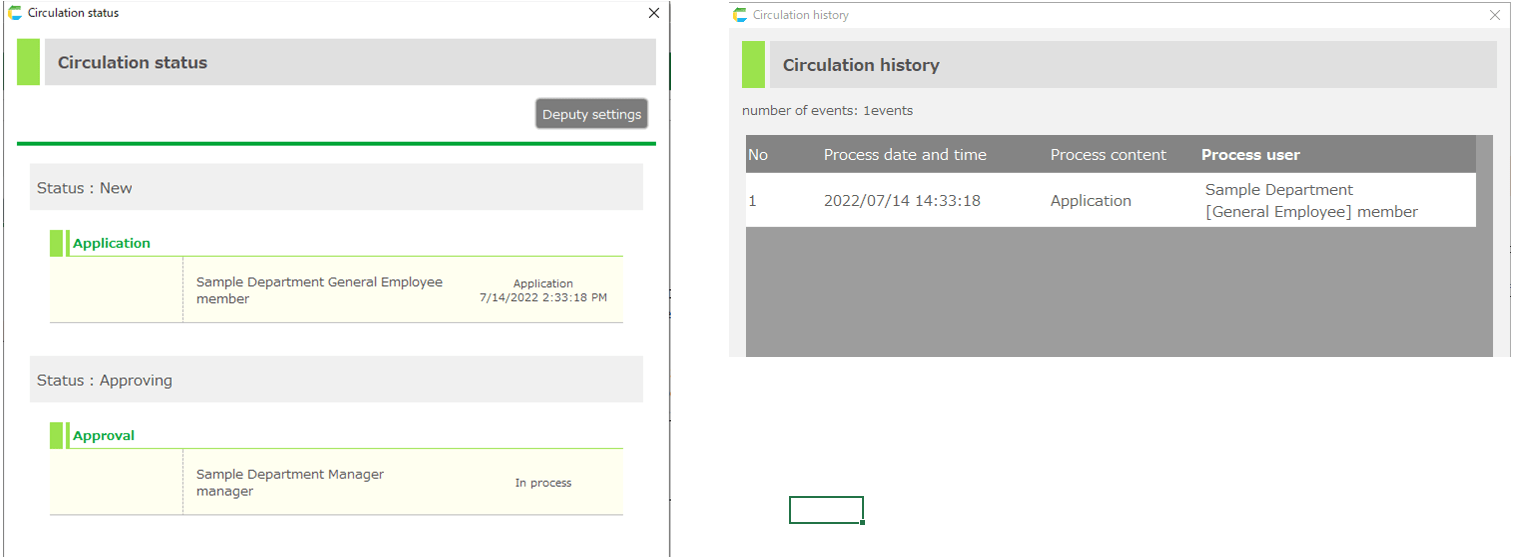
- In the displayed "Quotation" screen, click the "Inquiry Status" or "Histoy of Circulation" button.
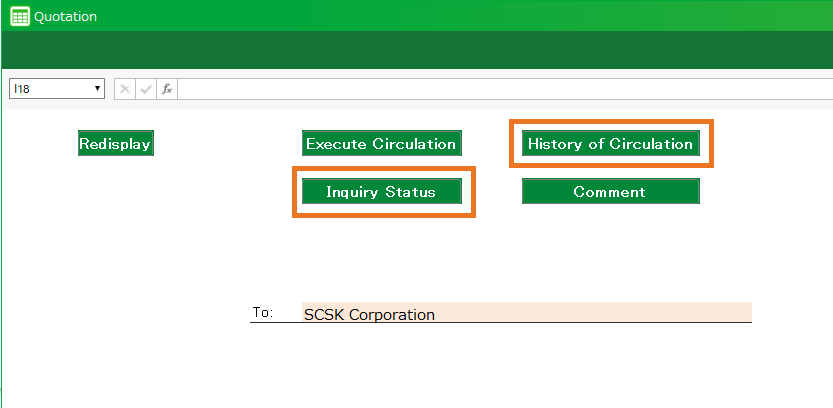
- A dialog box corresponding to the button you clicked will be displayed.
Input/see comments
Enter or refer to comments for the data that has started to be circulated.
- Click the "Circulation Data List" button in the Menu screen.
- The list screen that opens will display the data being circulated. Check the data that you want to process, and click the "Detailed View" button.
- In the displayed "Quotation" screen, click the "Comment" button.
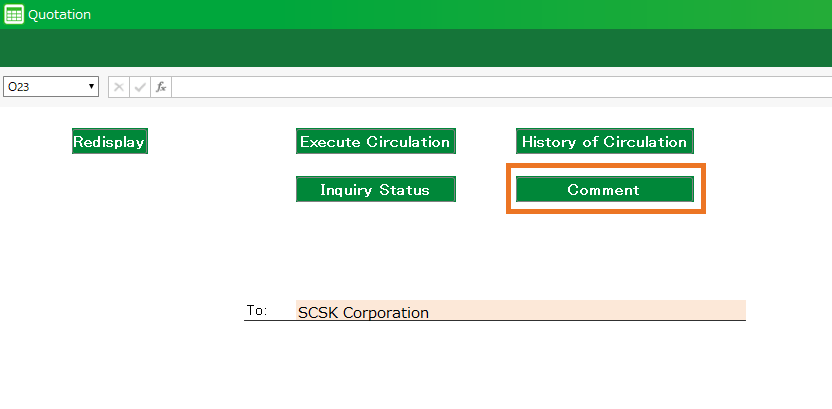
- The comment screen will be displayed. In the comment screen, you can refer to the registered comments and register new comments.