Sample Excel tutorial in Multiple sheet combination format
This is a tutorial on the ability to create an app from Excel.
This page will walk you through the process of creating an app from an Excel sample in Multiple sheet combination format.
App settings
1. Sheet settings
Choose the "BalanceSheet" sheet from the loaded Excel, then click 'OK' button.
2. Select Application type
Select the radio button for the application type 'Multi-sheet combination' and click the 'Next' button.
See also
Click How to use automatically created applications for how to use the created app.
3. Data Access Settings
This screen displays the reference sheet for the selected "BalanceSheet" sheet.In this sample, the "Data" sheet is displayed because the "BalanceSheet" sheet is referring to the "Data" sheet.Click 'Set' button under 'Data'.
Tip
Multiple sheet combination format set the sheets for data in addition to the sheet for layout.A sheet for data is a sheet that converts data from the sheet for layout into a table format that can be stored in a database.In multiple sheet combination format, the database used by the application is created based on the settings in the "sheet for data" and the database is accessed.
4. Specify data range
Specify the data range of the sheet for which you clicked 'Set'.The sample "Data" sheet will specify the data range for each of the tables and header information present.
Tip
Header information is used to search for specific table when multiple tables exist.
4-1. Table specification
- From the "Table" tab of the 'Specify data range' dialog, click the 'Select the title row' button.
- Select the title row of the 'Table' and click 'Set.' In the sample, 'D5:F5' is the title row.
- When the 'Label Settings' dialog box opens, click the 'OK' button.
Tip
The default value of the label name is the value of the adjacent cell of the cell selected as the input item, which is used as a candidate label name.You will need to set up your own label name for the items labeled 'No label'.
- When the 'Specify data range' dialog box displays what you have just specified, the table specification is complete.
4-2. Header specification
- Click the 'Select input cells' button from the header tab of the 'Specify data range' dialog.
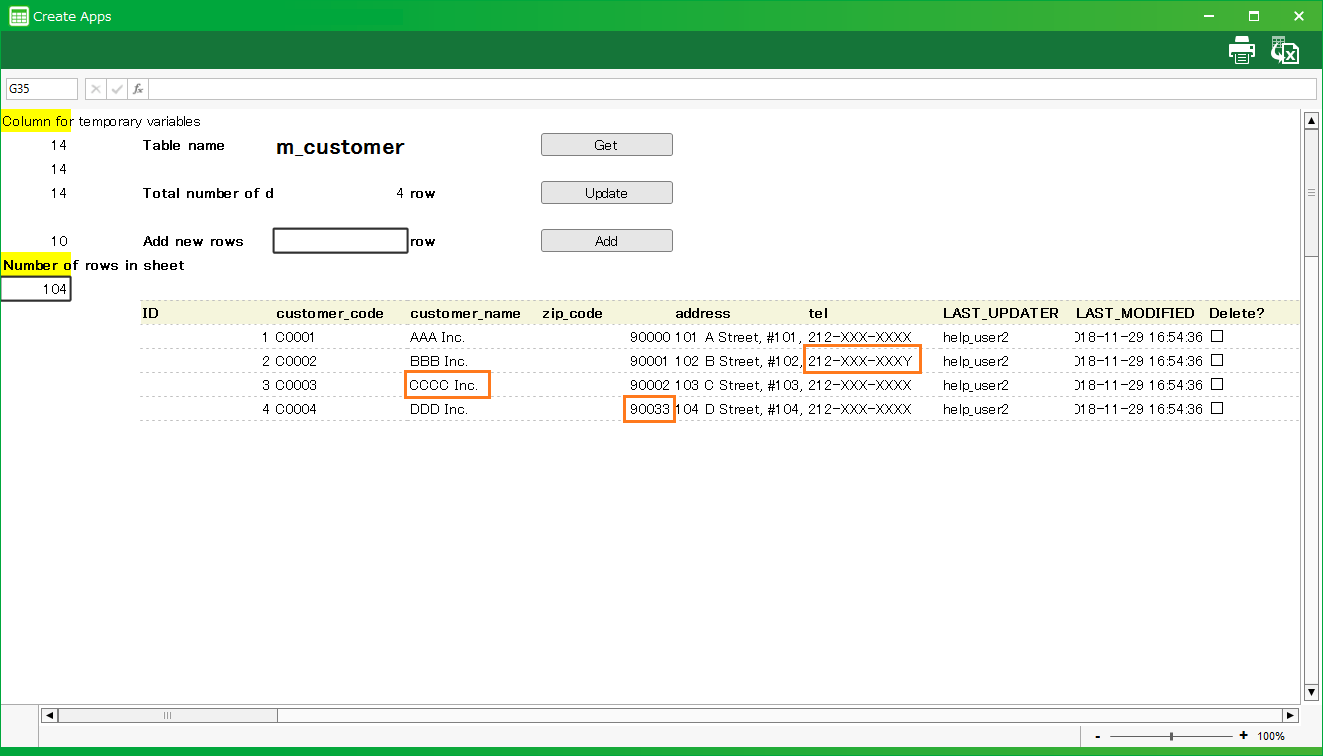
- Select the 'Header' input cell and click 'Set'. In the sample, it will be 'E2' and 'E3'.
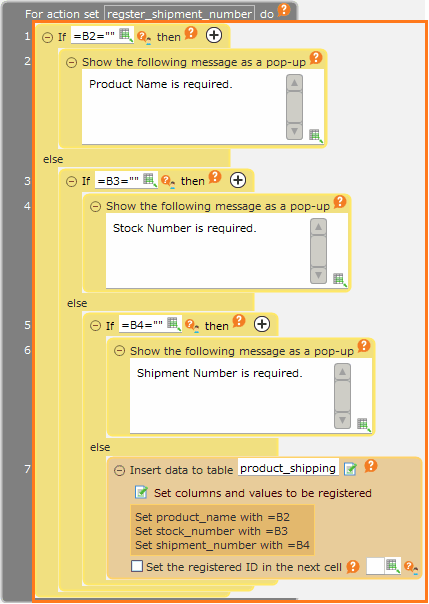
Tip
Multiple cells can be selected by holding down the Ctrl key while selecting cells, such as 'A1,B1'.Specifying input cells does not require selecting all cells at once.If there are many cells to select, this process can be performed several times.
- When the 'Label Settings' dialog box opens, click the 'OK' button.
- When the 'Specify data range' dialog box displays what you have just specified, the header specification is complete.
4-3. Complete the specification
When you have finished specifying tables and headers, close the 'Specify data range' dialog and click the 'Next' button.
Tip
To open the 'Specify data range' dialog again, click on the preview screen.
5. Specify input items
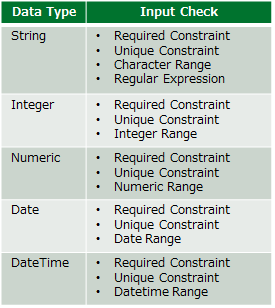
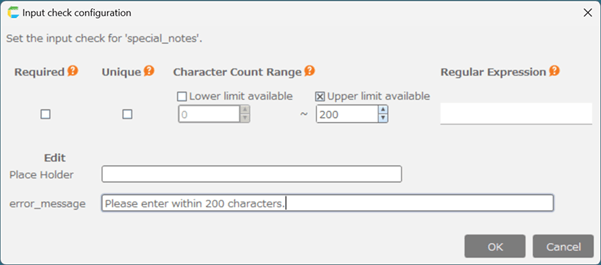
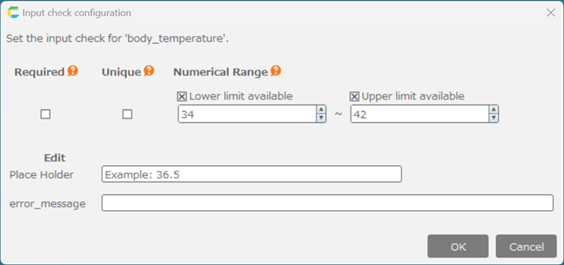
This screen allows detailed settings for the input items set on the previous screen.In this sample, check the required check boxes for 'Dept' and 'Year' in the header area, and click the 'Next' button.
See also
To learn more about this screen, click Specify Input Item screen .
6. Settings for table
This screen allows detailed settings for automatically created tables.Click the 'Complete' button.
See also
To learn more about this screen, click Table setting screen .
Tip
The Database Table is like a box that stores the data for the application.The application to be created will store data using the table shown on this screen.
7. Complete the Data Access Settings.
When you have completed settings of the sheet for data, click the "Next" button.
Tip
If you want to modify the settings, click the 'Set' button again.
8. Layout Settings
This screen allows you to configure the screen settings for the application.There are two settings: "Specify data access control" and "Specify linking header information".
8-1. Specify data access control
Data access control can be specified to allow or prohibit updating from the input screen for the tables in the sheets set in "Data Access Settings".In this sample, check "write" to allow updating data from the application screen.
8-2. Specify linking header information
The linking header information is specified when the sheet set in "Data Access Settings" has a header section.This specification is used to search for data in tables to be displayed on the application screen.
- Click the icon next to "Linking Header Information" to open the "Edit header information linkage when updating data" dialog.
- Set the conditions to search the table. In the sample, the "Year" and "Dept" cells are specified to input data into the table using a combination of "Year" and "Dept".
Tip
There are two ways to set cells, one is to enter cells directly in the text box and the other is to select cells from the sheet.To select a cell from the sheet, click the icon next to the input box and select the cell.
Tip
A table with a header section is an image of managing data by accumulating a table for each item in the header section.The table displayed on the application screen is searched for data in the table using the cell values set on this screen.
- In this sample, input the cell address "E3" in the "Year" field and the cell address "G3" in the "Dept" field, and then click "OK" button.
Tip
In the sample, the table data is accumulated by "Year" and "Dept" and the table data that matches the values in cells "E3" and "G3" on the application screen is displayed.
8-3. Preview of the application screen
Once set up to this point, click on "Previews" to see the application screen.
- Click the "Previews" button to open the "Previews" dialog.
- On the preview screen, verify that the cells where the data will be entered and referenced are the same as in Excel. In the sample, they are "E3", "G3", "I7:T9", and "I11:T12".
Tip
Cells where data is to be entered or referenced are automatically determined in the "Reference Settings by VLOOKUP".The determined cell can highlight the cell in a list box next to each column in the table to be accessed.
- After finishing the confirmation, click the "Close" button to close the dialog.
9. Complete the layout settings
After completing the app screen settings, click the "Next" button and proceed to "Output of the application".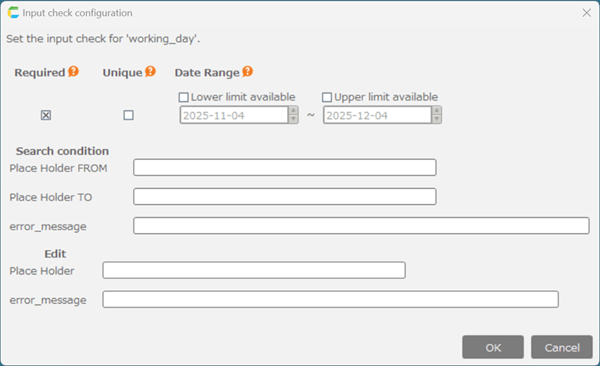
Output of the application
After completing the settings, click the 'Create an app' button.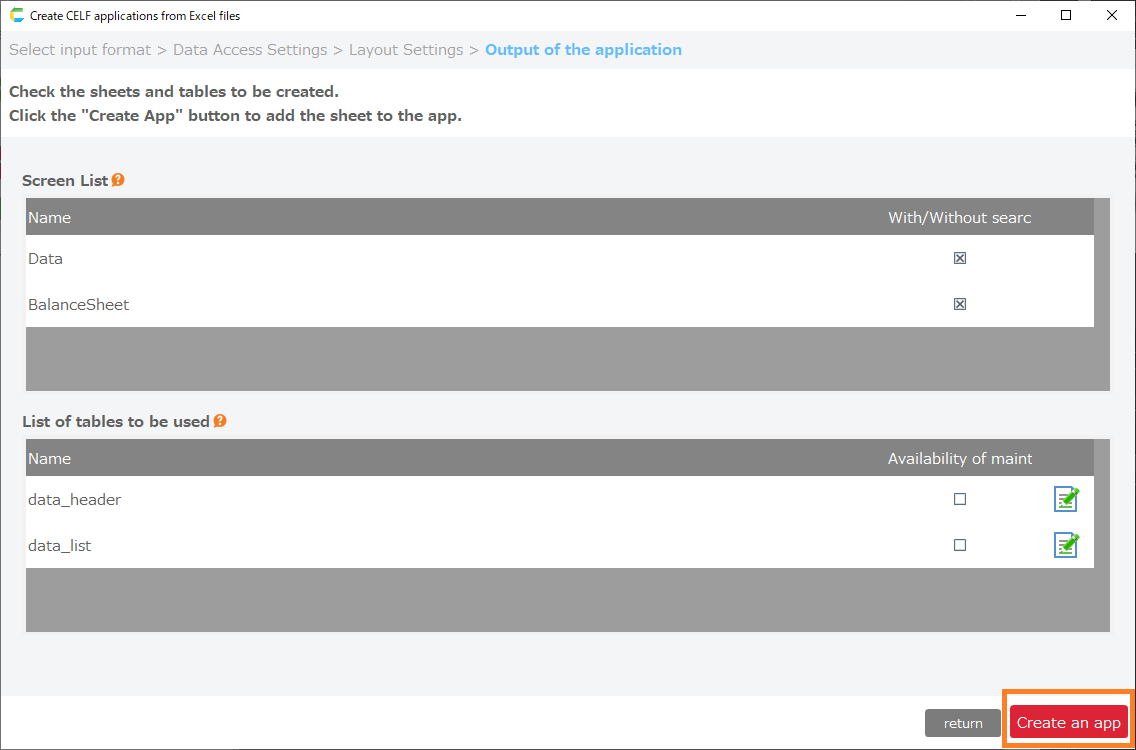
Tip
In this screen, the application screen to be created and the database tables to be used by the application will be displayed.In the sample, an application with a "BalanceSheet" application screen and a "Data" table in the database will be created.
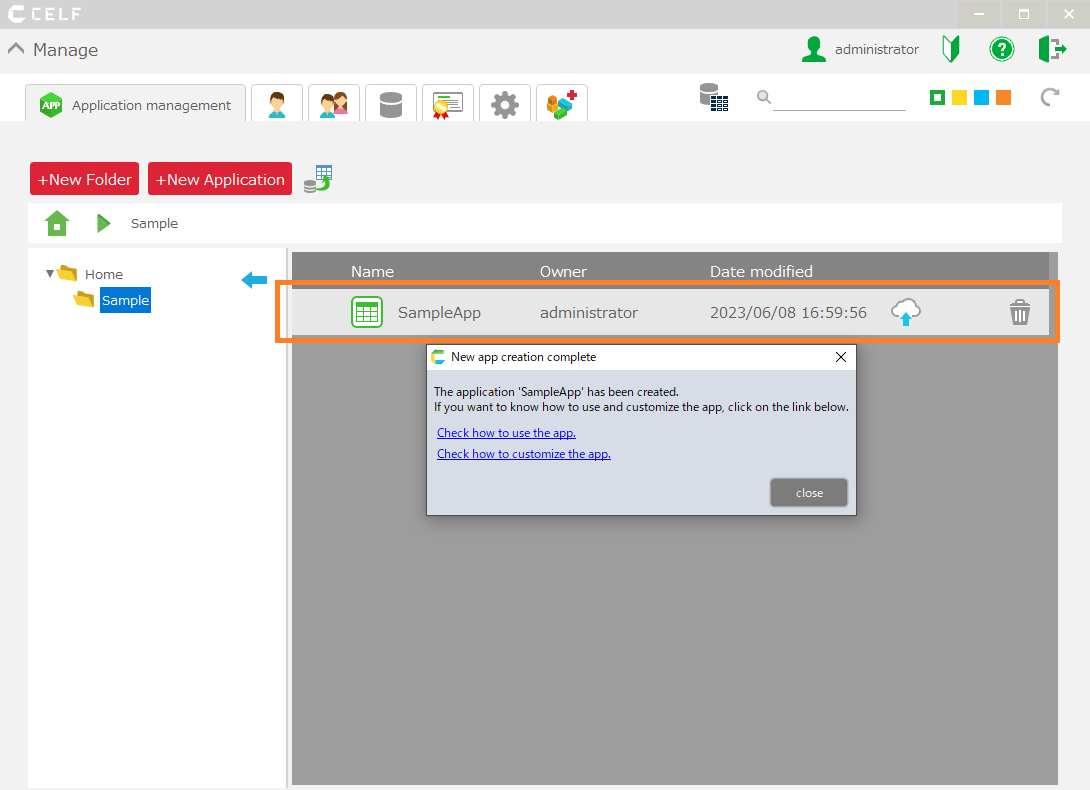
- The app will be created and added to the app list.
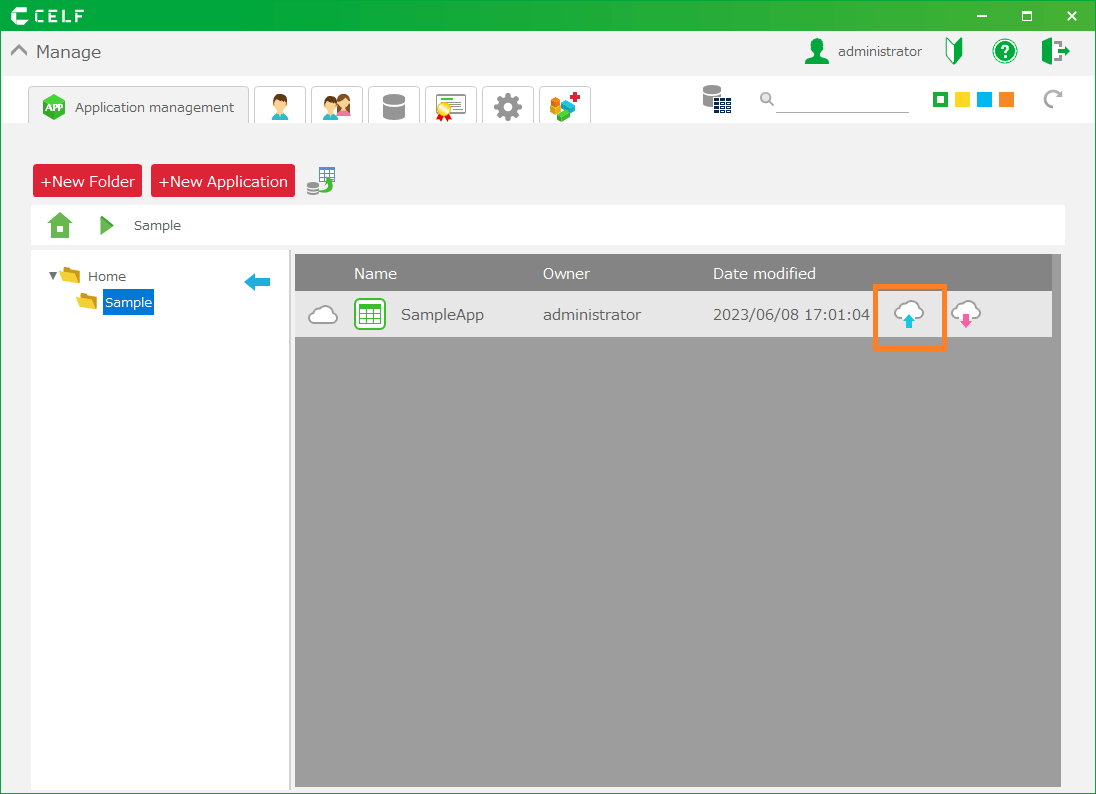
- The app you create can be used by setting it in the public settings.
See also
For more information on how to release the app, please click Publish the application.See also
For more information on the screen, please click Description of operations by screen (Multiple sheet combination)Click How to use automatically created applications for how to use the created app.
Related keywords
CELF3.6.0