Use Application
Publish Application
Publish the application to use the created application at first.
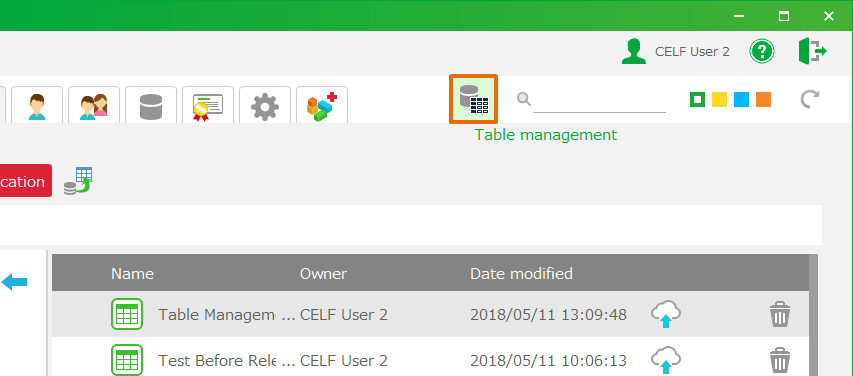
- Open 'Application management' in "Manage" screen.
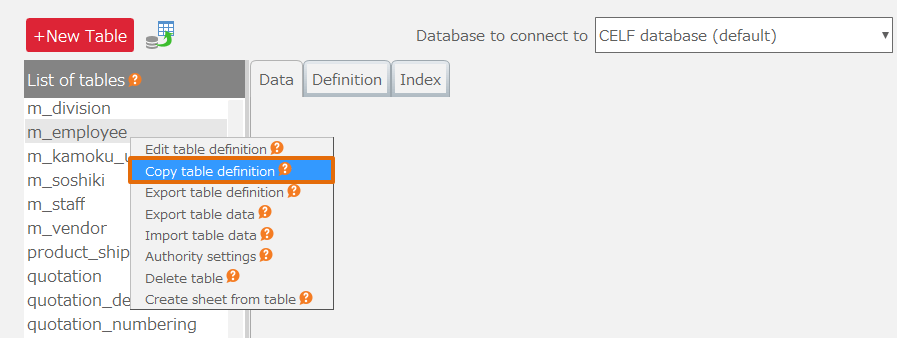
- Right click on the application to publish, then choose 'Publication settings' menu.
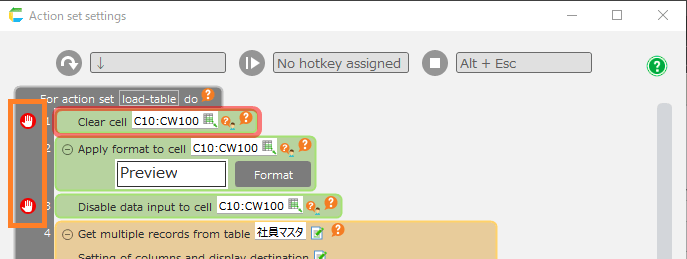
- In 'Application settings for publication', set Start sheet and the publication scope.
- Click ’Publish' button for the application to be published.
See also
Regarding Application Publication, check Publish Application.
Use Application
The published application is available from the published applications screen.
- Open the published applications screen.

- Click the application to open.
Note
For app that is published by restricting groups, the users who can use it are those being included in the group(s) when editing publication settings.
Important
To publish applications, users require the following permissions.
- Application author
And also, the following permission is needed to the application
- Administrtor
Regarding setting the permission to edit the application, check Set Permission To Edit Application.
