Import Sample Application.
Download the sample application.
You can download the sample application from Application and template download site .
- Open Application and template download site with browser.
- Click "Download" for the application you wish to download.
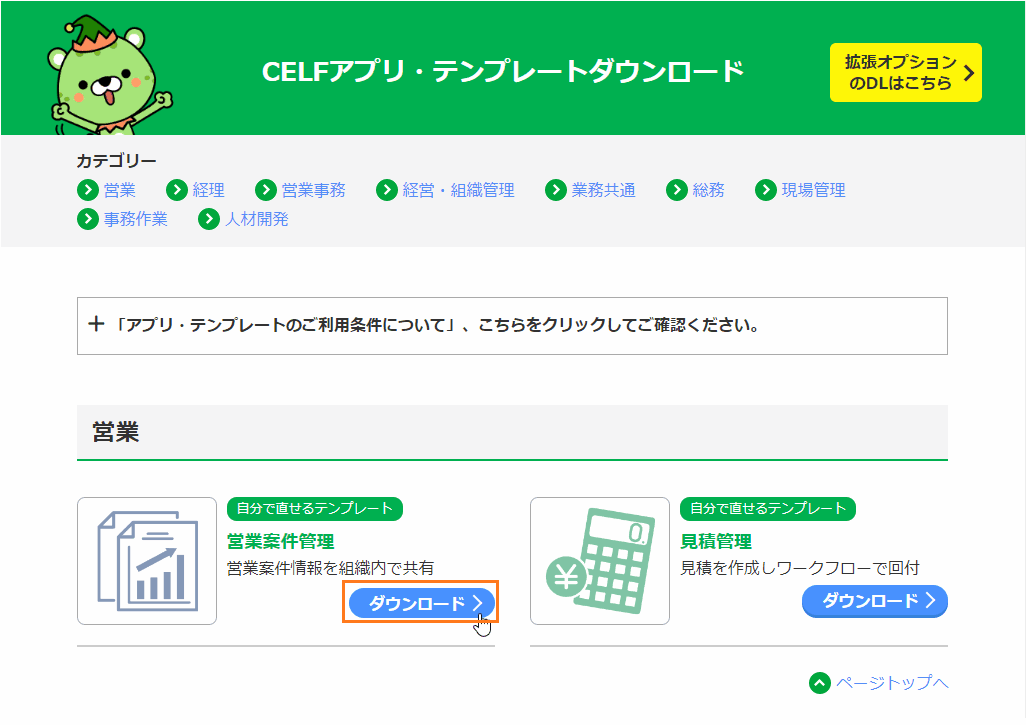
※The downloaded sample application is zip format file. Extract in your prefer folder.
※The contents of the download site could be updated.
Import Sample Application.
Import the downloaded sample application into CELF.
- Open 'Application management' in "Manage" screen.
- Navigate to the folder you want to import and click the 'Import' button.
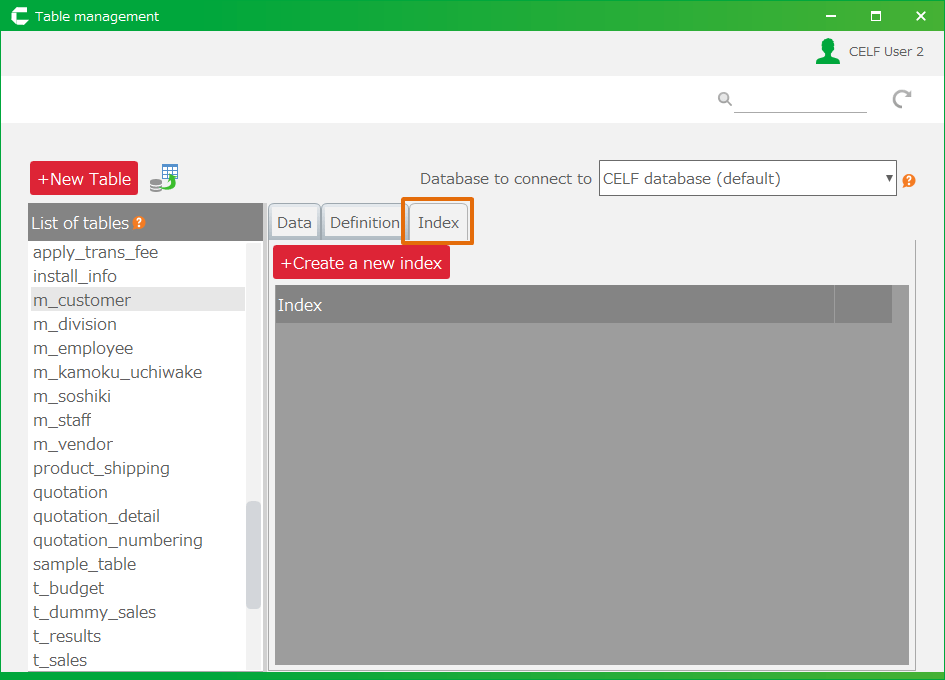
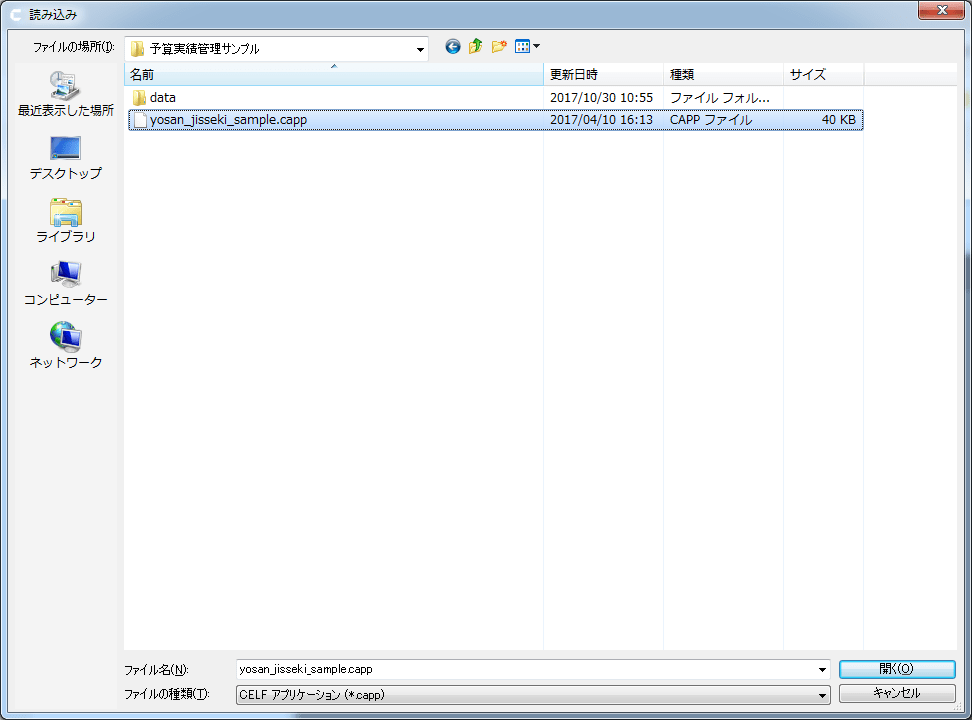
- Choose the downloaded sample application(.capp).
- 'Application Import' dialog is displayed.
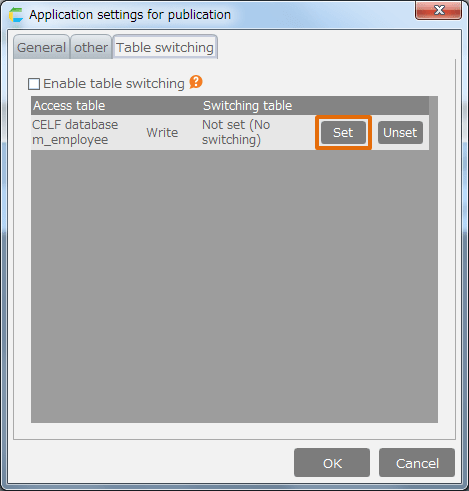
This is the components to be imported in relation to the application.
- Sheet
- Table
- File
- Click 'Execute' button.
Note
The imported table contains no data. The table data for the sample application needs to be imported separately.
Import the table data
- Click 'Table management' button in "Manage" screen, then open 'Table management' view.
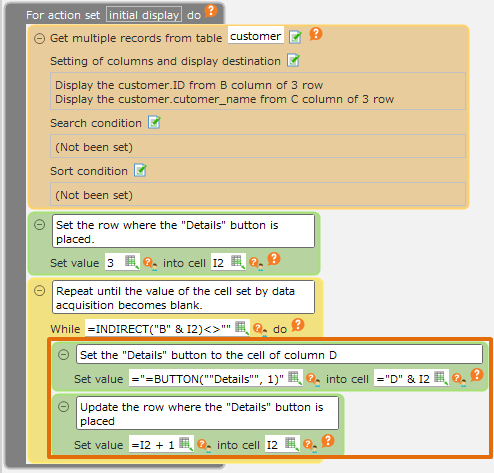
- Choose the imported table from 'Table List' in 'Table Management' view, right click and then select 'Import table data' menu.
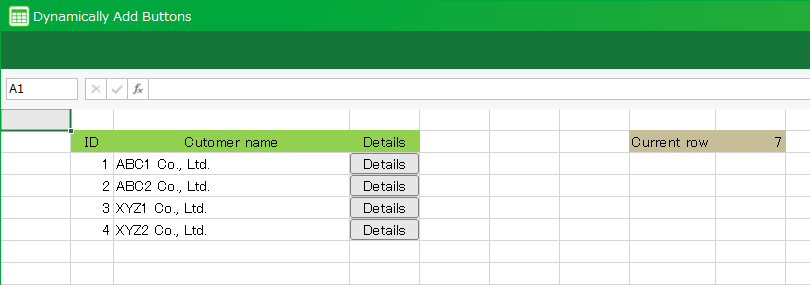
- Choose the table data file name(.csv) which was selected in the step 2.
See also
Regarding the table data import, check Import CSV Data.
Important
You need the application creator permission to import the application.

Related keywords
sample, reference, read, load