Add an alert display function on the header search screen
Data that needs to be processed urgently can be displayed in red on the header search screen.
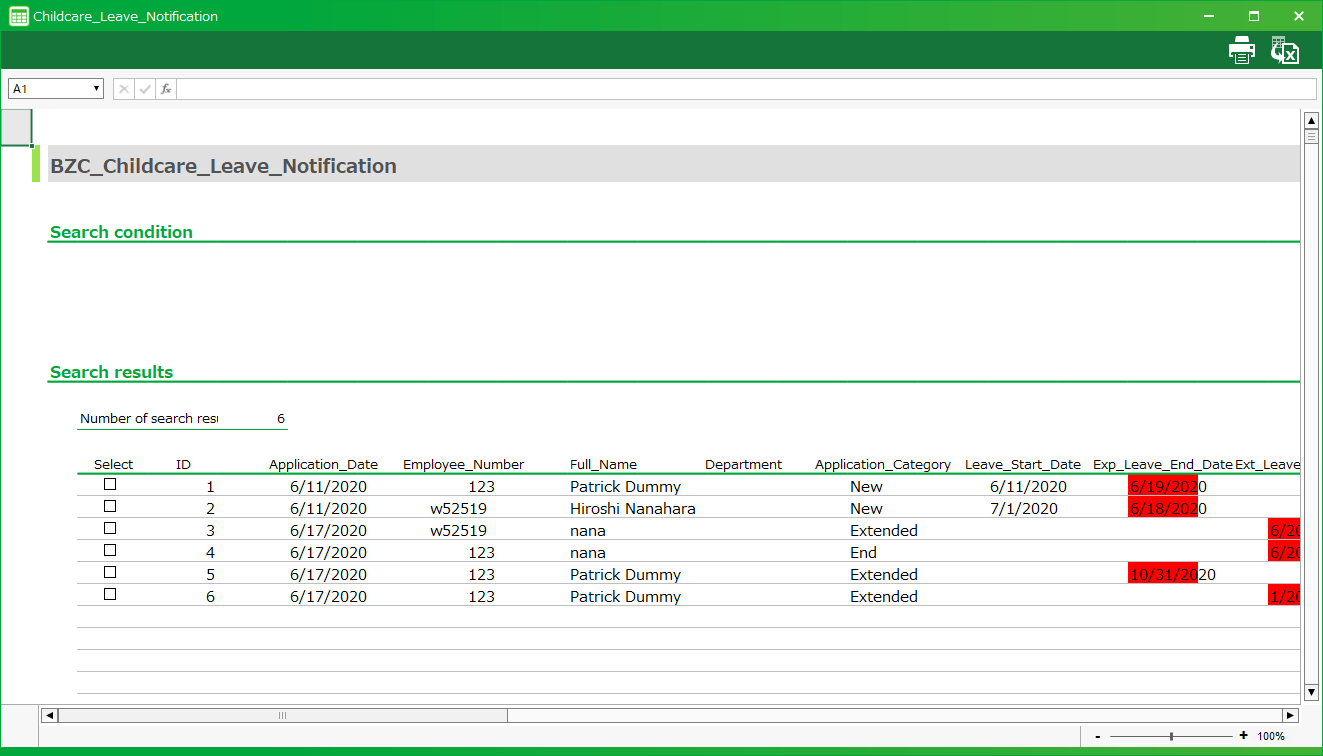
As an example, in the header list of the Parental Leave Application, we will add a function to display the applications in red, whose scheduled end date of leave is earlier than today’s date.
App Operation
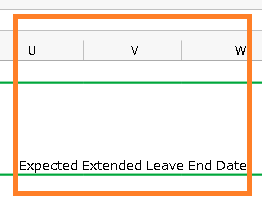
The "Scheduled end date of leave" in the row of the leave notification that the end date of leave has passed is displayed in red.
Customization procedure
Change screen layout
Set the threshold to display alerts on the screen.
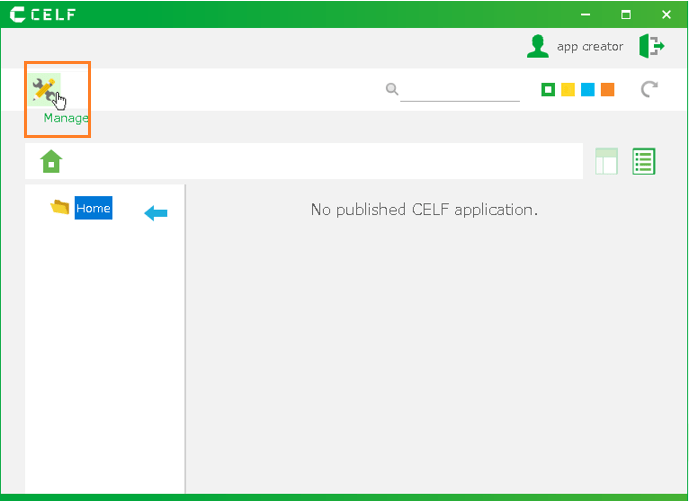
Login to CELF and click the "Manage"button to open the Management screen.
Tip
The "Manage" appears when you are logged in as an administrator.
Double-click the app you want to customize.
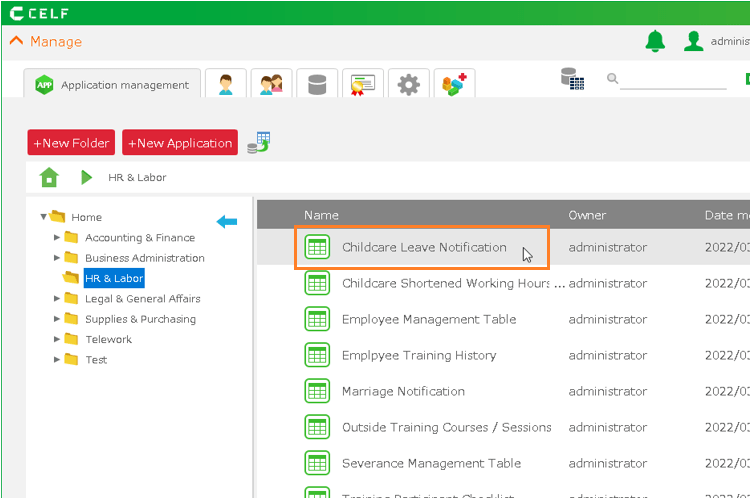
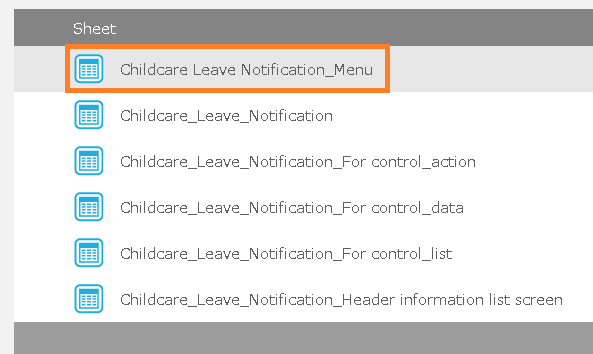
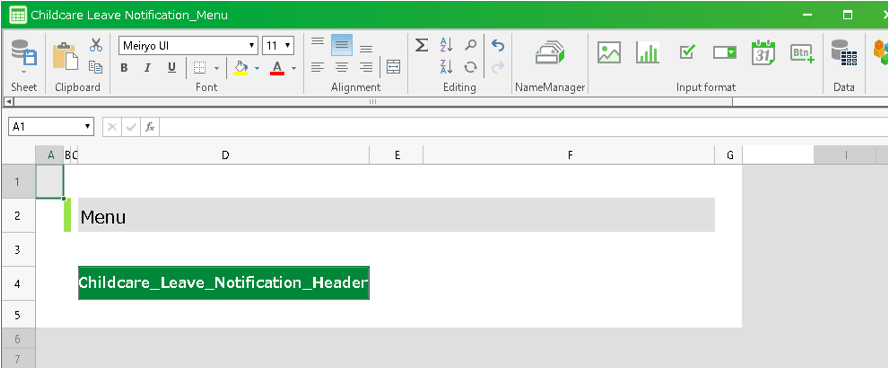
Double-click the menu sheet.
Hint
A sheet with the name "[app name]_menu" is a menu sheet.
Tip
Here we set the thresholds on the menu screen to reference from all sheets.You can also set the threshold in the header search screen in the same way.Click the
button.

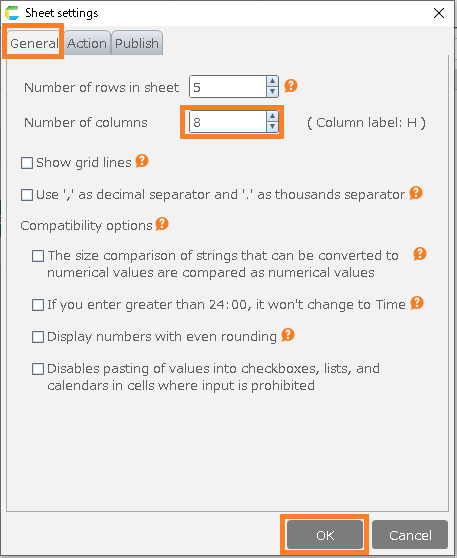
In the "General" tab, increase the value of "Number of columns" by 1 and click the "OK" button.
Enter "=TODAY()" in the first cell of the first row of the added column.

Hint
All expressions must be entered in half-width characters.
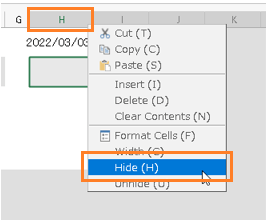
Right-click on the column heading of the column in which you entered the expression and select "Hide".
Save and close the sheet.
Change the action to show rows that exceed the threshold in red
Open the action set in the header search screen.
Double-click the header search screen sheet.
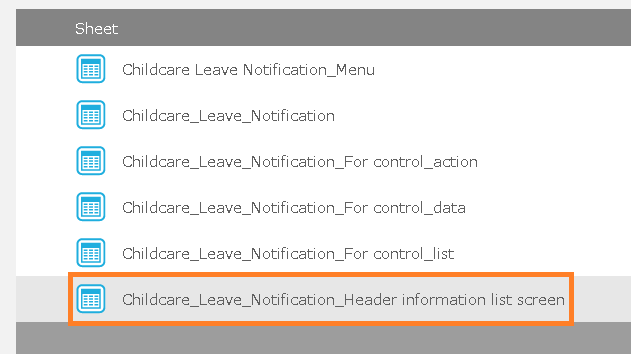
Hint
The sheet named "[App Name]_Header Screen" is the Header Search Screen Sheet.
Click the
button.

Add an alert on the header search screen
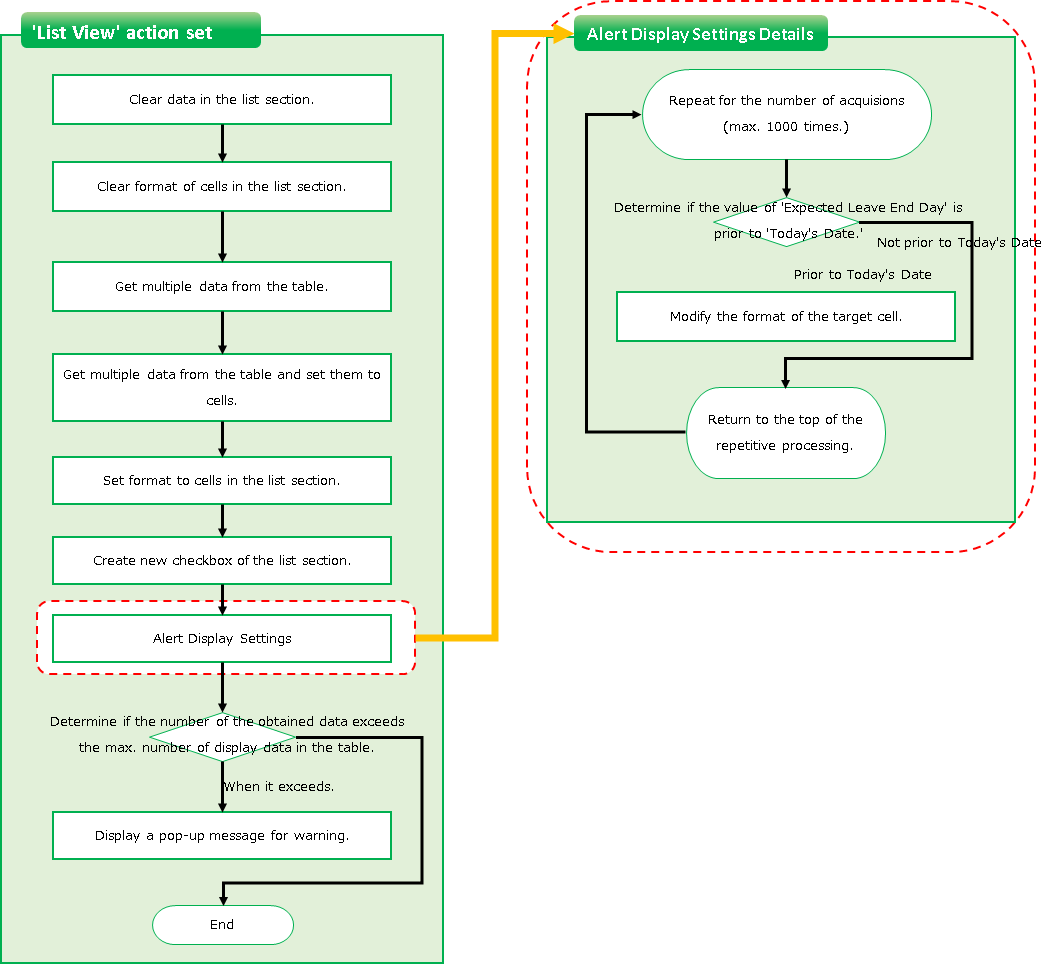
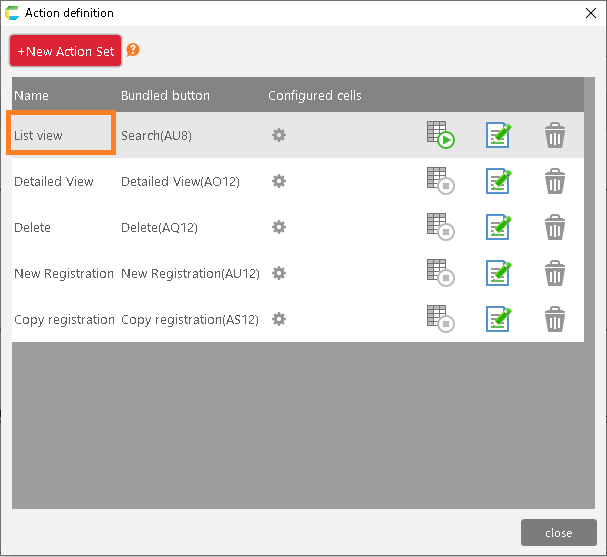
Double-click on the "List view" action set.
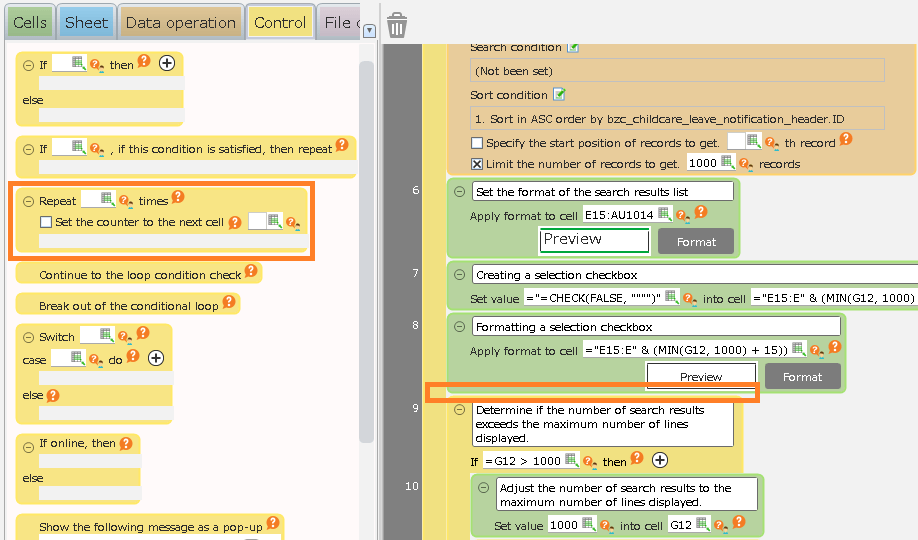
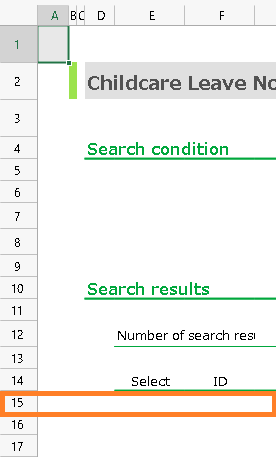
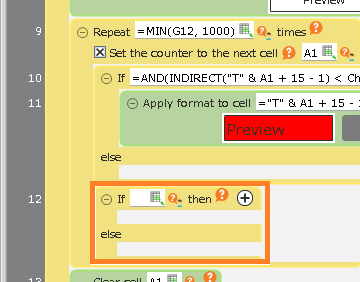
Add the "Repeat processing for the specified number of times" action between lines 8 and 9.
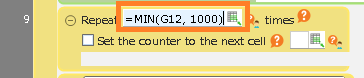
Enter "=MIN(G12, 1000)" in the repeat count.
Tip
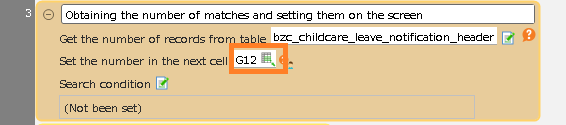
In this expression, the address (G12) uses the address that is set to the number of cases retrieved from the table in "Get number of records from table" in line 3.Hint
All expressions must be entered in half-width characters.
Check the "Set the counter to the next cell" checkbox and enter "A1" in the address box.
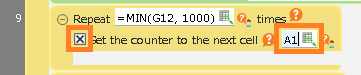
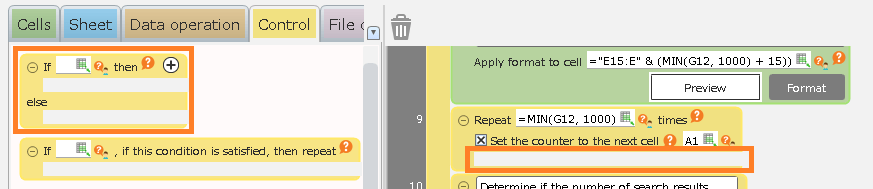
Set the "Determine condition" action in the "Repeat processing for the specified number of times" action in row 9.
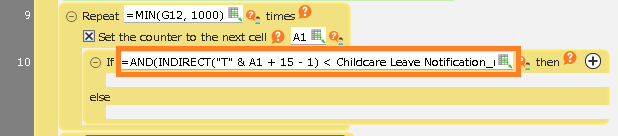
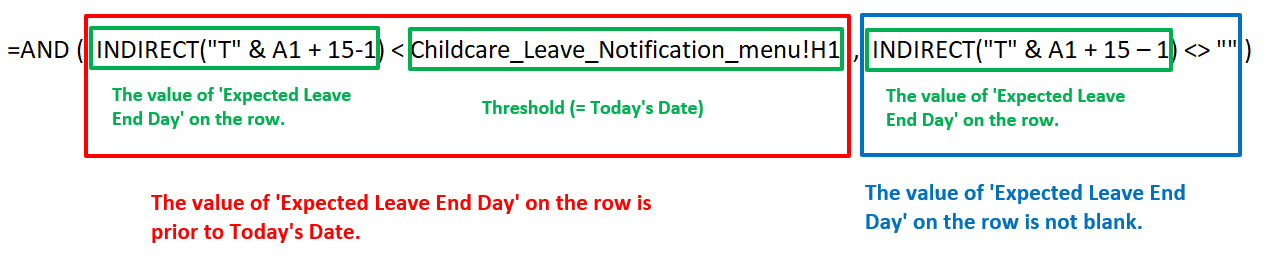
Enter the expression "=AND(INDIRECT("T" & A1 + 15 - 1) <[sheet name]!H1, INDIRECT("T" & A1 + 15 - 1) <> "")" in the condition of the "Determine condition" action you added.
Hint
This formula is complex, so please copy and paste it from the description above.The meaning of the formula is explained in the "Tip"' section below, if you’re interested.Tip
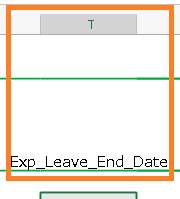
This formula represents the condition 'If the "End date of parental leave in that row" is less than the "Threshold" and the "End date of parental leave in that row" is not blank', the cell is displayed with a red background.'"T" & A1 + 15 - 1' represents the cell address of the"End date of parental leave in that row."T" is the column address for the end date of parental leave,"15" is the row number of the first row of the search results list,"A1" is the number of cases on the list that we are currently determining."[sheet name]!H1" is the address of the threshold cell that was set in the screen layout change earlier.Set the "Apply format to cell" action in the first section of "Determine condition" action you just added.
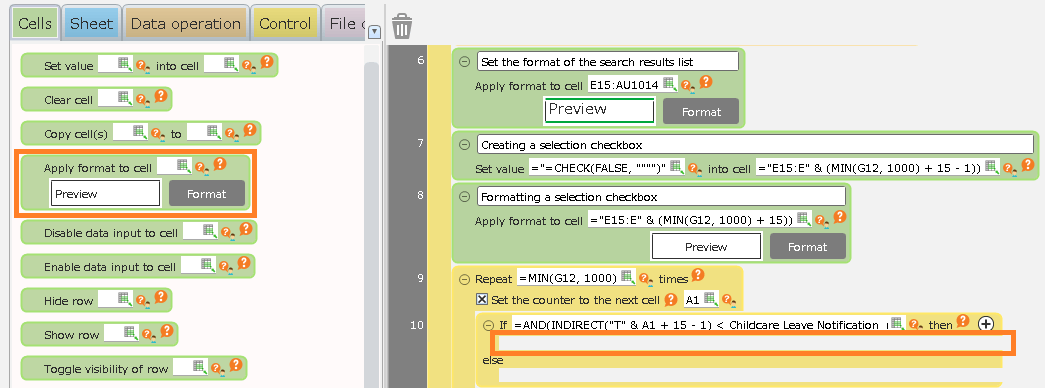
Enter "="T" & A1 + 15 - 1" in the address of the cell where the format should be set.

Tip
'"T" & A1 + 15 - 1' represents the cell address of the"End date of parental leave in that row."T" is the column address for the end date of parental leave,"15" is the row number of the first row of the search results list,"A1" is the number of cases on the list that we are currently determining.Click the "Format" button.

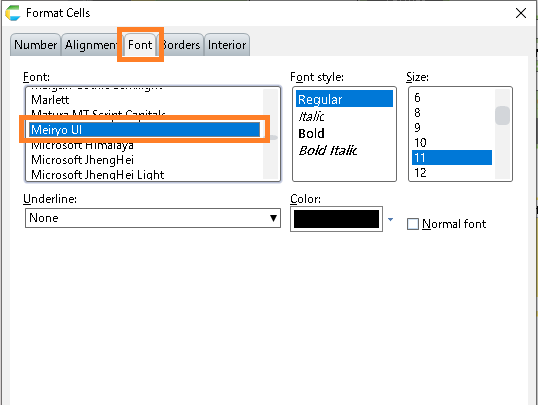
In the "Fonts" tab, select "MeiRyo" for "Fonts".
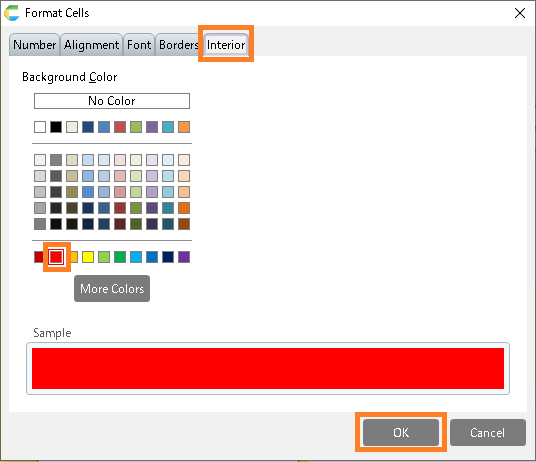
In the "Fill" tab, select red for the "Shading Color for Cells" and click the "Confirm" button.
Set the "Determine condition" action in the "Repeat processing for the specified number of times" action in row 9.
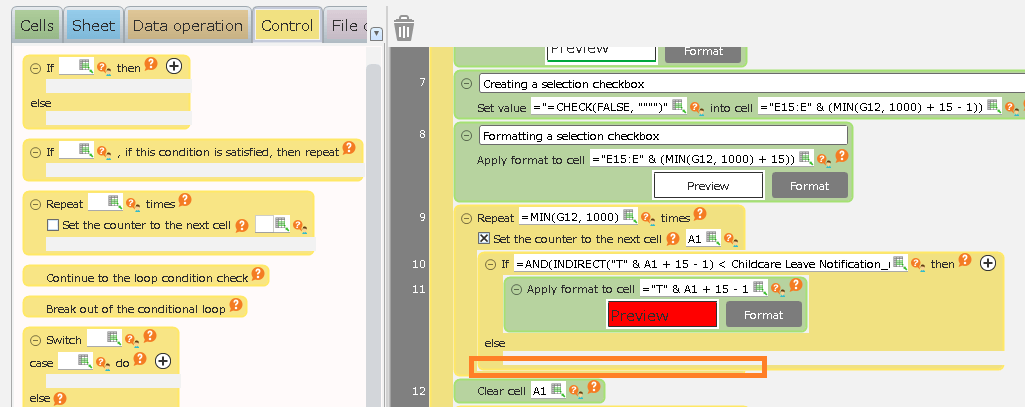
Hint
Pay close attention to the position when adding, so that it looks like the following image.Enter "=AND(INDIRECT("V" & A1 + 15 - 1) < Parental Leave Application_Menu!H1, INDIRECT("V" & A1 + 15 - 1) <> "")" as a condition for the added "Determine condition" action.
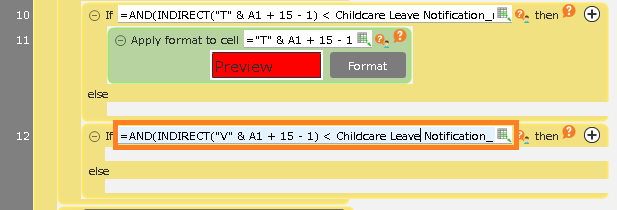
Hint
This formula is complex, so please copy and paste it from the description above.The meaning of the expression is the same as in Section 8. Only the column address is changed from "T" to "V" because the item that changes the background color isdifferent.If you are interested, please see "Tip" for details on the meaning of the expression.Set the "Apply format to cell" action in the first section of "Determine condition" action you just added.
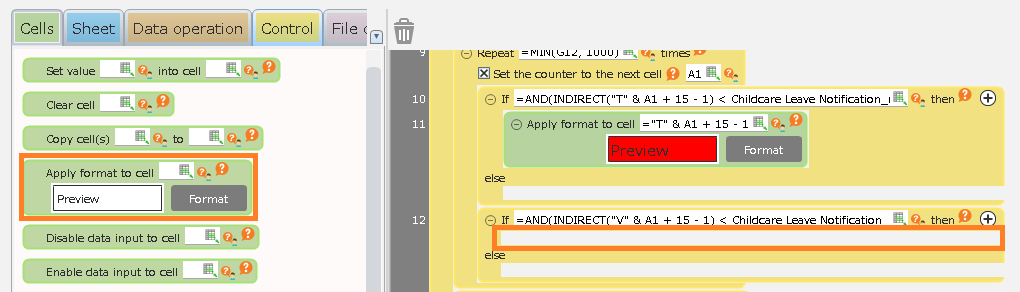
Enter "="V" & A1 + 15 - 1" in the address of the cell where the format should be set.
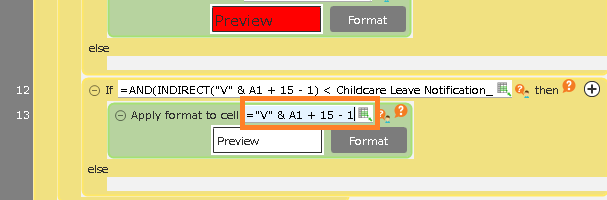
Tip
The meaning of the expression is the same as 10.Because of the different settings, the address is changed from "T" to "V".Click the "Format" button.

In the "Fonts" tab, select "MeiRyo" for "Fonts".
In the "Fill" tab, select red for the "Shading Color for Cells" and click the "Confirm" button.
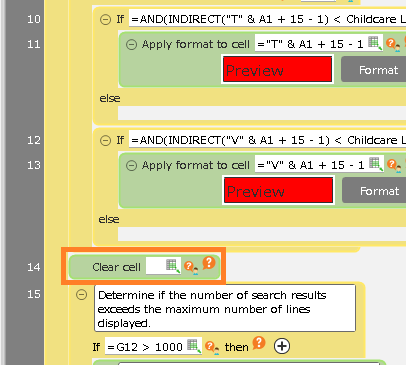
Add the action "Clear cell value" next to the action "Repeat processing for the specified number of times".
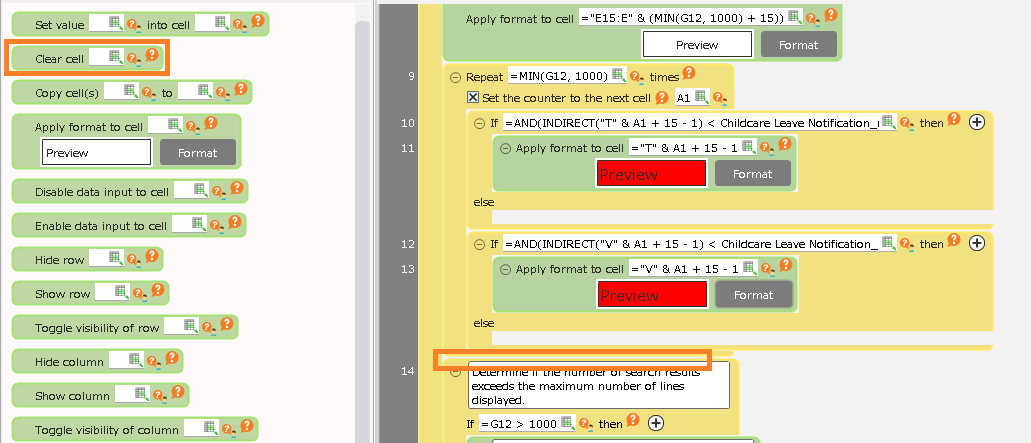
Hint
Pay close attention to the position when adding, so that it looks like the following image.Enter "A1" as the cell address for the "Clear cell value" action you added.

Click the "OK" button to close the Action Set Settings dialog.
Click the "OK" button to close the Action Set Settings dialog.
Save and close the sheet.

Completed.
See also