Save sheet as an Excel file
You can save your target sheet as an Excel file by using Action.
Save sheet as an Excel file
- Open 'Action set setting'.
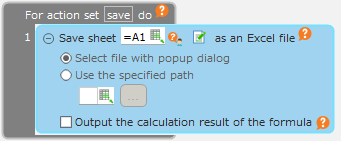
- Drag 'Save sheet as an Excel file' action from 'Sheet' tab, then set in the edit area.
- Select the way to set saveing file.
- If you select file by popup at action set execution, select 'Select file with popup dialog'.
- If you select file with full path, select 'Use the specified path'.
Attention
If there is already file to be set in full path, the file is overridden.
- To save other sheets in the application, click the "Select Sheet" button.
- Select the sheet to save on 'Sheet Selection' dialog, then click 'OK' button.
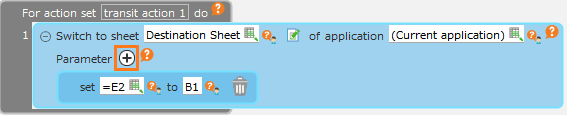
Hint
You can also select the sheet to save dynamically by specifying the sheet to save in the formula (cell reference).
Note the own sheet will be saved in case there is no designate sheet.
- To save the formula calculation result, check 'Output the calculation result of the formula'.
Tip
In addition to the contents of the sheet, the following settings are also exported to the Excel file.
The default value of the 'Output the calculation result of the formula' check box is disabled, and the formula entered in the cell is saved as it is.

If you check 'Output the calculation result of the formula', the calculation result of formula will be saved as cell value.
Attention
- If you do not check 'Output the calculation result of the formula', note the following.
- An error (#REF!) will be displayed for other sheet reference.
- An error (#NAME?) will be displayed in the CELF proprietary function.
- Errors will be displayed for graph and image as well. However, the input control (such as CHECK, LIST, or BUTTON) is the value of that function (true / false if it is CHECK).
- If you check 'Output the calculation result of the formula', note the following.
- The graph is displayed blank.
- Click 'OK' button.
Related keywords
excel, download, export, print