Print the sheet by Action
You can print your target sheet by using Action.
As the example, there is the application which was created in Dynamically Add Buttons.The button in the application will be changed from 'Details' button to 'Print' button.
This part will show the procedure to print the sample sheet with input data.
Set 'Print' button depending on the data count.
Check Dynamically Add Buttons > Set 'Details' button along with data count for getting the data and creating the button dynamically.
Set the action for 'Print' button
Create the action for 'Print' button which was created in Set 'Print' button depending on the data count.
In this part, it will show to get 1 record data with the ID as the search condition, then to print the contents on the print sheet.
- Get 1 record with B column (ID) as the condition on the selected row, then set the data into the cell.
See also
Regarding the way to get the selected row,Check Get Current Row Column.
- This shows to connect to the acquired value, then to set the value on the print sheet.
See also
See Pass Data to Other Sheet for the action "Set values in sheet cells" action.
- This shows how to set 'Print Sheet' from 'Sheet Operation' tab.
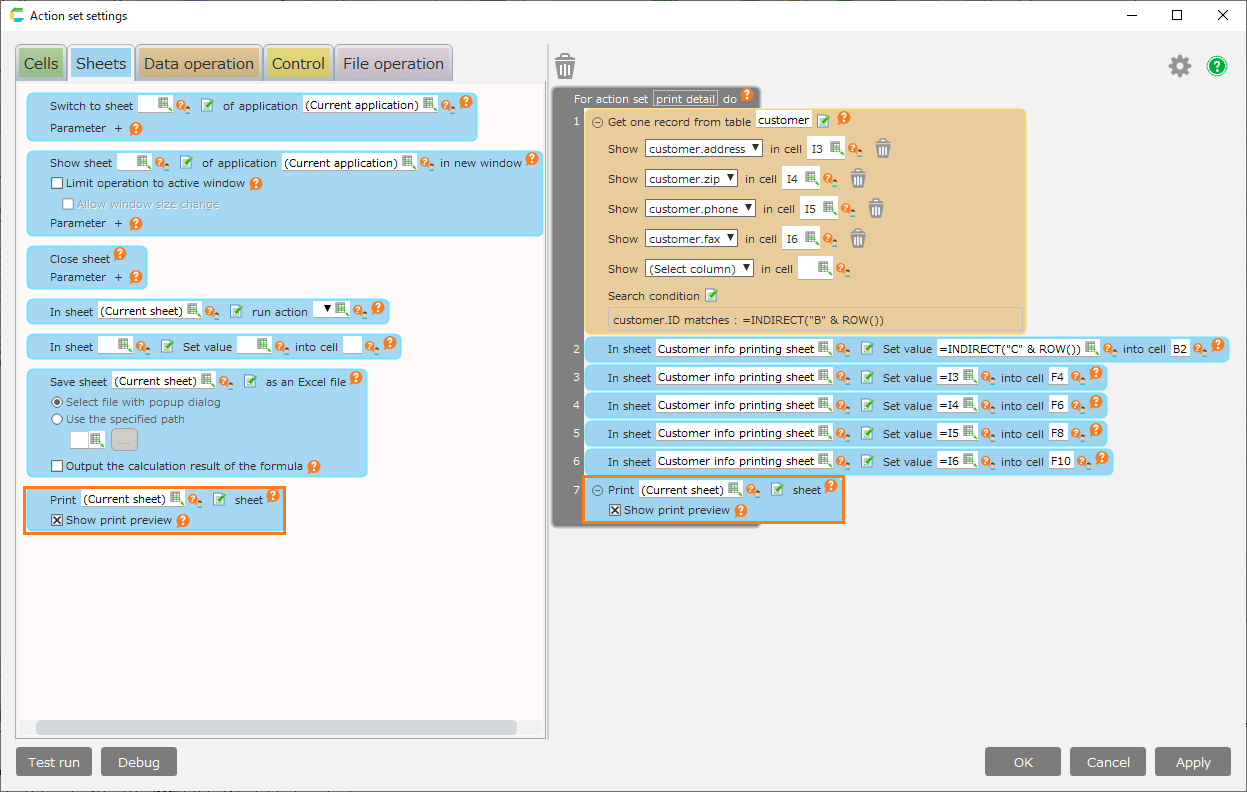
- Click 'Select Sheet' button.

Hint
You can also select the print sheet dynamically by designate the print sheet as the formula (in the cell).

Note the own sheet will be printed in case there is no designate sheet.
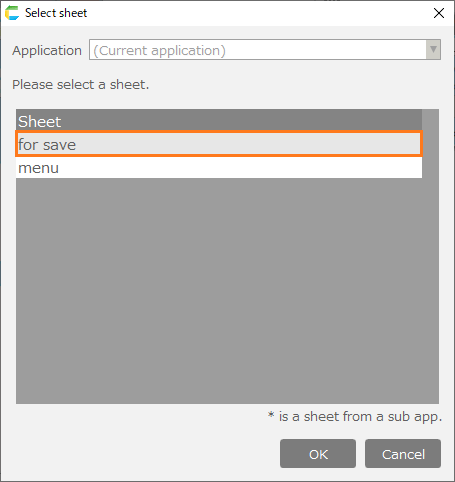
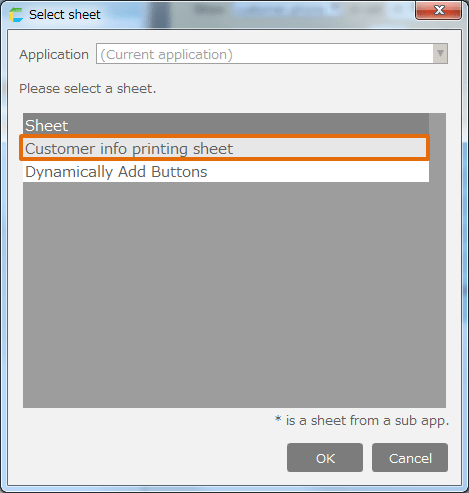
- Select the print sheet on 'Sheet Selection' dialog, then click 'OK' button.
Tip
The sheet to select is regulated in the current application or sub application.
- To print without displaying 'Print Preview' dialog, uncheck 'Show print Preview'.

Tip
- The initial value of the 'Show print preview' check button is valid, and the 'Print Preview' dialog is displayed at the time of printing, you can Specify Orientation Size Of Printing at that time.
- If you uncheck the 'Show print preview' checkbox, make Specify Orientation Size Of Printing on the sheet to be printed beforehand. At this time, the output destination printer will be the last printer printed.
- Click 'OK' button.
Tip
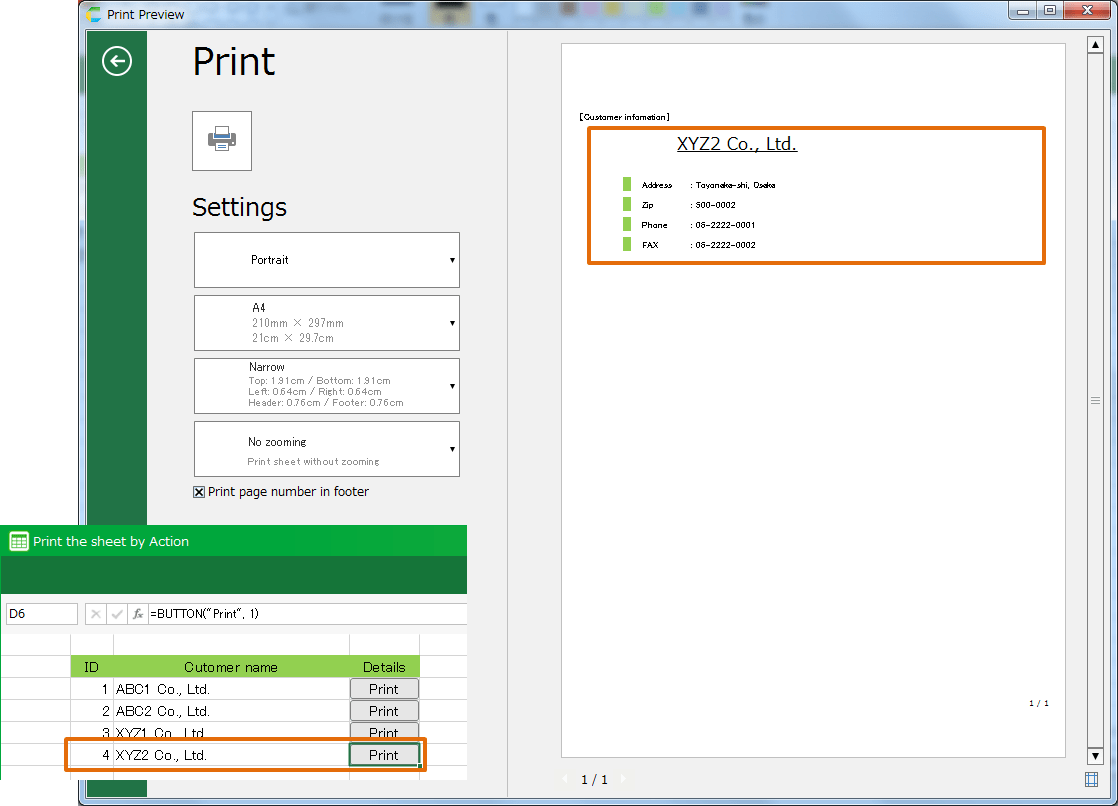
At the execution, the print sheet is previewed, and then the sheet is printed.
Attention
- When printing a sheet with many cells, the printing process takes time regardless of the number of pages to be printed. In addition, printing may not be possible due to insufficient memory.
- When specifying a virtual printer such as Microsoft Print to PDF and saving to a file, if the number of pages to be printed is large, saving takes time.
Related keywords
form, report, printer, print