Transit From The Sheet To Other Sheet
You can operate each 3 sheets by using the sheet operation action.
- Change the sheet
- Open the new window and sheet.
- Close the sheet
You need to create the destination sheet to transit in advance
Change the sheet
- Open 'Action set setting'.
- Drag 'Switch to sheet of application' action from 'Sheet' tab, then set in the edit area.
- Click 'Select Sheet' button.
- The 'Select Sheet' dialog box will open. Click the button to the right of the 'App' field.
Tip
If you want to navigate to the current app’s sheet, skip clicking the button in the 'App' field and proceed to Step 6.
- In the 'Select App' dialog box, select the app you want to open and click the 'OK' button.
Attention
If multiple apps share the same name, executing this action may navigate to a sheet in an unintended app.To specify the destination app, check the 'Set in the folder hierarchy' box and click the 'OK' button.The folder path is automatically set in the 'Specify the app’s folder hierarchy' action, allowing you to narrow down the destination apps.However, even if this method is used, if apps with the same name exist within the same folder, it may still navigate to a sheet in an unintended app.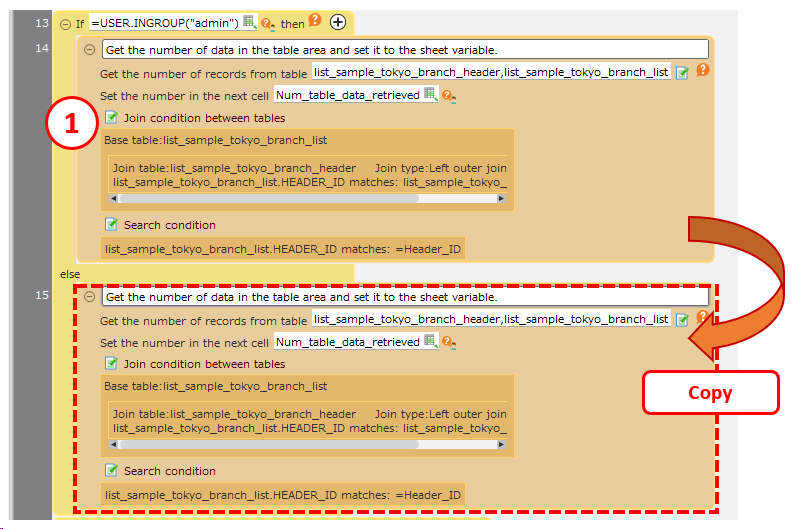
- Choose the destination sheet to switch to in 'Select sheet' dialog, then click 'OK' button.
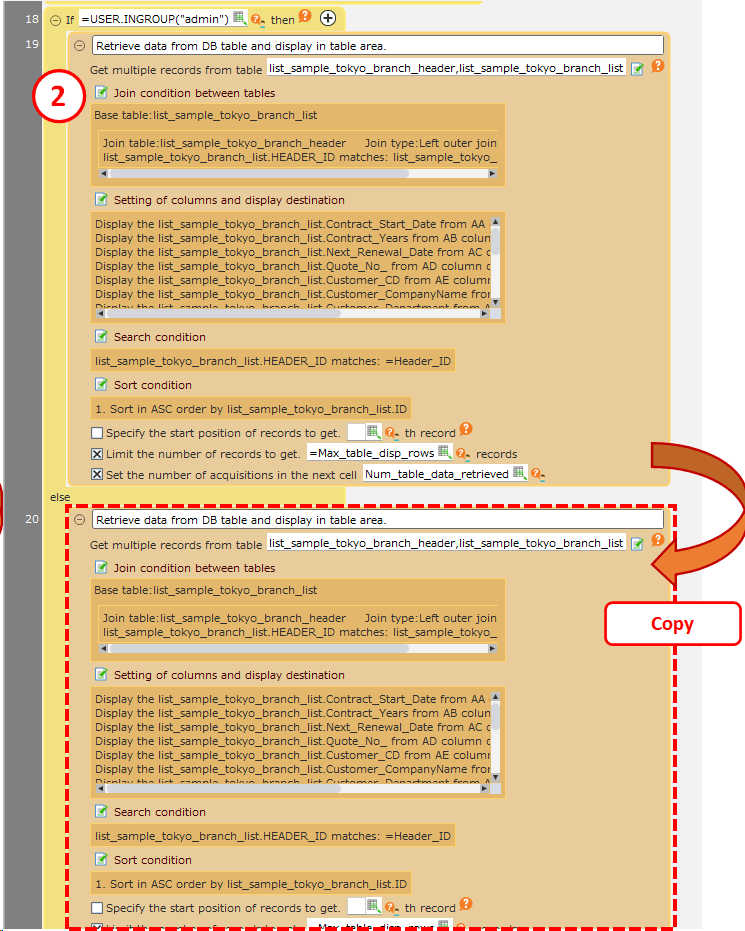
- At the transition, to set a value in the cell of the transition destination sheet, specify the cell address and value to set by pressing the '+' button.
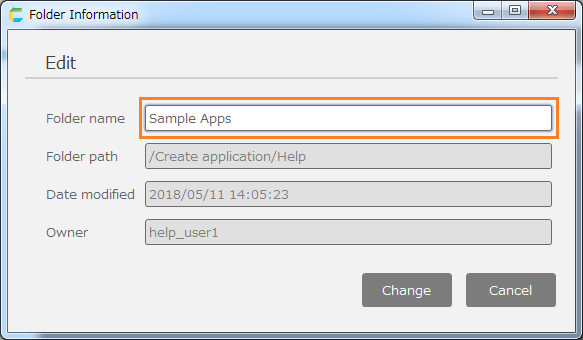
Tip
You can set the multi-parameter (value set to the destination sheet) by pressing '+' button and can delete the parameter by clicking 'Recycle Bin' button.
Attention
If a name is specified for the parameter "cell", it works by referring to the name defined in the destination sheet.Prior to version 3.3.2, it worked by referencing the name defined on the current sheet.To have the same behavior as in version 3.3.2 and earlier, turn ON "Use the name of the current sheet in sheet manipulation action cells" in the "Sheet Settings" dialog.
- Click 'OK' button.
Open the new window and sheet.
- Open 'Action set setting'.
- Drag 'Show sheet of application in new window' action from 'Sheet' tab, then set in the edit area.
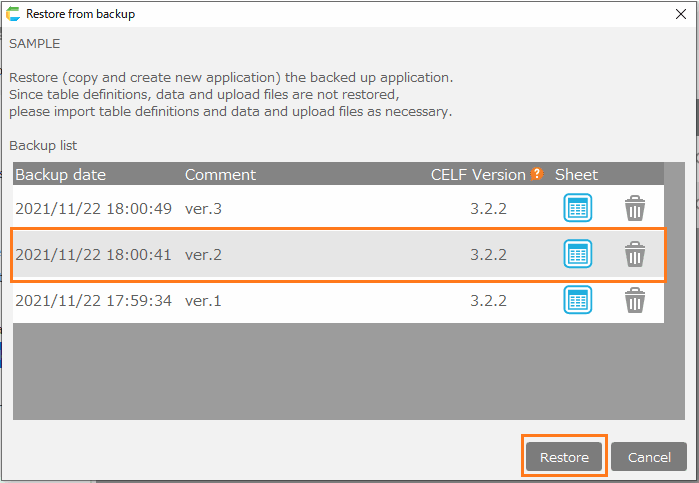
- Click 'Select Sheet' button.
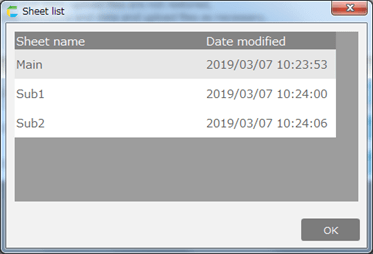
- The 'Select Sheet' dialog box will open. Click the button to the right of the 'App' field.
Tip
If you want to open the current app’s sheet in a new window, skip clicking the button in the 'App' field and proceed to Step 6.
- In 'Sheet Selection', choose the new sheet to open, then click 'OK' button.
Attention
If multiple apps share the same name, executing this action may navigate to a sheet in an unintended app.To specify the destination app, check the 'Set in the folder hierarchy' box and click the 'OK' button.The folder path is automatically set in the 'Specify the app’s folder hierarchy' action, allowing you to narrow down the destination apps.However, even if this method is used, if apps with the same name exist within the same folder, it may still navigate to a sheet in an unintended app.
- In 'Sheet Selection', choose the new sheet to open, then click 'OK' button.
- Check 'Limit operation to active window' if you do not want to operate the parent window while the new window is open.
Attention
If this option is checked, subsequent actions of this action will not be performed until the new window is closed.
Tip
By default, new windows are displayed in fixed-size windows.If you want to be able to change the window size, check 'Allow window size change'
- To set a value in a cell of an opened sheet when opening in a new window, specify the cell address and value to set by pressing the '+' button.
Tip
You can set the multi-parameter (value set to the destination sheet) by pressing '+' button and can delete the parameter by clicking 'Recycle Bin' button.
Attention
If a name is specified for the parameter "cell", it works by referring to the name defined in the newly opened sheet.Prior to version 3.3.2, it worked by referencing the name defined on the current sheet.To have the same behavior as in version 3.3.2 and earlier, turn ON "Use the name of the current sheet in sheet manipulation action cells" in the "Sheet Settings" dialog.
- Click 'OK' button.
Close the sheet
- Open 'Action set setting' dialog to close the sheet.
Note
You can’t close another sheet.
- Drag 'Close sheet' action from 'Sheet' tab, then set in the edit area.

- If the closing sheet is opened by the action set, you can set the value in the current sheet and cell to the original sheet and cell by pressing '+' button.
Tip
You can set the multi-parameter (value sets to the caller sheet) by pressing '+' button and can delete the parameter by clicking 'Recycle Bin' button.
Attention
If a name is specified for the parameter "cell", it works by referring to the name defined in the calling sheet.Prior to version 3.3.2, it worked by referencing the name defined on the current sheet.To have the same behavior as in version 3.3.2 and earlier, turn ON "Use the name of the current sheet in sheet manipulation action cells" in the "Sheet Settings" dialog.
- Click 'OK' button.