Record Value Changes in the Sheet
See also
If you want to learn more about how to update data using the actions on this page, see 一覧データの更新 .
Start sheet value change recording
- Open the 'Action set settings' dialog.
- Drag the 'In sheet[]: Start recording value changes' action from the 'Sheet' tab and set it in the edit area.
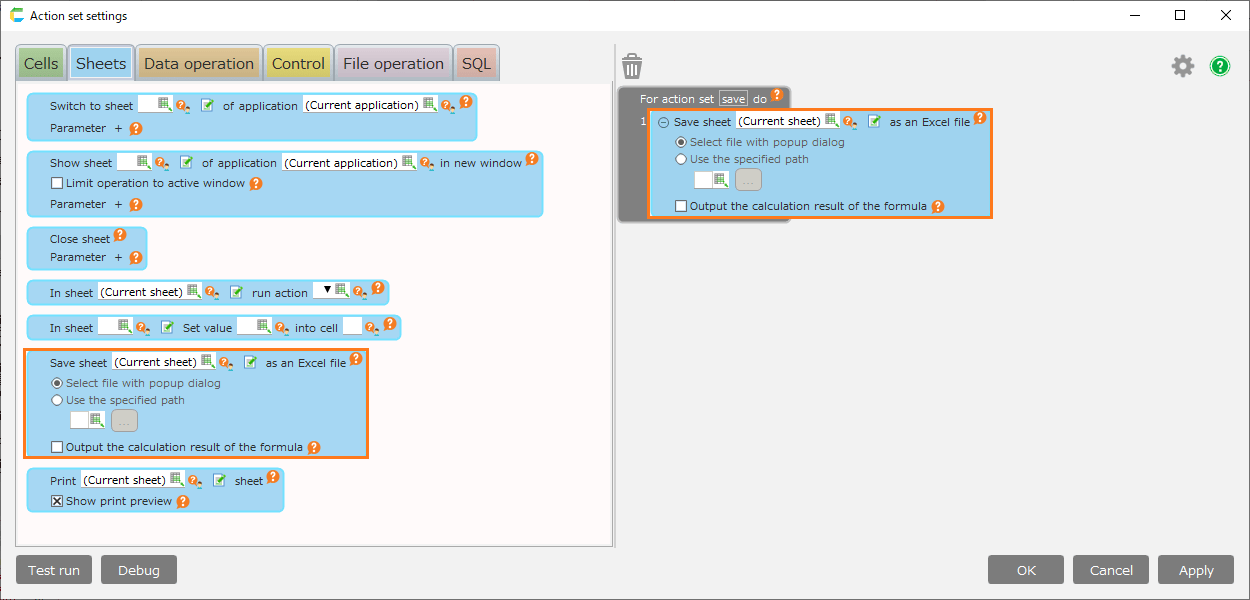
- To target another sheet in the application, click the 'Select sheet' button.
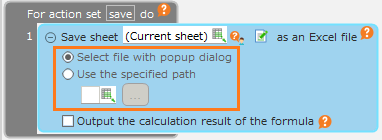
- Select the target sheet in the 'Select sheet' dialog, then click the 'OK' button.
Attention
When the action is executed, if the selected sheet does not exist in the application, this action will be skipped.
Tip
- The recorded cell addresses can be displayed by using the action 'In sheet[]: Get the [cells/rows/columns] with changed values'.
- To end the recording, execute the 'In sheet[]: End recording value changes' action or close the sheet.
- If you execute this action again without executing the 'In sheet[]: End recording value changes' action, the previous records will be discarded and recording will start from scratch.
Attention
The cells to be recorded are those whose values have changed after this action is executed.
Changes to cell formatting (such as display format) are not recorded.
For cells containing formulas, even if the formula’s evaluation result changes, it will not be recorded unless the formula itself is modified.
For example, if you enter '=A1' in cell B1 and change the value of cell A1, only cell A1 is recorded, and cell B1 is not recorded.Please note that only changes to 'the cell content itself' are recorded.
End sheet value change recording
- Open the 'Action set settings' dialog.
- Drag the 'In sheet[]: End recording value changes' action from the 'Sheet' tab and set it in the edit area.
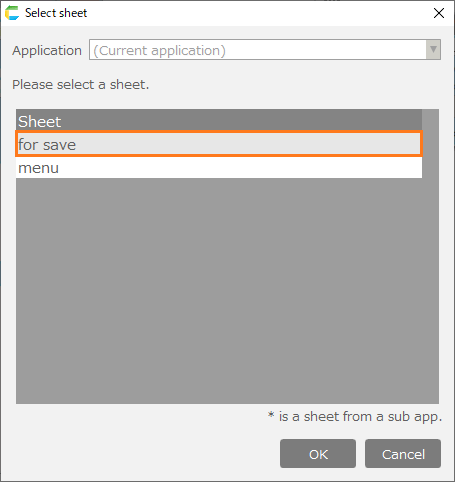
- To target another sheet in the application, click the 'Select sheet' button.
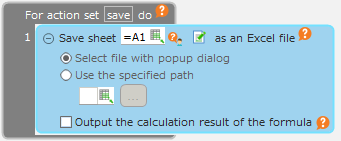
- Select the target sheet in the 'Select sheet' dialog, then click the 'OK' button.
Attention
When the action is executed, if the selected sheet does not exist in the application, this action will be skipped.
Attention
Get the cells with value changes from the sheet value change recording
- Open the 'Action set settings' dialog.
- Drag the 'In sheet[]: Get the [cells/rows/columns] with changed values' action from the 'Sheet' tab and set it in the edit area.
- To target another sheet in the application, click the 'Select sheet' button.
- Select the target sheet in the 'Select sheet' dialog, then click the 'OK' button.
Attention
When the action is executed, if the selected sheet does not exist in the application, this action will be skipped.
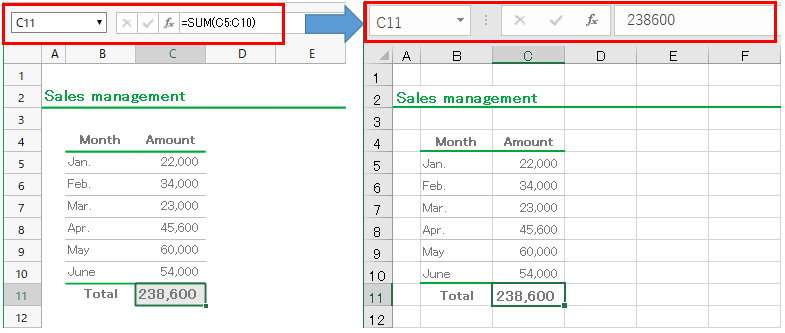
- Select the cell address type for retrieving changed cells.
Tip
Changed cells can be retrieved in 'Cell', 'Row', or 'Column' format.
If you specify row or column, the entire row or column containing the changed cells will be retrieved.
For example, if cells A1 and B1 have been changed and retrieved in 'Row' format, the output result will be row number '1'.
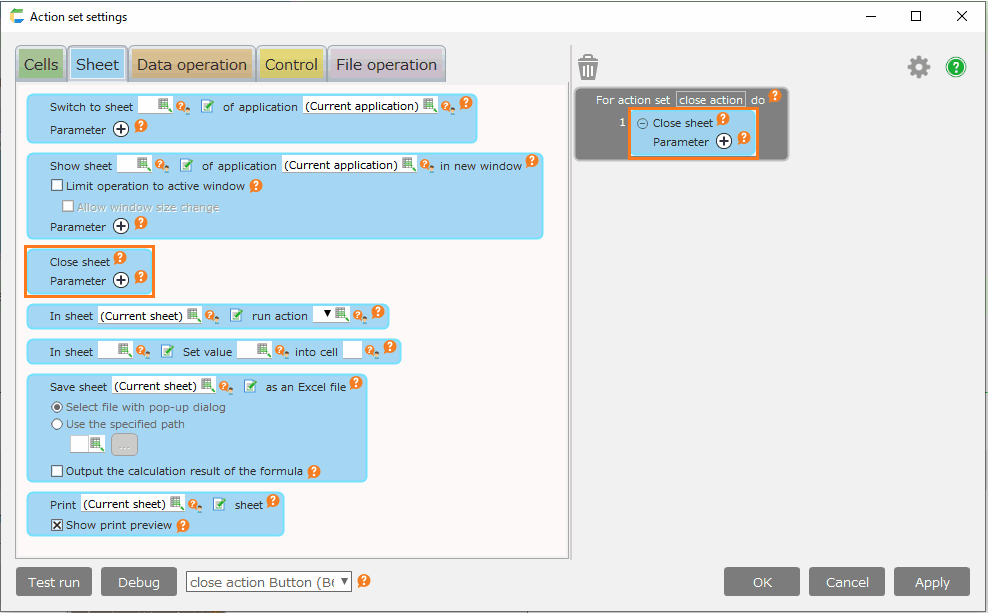
- To filter the cells to retrieve, check 'Get the cells with changes from the specified cells:'.
Tip
You can specify multiple ranges or single cell addresses separated by commas. For example, for a sheet with a list table, you can filter and retrieve only cells that have been changed inside the table or only cells that have been changed outside the table.
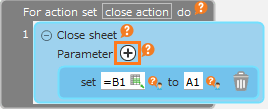
- Specify the destination cell for the output results.
Tip
Display the cells with changes, starting from the specified cell.
If you perform the following operations, the cell address of the retrieved result will be the location after the operation.
[When inserted a row (or column)]
If you insert a row before the changed cell address, the retrieved cell address will be the cell address after being shifted down.Example: If you change the value of cell A2 and insert a row at row 2, the retrieved cell address will be A3.
[When deleted a row (or column)]
If you delete a row before the changed cell address, the retrieved cell address will be the cell address after being shifted up.Example: If you change the value of cell A3 and delete row 2, the retrieved cell address will be A2.
Attention
Please note that if you delete the row (or column) of a changed cell, that cell address will not be included in the retrieved results.
[When filter sorting is applied]
If the changed cell address is sorted, the retrieved result will be the cell address after sorting.Example: If you change the value of cell A3 and perform a descending sort with filter, the retrieved cell address will be A2.