Publish an app
Set up app publishing
- Open the 'Web App Management' tab on the 'Manage' screen.
- Right-click on the app record you want to publish and select the 'Publication settings' menu.
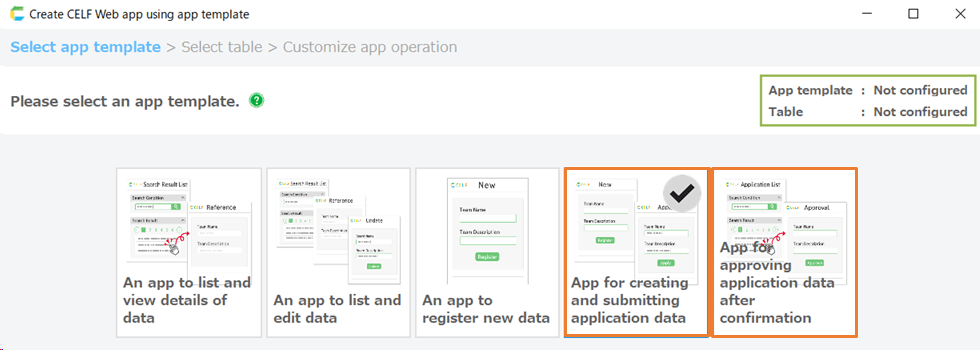
- In the 'Web App Publication Settings' dialog, set up the app publishing.
In the 'Web App Publication Settings' dialog, you can set up each of the two tabs.
'General' tab
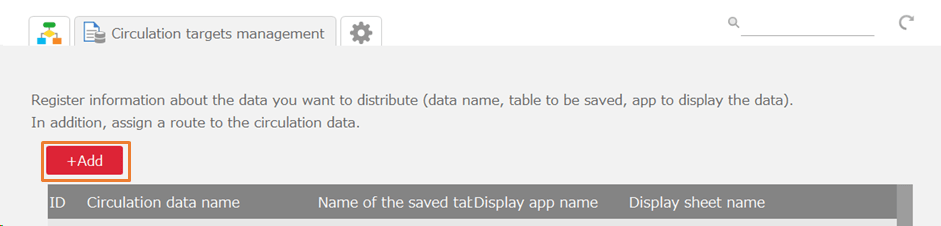 [1] Publication ScopeChoose whether to publish the app to everyone or to limit it to specific group(s).If you choose to limit publication to group(s), select the group(s) you want to publish to.
'Other' tab
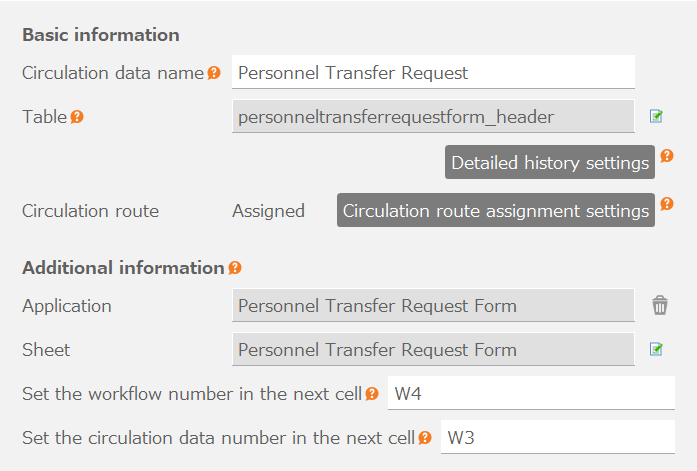 [2] Web App Link URLYou can use the URL displayed here to launch the app directly from a web browser without going through the menu screen.
Publish an app
- Open the 'Web App Management' tab on the 'Manage' screen.
- Click on the 'Publish' button of the app record you want to publish.
Tip
- To use the app, 'Web apps user' permission is required. For how to set 'Web apps user' permission, please refer to Register and Verify Users.
- App author could use this App without publishing it.
Unpublish an app
- Open the 'Web App Management' tab on the 'Manage' screen.
- Click on the 'Unpublish' button of the app record you want to stop publishing.
Modify an app
Open the 'Web App Management' tab on the 'Manage' screen.
Double-click on the app record you want to modify.
Tip
- Modifying the app only changes the operation of the app.
- If you want to change the template or table of an app, please delete the app first and then recreate it.
- If definition of table is changed, please delete the app first and then recreate it.
Delete an app
- Open the 'Web App Management' tab on the 'Manage' screen.
- Click the 'Delete' button of the app record you want to delete, or right-click and select the 'Delete' menu.
Export an app
The created app can be exported to a single file (.wapp) along with the definitions of tables used by the app and files uploaded by the app. The exported file can be used for backing up the app, migrating the app to other environments, or importing the app under a different name for duplication purposes.
- Open the 'Web App Management' tab on the 'Manage' screen.
- Select the app to export, right-click, and choose the 'Export' menu.

- Select the destination for the file (.wapp) to be exported.
See also
The data from tables used by the app needs to be exported separately. For exporting table data, refer to Export Table Data (CSV).
Attention
- When exporting the app that automatically answers questions, you need to separately export the tables (definitions and table data) configured as the knowledge data source.
Export Chat History
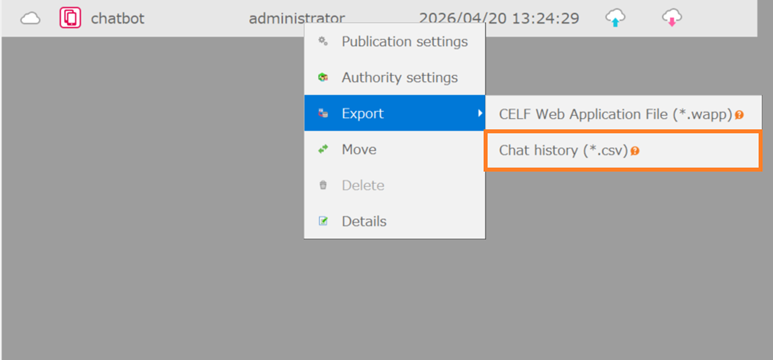
For an app that automatically answers questions, you can export chat history to a file (.csv).
- Open the 'Web App Management' tab on the 'Manage' screen.
- Select the app to export, right-click, and choose the 'Export' menu.
- Click 'Chat History (*.csv)'.
- Enter the start and end dates for the history to export. (Data can be exported for up to 60 days in the past.)
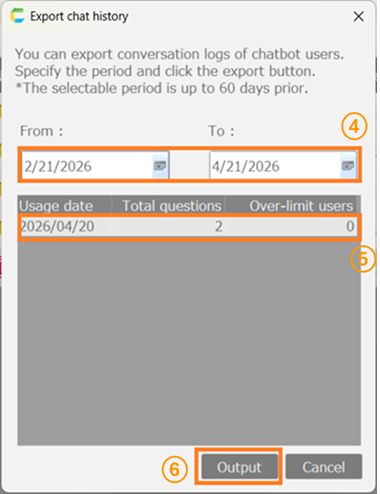
- Select the records to include in the export.
- Click the 'Export' button.
- Select the destination for the file (.csv) to be exported.
Tip
- The maximum download size is 10 MB.
- To open the exported chat history in Excel, go to the Data tab and select the file using 'Text or CSV'.
Hint
The exported file contains the following fields.
Field Description thread_id Thread ID use_id User ID timestamp Date and time of the chat (yyyy/mm/dd hh:mm:ss format) user_message User’s question answer_message Response text feedback Feedback on the response (good, bad) elapsed_time Response time failure_reason Reason for failure (output only when a chat interaction fails) vector_search_query Keywords used in vector search found_data_sources Knowledge data referenced during response generation
Import an App
You can import the exported Web app file (.wapp) to add the app, table definitions used by the app, and files uploaded by the app.
- Open the 'Web App Management' tab on the 'Manage' screen.
- Click the import icon next to '+New Web App'.
- Select the file (.wapp) to import.
- When the 'Import application' dialog appears, click the 'Execute' button.
Tip
- If you want to import the app with a different name, modify the 'Application name' entry before clicking the 'Execute' button.
- The files are added with the same 'File ID' as when exported. The 'Web App ID' will be replaced with the new app’s 'Web App ID'.
See also
The data from tables used by the app needs to be imported separately. For importing table data, refer to Import Table Data (CSV).
Attention
When importing an app that automatically answers questions, you need to reconfigure the knowledge used by the app.