Using Camera Feature
What is Camera Feature
The web app utilizes the camera function built into the browser, allowing you to select a photo taken by the camera or a saved image on the web app, and upload the image. The uploaded image can be displayed in the CELF app.

Using Camera Feature
To use the camera feature, specify 'Camera' when setting the input/display method of columns during app customization. 'Camera' can only be specified for String type data. Image uploaded using the camera feature will be assigned a 'File ID', and this 'File ID' is set as the data value in the column where 'Camera' is specified for input/display method.
Tip
- Columns specified with 'Camera' can only have 'Required' and 'File size limit' constraints as 'Input check'. And 'Master setup' cannot be configured.
- In master setup, the master column associated with the original table column cannot have 'Camera' specified as the input/display method. Other columns, including display columns, can be specified with 'Camera'.
- In 'Related Table Settings', the related table column associated with the original table column cannot have 'Camera' specified as the input/display method. Other columns can be specified with 'Camera'.
Take Photo with Camera
Columns specified with 'Camera' can be used to take photos or select saved images for upload on a new registration or update screen. Uploaded images can also be displayed on a search list or reference screen.
Note
- The method for taking photos or selecting saved images with Camera depends on the device or web browser.
- Supported image file formats are as follows.
BMP, GIF, JPEG, PNG, or TIFF
- The default file size limit for uploads is 2MB, with a maximum of 7MB.
Manage Uploaded Images
Uploaded images can be viewed using the 'Manage upload web files' button on the 'Web App Management' tab of the 'Manage' screen, which opens the 'Manage upload files' dialog.
Tip
- Images displayed in the list are limited to those uploaded through the Web app and made accessible to the logged-in user.
In the 'Manage upload web files' dialog, the following operations are available based on the logged-in user’s 'User authority' settings.
System administrator You can perform 'Update file', 'Change name', 'Save with a new name', and 'Delete' on all images. CELF & Web apps author You can perform 'Update file', 'Change name', 'Save with a new name', and 'Delete' on images uploaded through Web apps you created. Other Users Only 'Save with a new name' is possible.

Tip
- When deleting files, ensure there is no column that references the file ID assigned to the image.
Use Uploaded Images in CELF App
You can display the uploaded images on a CELF app sheet using the following steps.
- Click the 'File' button in 'Input format' in the sheet’s ribbon.
- Select the image file you want to display in the 'Web App Image' tab of the 'File selection' dialog.
- A 'WEB.IMAGE' function will be embedded in the sheet, displaying the image.
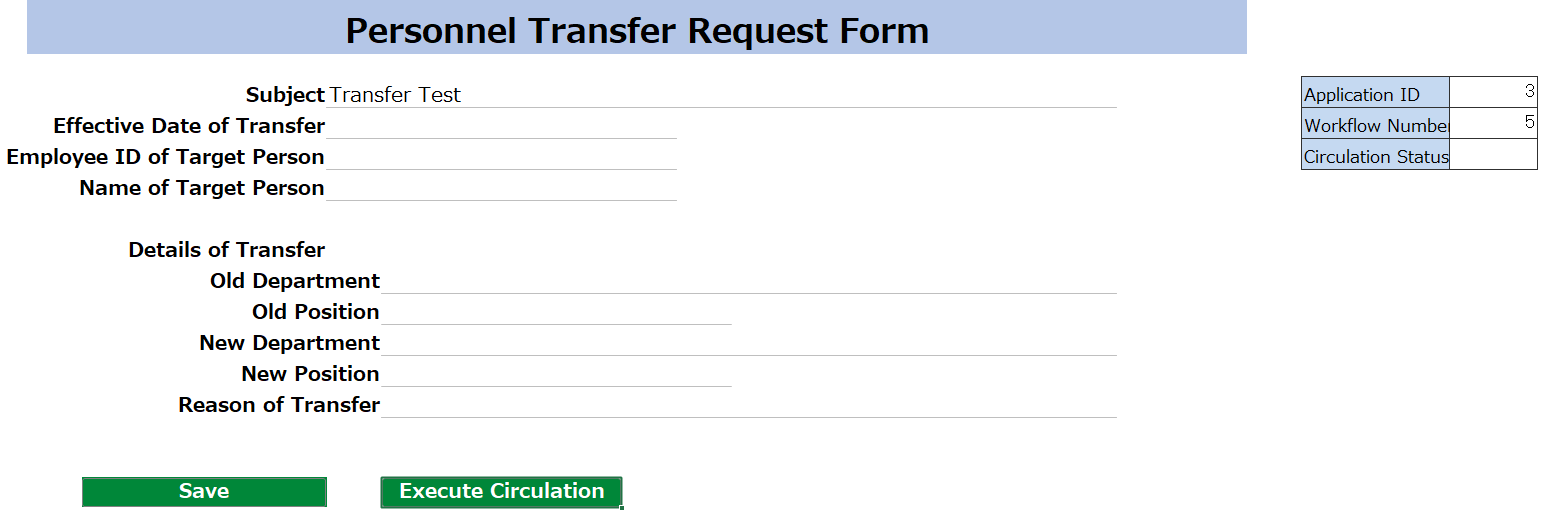
You can specify the following parameters with the 'WEB.IMAGE' function.
File ID This is the file ID of the image. Text to Set in Cell Specify the string to display on background of the cell. This parameter is optional. Fit Image to Cell Size If enabled (TRUE), the image will be displayed according to the cell size. This parameter is optional. Web App ID This is the ID of the Web app that uploaded the image. If not specified, the image with the lowest-numbered Web App ID among those matching the 'File ID' will be displayed.