Customize the app that automatically answers questions
This page describes how to customize the app that automatically answers questions.You can apply the following customizations to your chatbot.
- Change the App’s Answer Settings
- Knowledge Search Settings
- Configure Answer Settings
- Configure App Usage Restrictions
- Configure the Question Count Setting
- Configure the Restriction Message
- Configure the App Screen
Tip
The app will function without any customization. Since you can customize it later, try verifying the app’s behavior before making any changes.
Change the App’s Answer Settings
You can choose one of two options for the app’s answer settings.
The available detailed settings differ depending on whether you select 'Use AI-generated answers' or 'Use the original knowledge text as the answer'.
Knowledge Search Settings
- You can adjust the relevance threshold between 0 and 1.
- You can set the maximum number of knowledge entries retrieved for a user’s question, between 1 and 5.
Configure Answer Settings
When 'Use AI-generated answers' is selected
Specifies the AI model used to generate responses.
Click the icon next to it to configure the detailed AI settings.
You can specify the level of randomness used when selecting output candidates for the response.
The higher the value you specify, the greater the randomness.
You can specify the range of output candidates to retain as final candidates. A higher value includes a broader range of content.
The higher the value you specify, the broader the range of content included.
You can set how often the same words are repeated in answers. A higher value reduces repetition of the same expressions.
The higher the value you specify, the less repetition of the same expressions.
You can set the degree to which words that have appeared in an answer are suppressed from being reused. A higher value generates answers with more varied vocabulary.
The higher the value you specify, the more varied the words used in the generated response.
You can set a prompt to guide the answer generation.
You can configure role settings, tone, answer rules, and more.
- When 'Use the original knowledge text as the answer' is selected
You can set the response format in HTML for both cases: when knowledge at or above the configured threshold is found, and when it is not found.
Match Found
No Match Found
Hint
- Clicking the 'Insertable Parameters' button lets you copy the date, time, and number of knowledge entries retrieved to embed in the template text.
- When 'Match Found' is selected, you can copy the data names registered in the knowledge to embed in the template text.
Configure App Usage Restrictions
- You can configure whether to set a limit on the number of questions a user can ask.
Tip
- Each question counts as one execution of the AI license.
Configure the Question Count Setting
- You can set the maximum number of questions allowed per day.
Tip
- The question count resets at midnight each day.
- Each question counts as one execution of the AI license.
- If usage restrictions are disabled, the settings cannot be changed.
Configure the Restriction Message
You can set a warning message in HTML format to display when the question limit is reached.
Configure the App Screen
- You can change the screen settings for the app that automatically answers questions.
- You can click the 'Select' button to set the icon displayed when a response is shown on the app’s chat screen.

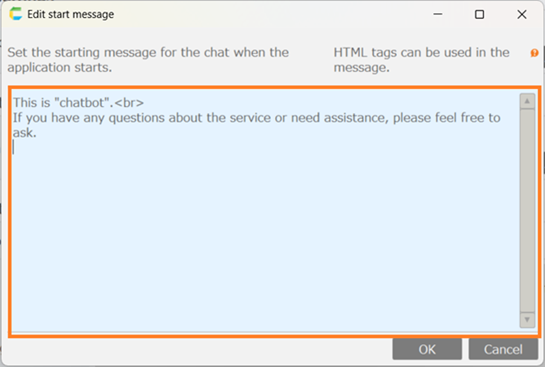
- Click the 'Edit' button to set the message displayed when a chat starts on the app’s chat screen.