Add an email sending function to the save screen
Add the email send function to the sheet on the save screen.
How to add the email sending function to the save screen is as follows.
[1] Open the sheet on the Save screen.
Open a sheet of the save screen where you want to add the email sending function.
[2] Add "Send Email" action
Modify the action set after the save is executed to send an email when a specific entry is saved.
Open the sheet on the Save screen
- Double-click the application you wish to add the email sending function to from the list of applications.
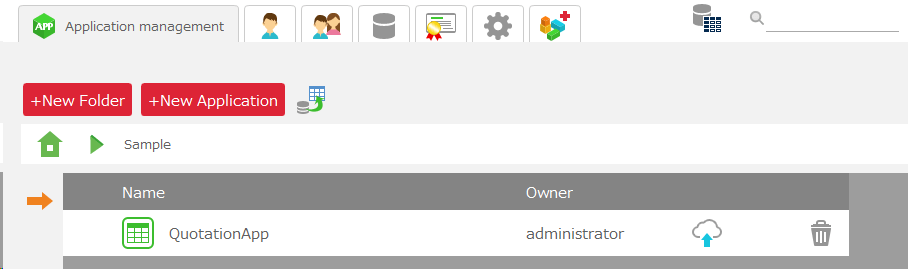
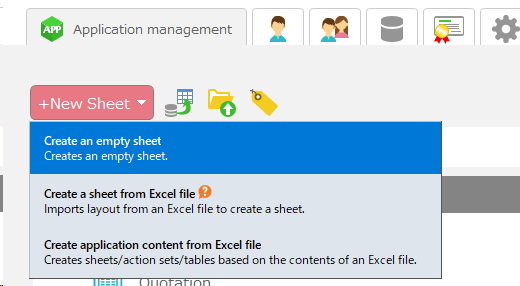
- Double-click on the sheet (main sheet) in the sheet list to which you want to add the mail sending function.
Add a "Send Email" action.
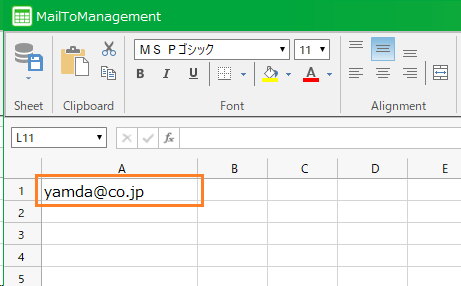
- Click on "Action Set Settings" from the ribbon at the top of the sheet to open the dialog.
Hint
The sheet described here is the sheet opened with Open the sheet on the Save screen .
- Double-click on the "Save_post" action set to open the "Action Set Settings" dialog.

- When the dialog opens, click on the "Control" tab and drag and drop the "Determine Conditions" action to add it.
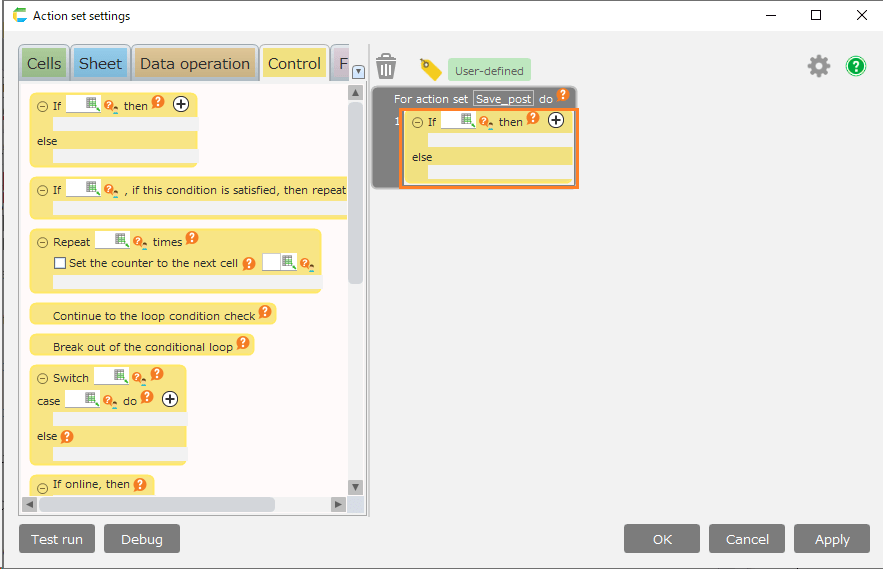
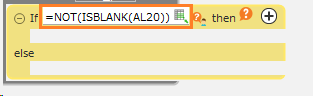
- Enter "NOT(ISBLANK([input item cell address]))" as the branching condition for the added "judge condition" action.
Hint
Specify the cell address of the input item that will trigger the e-mail transmission in the [input item cell address] field.
Tip
The formula in the figure determines whether the cell has a value.This formula sends an email only if a value was set in the target cell when the save was completed.If you wish to change the conditions under which mail is sent, you can specify various conditions by modifying this expression.
- From the "Data" tab, add the "Send Email" action by dragging and dropping it into the "If XX" section of the action added in 3.
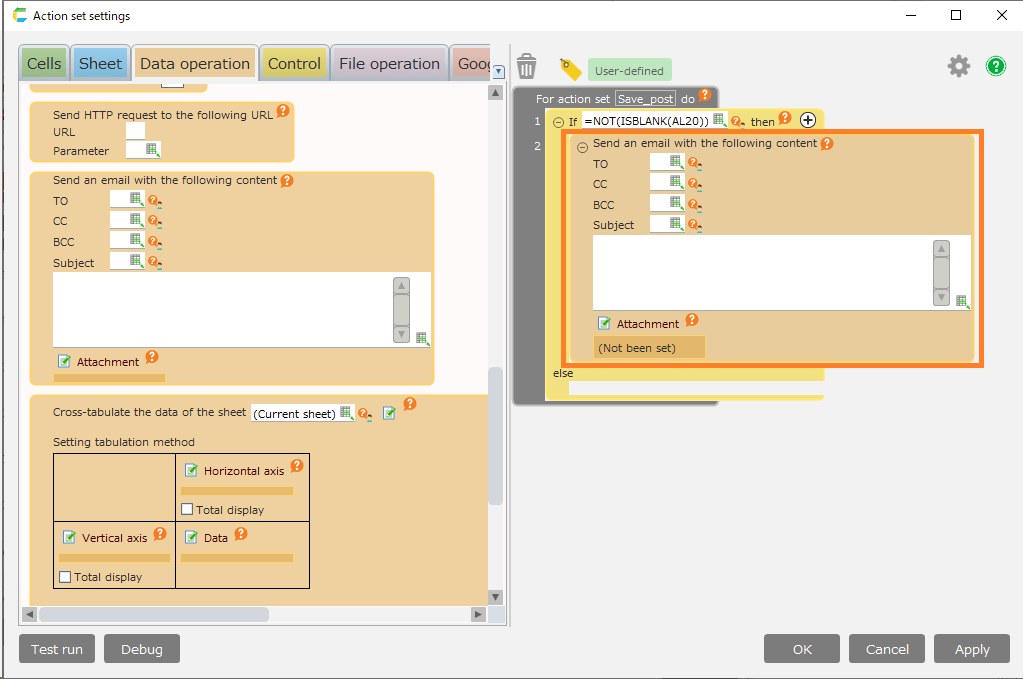
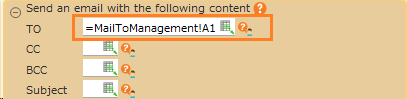
- Set the cell with the e-mail address in Create a sheet to manage email addresses to the destination of the "Send e-mail" action added in step 5.
Hint
If multiple email addresses are set in multiple cells, they can be specified using the UTIL.JOIN function.See "Using the UTIL.JOIN Function" in Send Mail for details.
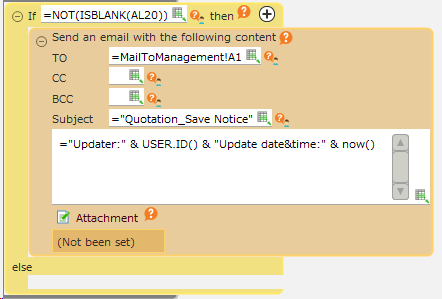
- Set the subject and body of the "Send Email" action added in step 5.
Tip
As an example here, the subject line is set to [="Quotation_Save Notice"] and the body is set to [="Updater:" & USER.ID() & "Date and time:" & now()].
- "USER.ID()" obtains the ID of the user currently logged into CELF
- "=NOW()" gets the current time.
Hint
The body of this email will contain the following information
- ID of the user who saved the "Quotation".
- Date and time you saved the "Quotation".
- This completes the editing of the action set. Click the "OK" button to close the dialog.
- Finally, click the "Save" button in the upper left corner of the sheet to save the sheet.